
GujRERA real estate agent account creation is the mandatory first step for any property broker or real estate agent who wants to operate legally in Gujarat under the RERA Act. Before a promoter can assign an agent to promote and sell units of a registered project, the agent must hold an active registration and a valid user account on the GujRERA RERA 2.0 portal.
This guide covers the new agent Sign Up flow — for agents whose entity was not registered under RERA 1.0. If your agent registration already exists under RERA 1.0, use the Agent Claim 1.0 option on the login modal instead (covered in a separate guide).
Table of Contents
- Before You Begin
- Step 1: Open the Portal and Click Sign Up
- Step 2: Enter Email, Mobile and Select Agent as User Type
- Step 3: Verify Your Email and Mobile via OTP
- Step 4: Select Agent Type and Fill the KYC Form
- Step 5: Add Directors and Submit
- After Submitting
- What You Can Do After Account Approval
- Common Issues
Before You Begin
Have the following ready before starting:
- Active PAN card of the agent entity (Company / LLP / Individual / Partnership / etc.)
- Registration certificate — CIN for Company, LLPIN for LLP, RoF No. for Partnership Firm
- Memorandum & Articles of Association (for Company and LLP)
- PAN cards and photographs of all Directors / Partners
- Income Tax Returns — ITR 1, ITR 2, ITR 3 (last 3 years — upload slots provided)
- Major Activities description of the agent business
- Active email address and mobile number (both will receive OTPs during signup)
- Company logo and colored PAN card scan (JPEG or PNG, clearly legible)
- Address Proof document
Existing RERA 1.0 agents: If your agent registration already exists in RERA 1.0, do not use Sign Up. Click Agent Claim 1.0 on the login modal to auto-fetch your existing data — a separate guide covers that process in detail.
Step 1: Open the Portal and Click Sign Up
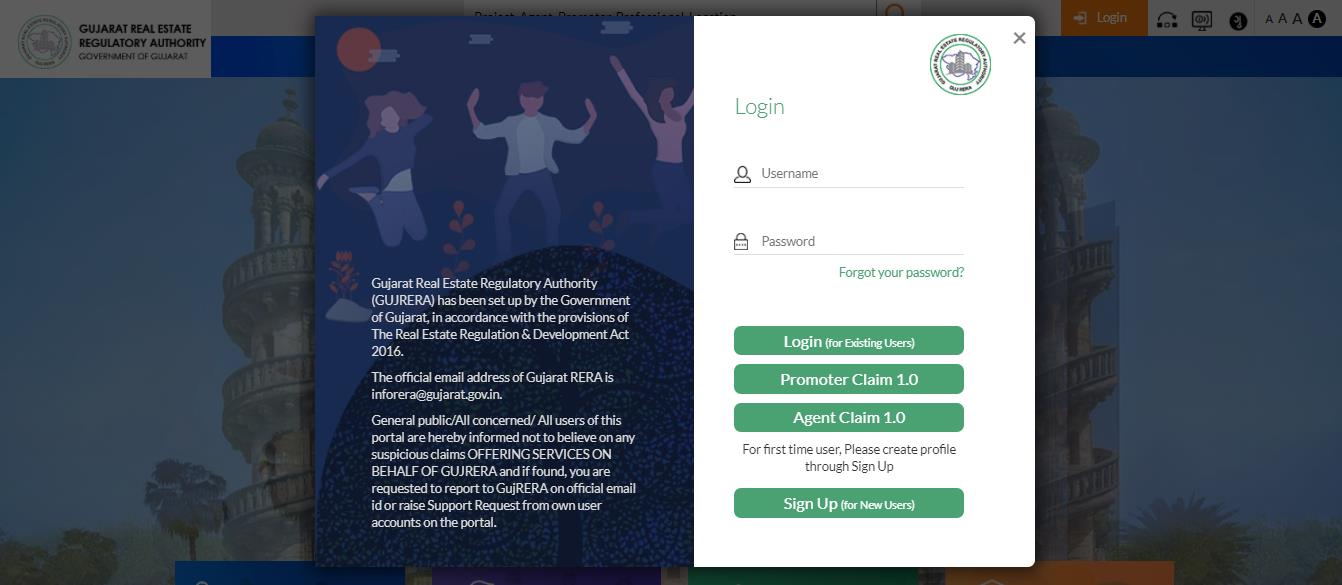
Open https://gujrera.gujarat.gov.in/. Click the orange Login button at the top right. In the login modal, click Sign Up (for New Users).
Step 2: Enter Email, Mobile and Select Agent as User Type
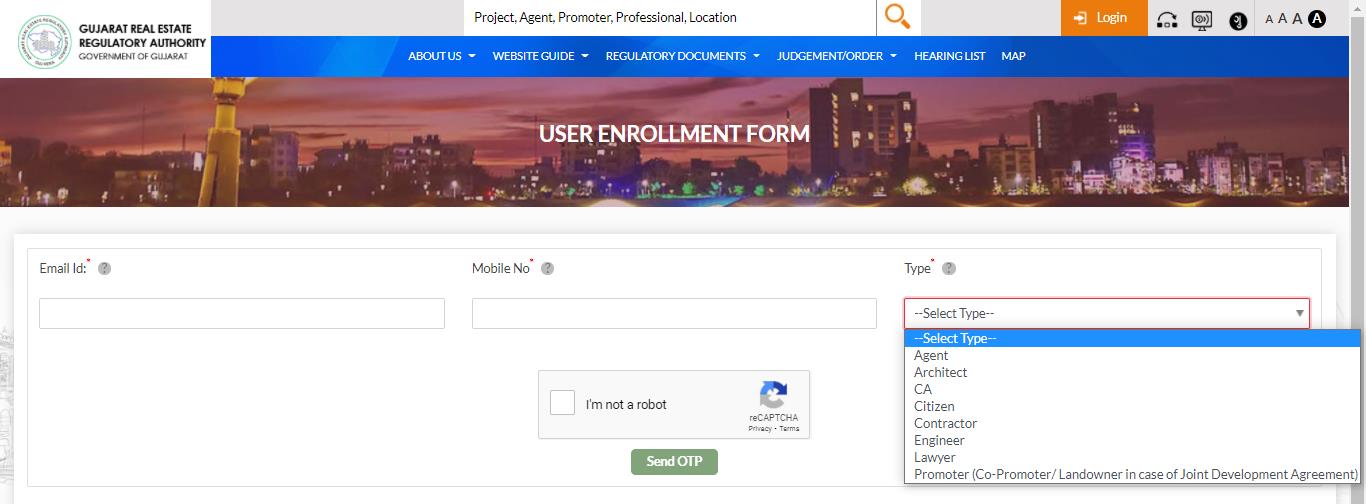
On the User Enrollment Form, fill in:
- Email ID* — your official business email; this becomes your permanent login credential
- Mobile No* — active number that can receive SMS
- Type* — select Agent from the dropdown
Complete the reCAPTCHA and click Send OTP.
Step 3: Verify Your Email and Mobile via OTP
Two One-Time Passwords are sent — one to your email and one to your mobile. Enter both in the OTP verification screen and click Submit.

Step 4: Select Agent Type and Fill the KYC Form
After OTP verification, the Agent Enrollment Form opens. The first field is Agent Type. Select the option that matches your legal entity structure:
- Company
- Individual
- Proprietorship Firm
- Partnership Firm
- Limited Liability Partnership (LLP)
- TRUST
- HUF (Hindu Undivided Family)
- AOP (Association of Persons)
- BOI (Body of Individuals)
- AJP (Artificial Judicial Person)
- Competent Authority / Government
After selecting the Agent Type, the form updates to match your entity. Fill all mandatory fields (marked with *):
KYC Section (Company type example):
- Company PAN No* — auto-fetches Company Name
- Company Name* (auto-filled)
- Company Email ID*, CIN Number*, Mobile No*
- Date of Incorporation* (as per PAN)
- Address Line 1*, Address Line 2 (business address preferred)
- Major Activities* — describe the primary agent/brokerage activities
- Fax No, Landline No
- Pincode* → auto-fills State, District, Taluka
- State*, District*, Taluka*
Required document uploads:
- CIN Registration Certificate*
- Memorandum & Articles of Association*
- Colored PAN Card*
- Company Logo
- Address Proof


Step 5: Add Directors and Submit
Directors / Partners section
For each Director (Company), Partner (Partnership / LLP), or applicable member per your entity type, enter:
- PAN No* — First and Last Name auto-fetch from PAN
- Middle Name, Address Line 1*, Address Line 2
- Mobile No*, Pincode*, State*, District*, Taluka*
- Email ID*
- Colored PAN Card* (upload), Photograph* (upload)
Click Add after each entry to add them to the list. Repeat for all Directors / Partners.
Income Tax Returns:
- Upload slots for ITR 1, ITR 2, ITR 3 (last 3 years of income tax returns)
LLP entities with Company or LLP partners: Non-individual partners must first create their own Agent user accounts on the GujRERA portal. Once enrolled, add them here by searching their PAN number — all details auto-fill.
Read the Declaration and click Create User.

After Submitting
Clicking Create User sends your enrollment application to GujRERA for verification and approval. If any information is missing or needs correction, GujRERA will raise a query on your registered email ID.
Your Agent User Account login credential is your Email ID — once approved, use it (along with your password) to log in to the GujRERA RERA 2.0 portal.
What You Can Do After Account Approval
Once your Agent account is active and approved:
- Apply for Agent Registration — submit your RERA agent registration application along with the prescribed fee
- Get assigned to projects — promoters can assign your agent entity to their registered projects, enabling you to legally market and sell units
- File Agent Annual Returns — submit the annual returns as required under the RERA Act
Common Issues
PAN not recognized: Ensure the PAN is active and follows the correct format for your entity type. Company PANs follow the format AAACA1111A; individual PANs follow AAAPA1111A.
CIN/LLPIN/RoF number not accepted: Ensure the registration number format matches exactly what is on your registration certificate issued by the competent authority. For Companies, use the CIN from MCA records.
LLP company partner not showing in PAN search: Non-individual LLP partners (other companies, LLP entities) must first create their own GujRERA Agent user accounts before they can be found by PAN search.
Email or mobile OTP not received: Check your spam folder for the email OTP. Ensure the mobile number entered is active and can receive SMS. Both OTPs must be submitted within the session timeout.