
How to Create a Support Request on GujRERA Portal — Step-by-Step Guide
The Support Request feature on the GujRERA portal allows any registered user — citizen, promoter, or professional — to raise a query or report an issue directly with a GujRERA department. Tickets are tracked online, responded to by department officers, and can be escalated if the response is unsatisfactory.
Official Reference: This guide is based on the GujRERA User Manual – Grievance Redressal – External Users (V.0.1), Section 6 — Support Request, Pages 48–52.
Official portal: https://gujrera.gujarat.gov.in/#/website-guide/grievance-redressal
Common use cases for Support Requests:
- General queries about project registration, agent registration, or QPR/Form 5 compliance
- Reporting a non-registered real estate project to the Authority
- Requesting a payment refund (use Request Type: Refund Request)
- IT or login issues
- Queries about legal procedures, notices, or agreements
Table of Contents
Step 1: Click "Create Support Request" from Your Dashboard
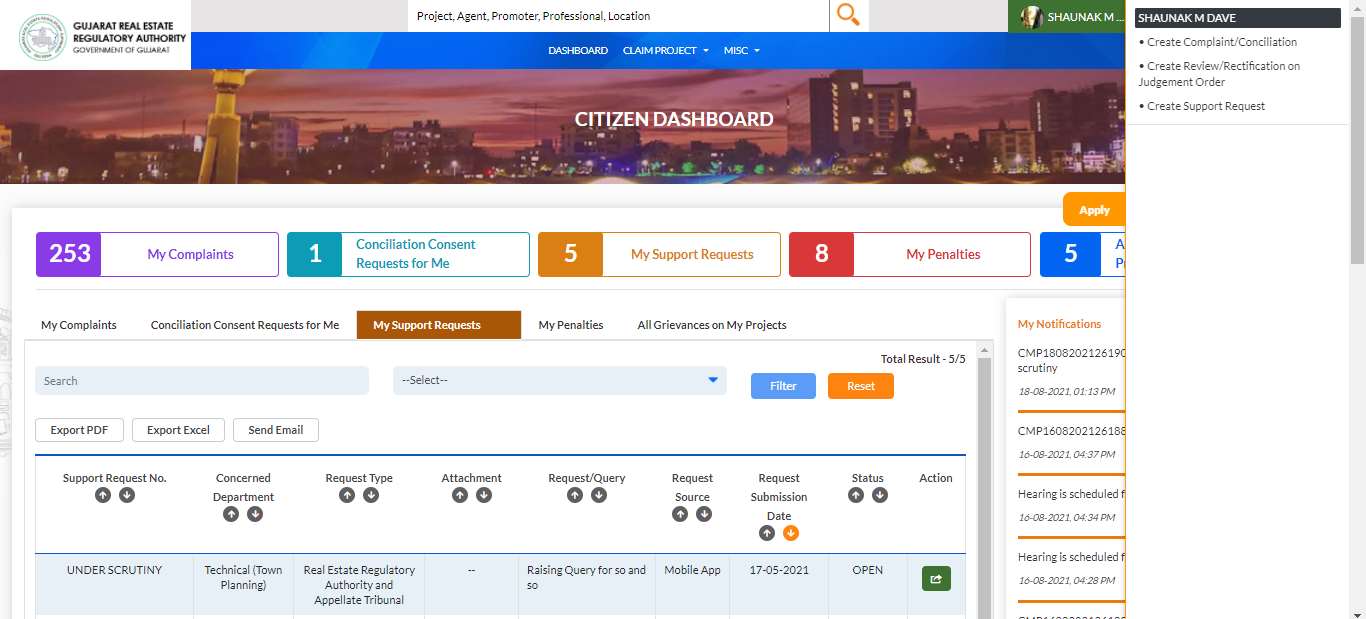
Log in to the GujRERA portal. On any dashboard (Citizen, Promoter, or Professional), look for the Apply quick-links panel on the right side. Click "Create Support Request".
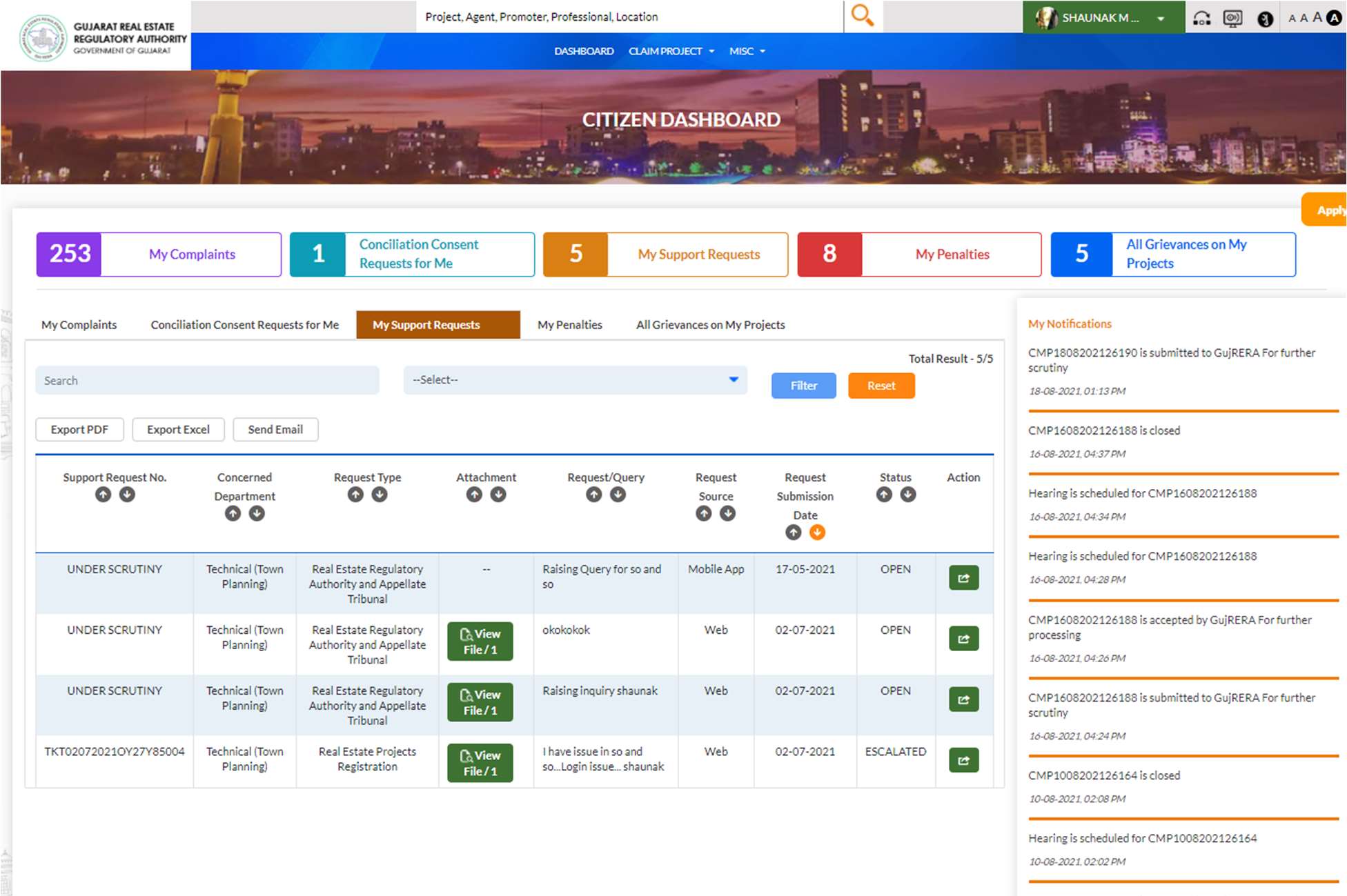
The My Support Requests tab on your dashboard shows all your existing tickets, with columns for Support Request No., Concerned Department, Request Type, Attachment, Request/Query, Request Source, Request Submission Date, Status, and Action.
Step 2: Fill the Create Support Request Form
Clicking "Create Support Request" opens a popup modal with four fields:
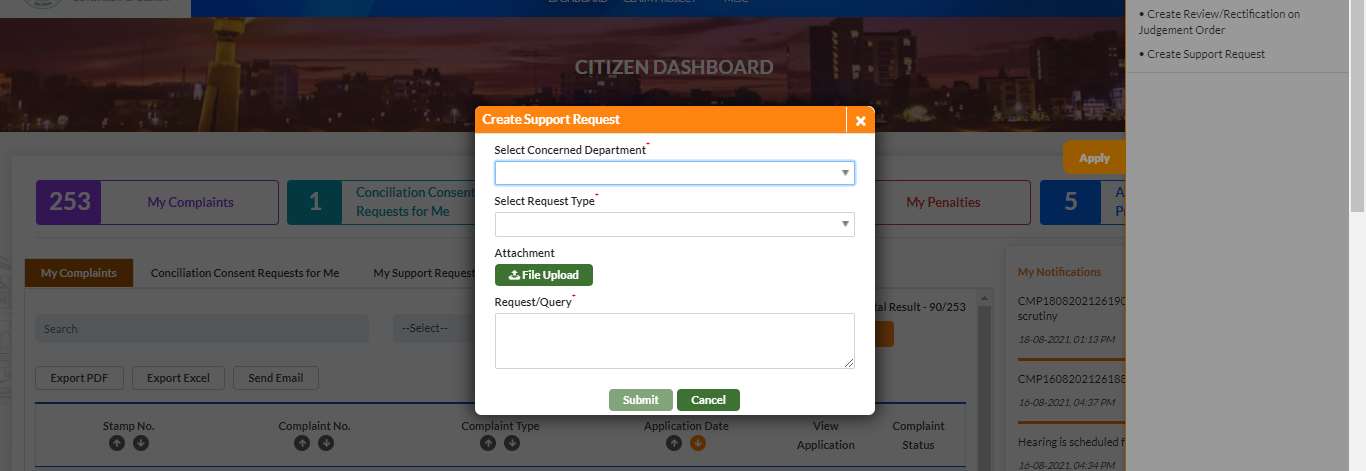
Select Concerned Department* (dropdown — select one):
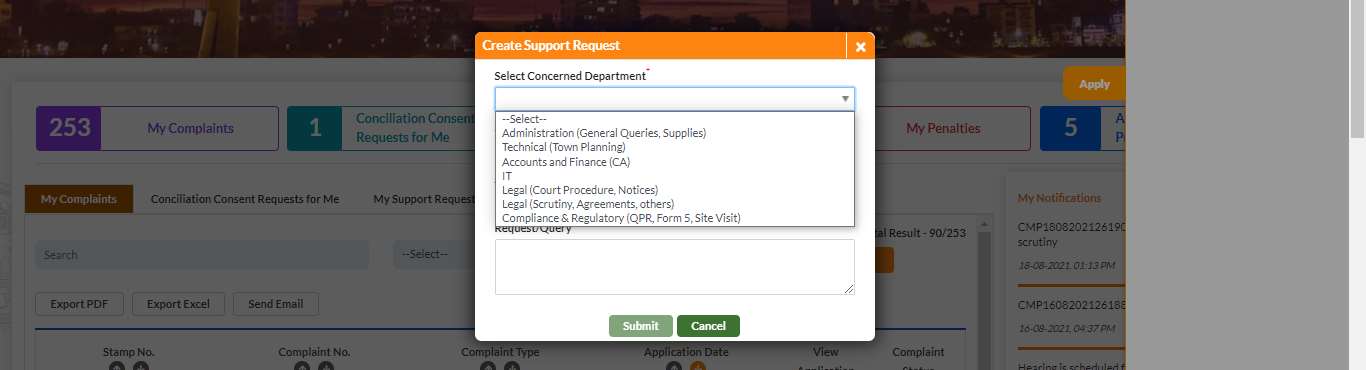
| Department | Use For |
|---|---|
| Administration (General Queries, Supplies) | General queries, office administration |
| Technical (Town Planning) | Technical queries, town planning matters |
| Accounts and Finance (CA) | CA-related financial queries |
| IT | Portal login issues, technical glitches |
| Legal (Court Procedure, Notices) | Court procedure and notice queries |
| Legal (Scrutiny, Agreements, others) | Agreement scrutiny, legal services |
| Compliance & Regulatory (QPR, Form 5, Site Visit) | QPR filing, Form 5, site visit scheduling |
Select Request Type* (dropdown — options vary by department):
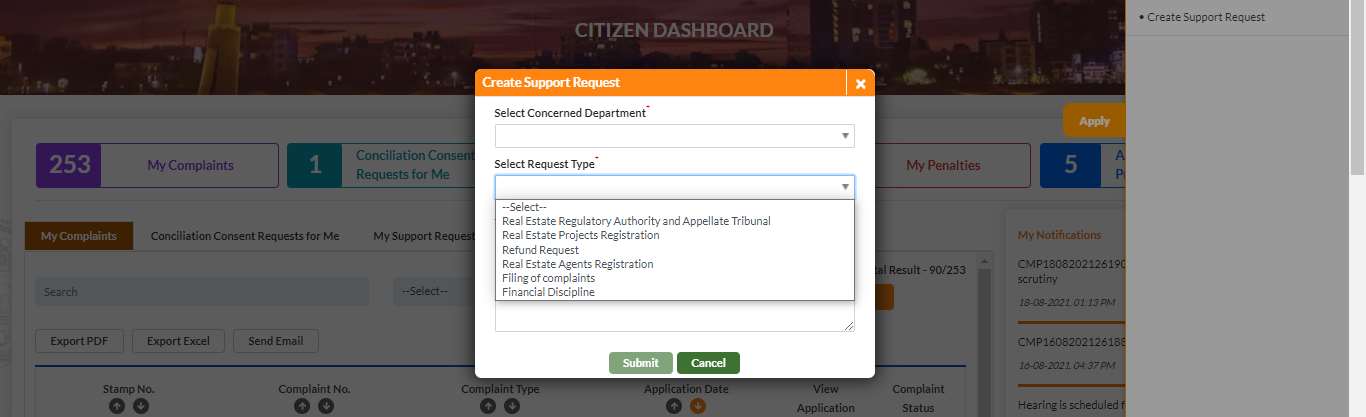
| Request Type | Use For |
|---|---|
| Real Estate Regulatory Authority and Appellate Tribunal | Authority/AT queries |
| Real Estate Projects Registration | Project registration queries |
| Refund Request | Payment refund requests |
| Real Estate Agents Registration | Agent registration queries |
| Filing of complaints | Complaint filing process queries |
| Financial Discipline | Financial regulation matters |
Attachment (optional): Upload a supporting file (JPEG, JPG, PNG, or PDF accepted).
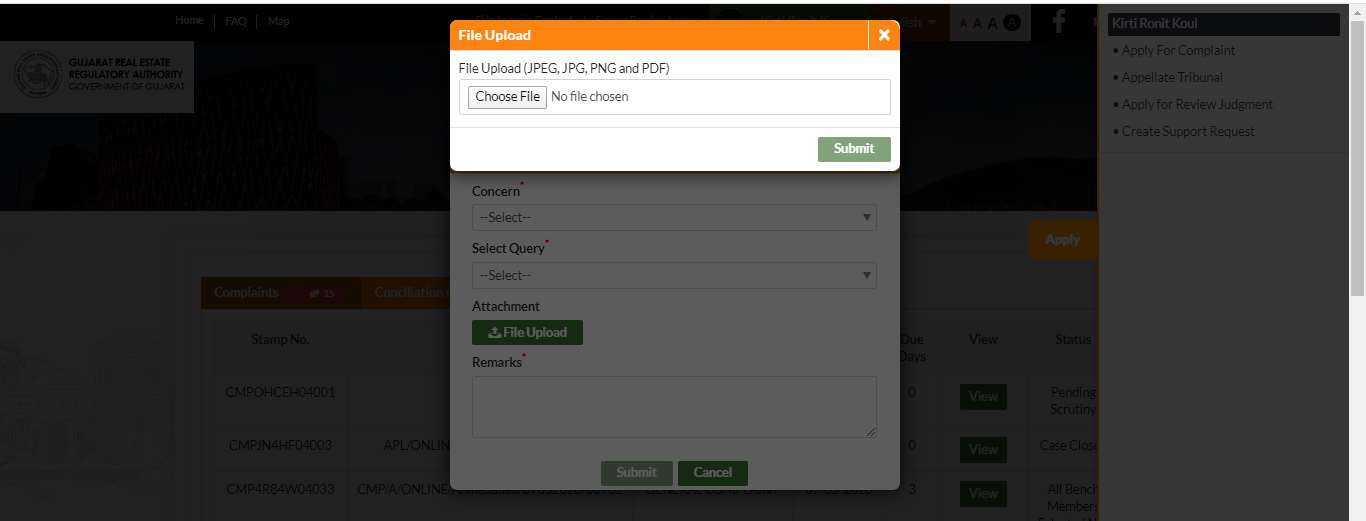
Request/Query* (textarea): Describe your query or issue clearly.
Click Submit to create the ticket.
Step 3: Track Your Support Request
After submission, your ticket appears in the My Support Requests tab on your dashboard. Newly created tickets show as UNDER SCRUTINY until the department assigns a formal ticket number.
Once processed, tickets receive a Support Request Number in the format: TKTThu, 23 Jul 2026 21:07:31 +0000[sequence]
Example: TKT020720210Y27Y85004
Tickets can be submitted via Web or Mobile App — the Request Source column indicates the submission channel.
Status values:
- OPEN — ticket is being reviewed by the department
- ESCALATED — user has submitted a dissatisfied feedback and the ticket has been escalated
Step 4: View Ticket Details and Authority Response
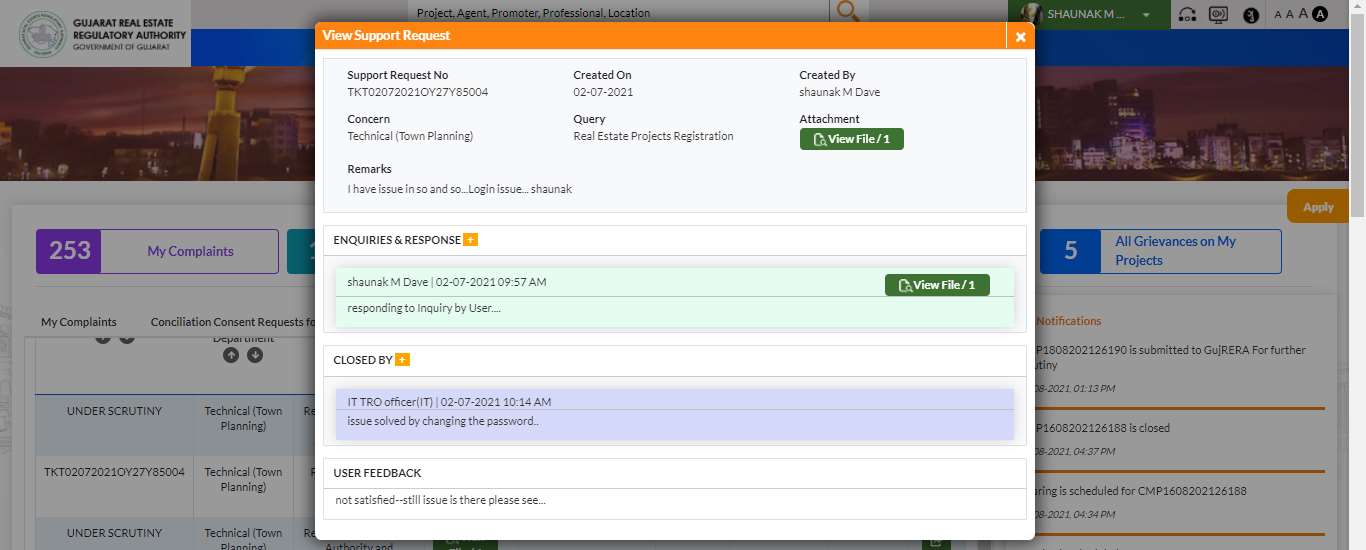
Click the View button (arrow icon) next to any ticket to open the View Support Request popup. This shows:
- Support Request No., Created On, Created By
- Concern (department), Query (request type), Attachment (View File)
- Remarks — your original query text
- ENQUIRIES & RESPONSE — timeline of all authority responses with timestamps and attachments
- CLOSED BY — closing officer name, department, timestamp, and closing remarks
- USER FEEDBACK — satisfaction radio and Remarks field
Step 5: Submit Satisfaction Feedback
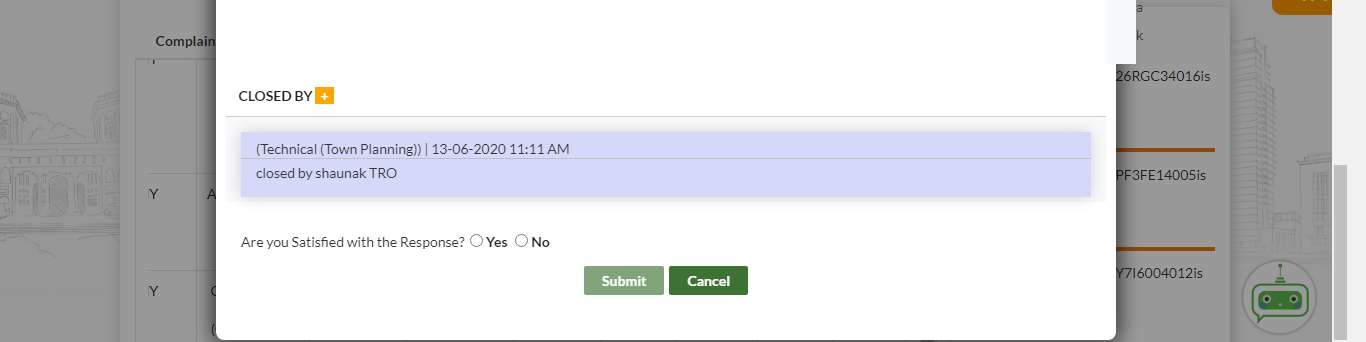
After the authority closes your ticket, the USER FEEDBACK section appears in the View popup with the question: "Are You Satisfied with the Response?"
Select Yes or No and click Submit.
Step 6: Escalate If Unsatisfied
If you select No, a Remarks* field appears. Enter your reason for dissatisfaction and click Submit.
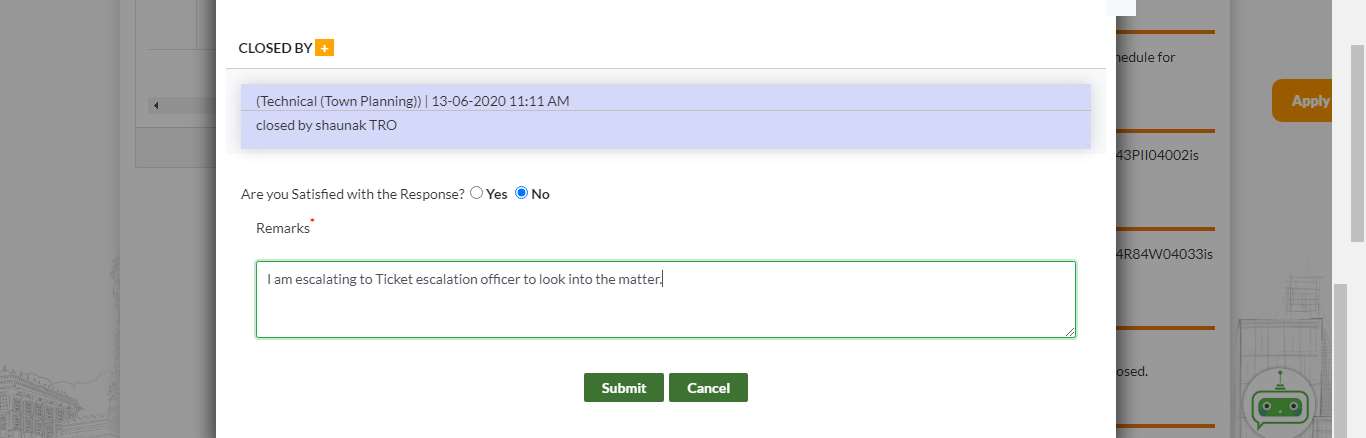
After submission, a confirmation popup appears:

After escalation, the ticket status changes from OPEN to ESCALATED and is assigned to a Ticket Officer for review.
Common Issues
Ticket stuck as UNDER SCRUTINY: Newly submitted requests are reviewed before a TKT number is assigned. If the status remains UNDER SCRUTINY for an extended period, submit a new support request referencing the original query.
Cannot find the department or request type for your issue: Select the closest matching department. You can use the Request/Query text field to describe the specific topic. If uncertain, use Administration (General Queries, Supplies) for broad inquiries.
Attachment not accepted: Supported formats are JPEG, JPG, PNG, and PDF only. Convert other file types before uploading.
Official Reference
This guide is based on the official GujRERA portal documentation:
Manual: GujRERA User Manual – Grievance Redressal – External Users (V.0.1)
Section: 6 — Support Request
Pages: 48–52
Official Portal Guide: https://gujrera.gujarat.gov.in/#/website-guide/grievance-redressal