
How to File a Defect Liability Complaint on GujRERA Portal — Step-by-Step Guide
Under the Real Estate (Regulation and Development) Act, 2016, allottees have the right to raise a Defect Liability complaint against a promoter for structural defects or poor workmanship for a period of 5 years from the project end date. GujRERA allows allottees to file these complaints online through the eCourt module.
Official Reference: This guide is based on the GujRERA User Manual – Grievance Redressal – External Users (V.0.1), Section 5 — Complaints During Defect Liability, Pages 39–47.
Official portal: https://gujrera.gujarat.gov.in/#/website-guide/grievance-redressal
5-Year Eligibility Window: Defect Liability complaints can only be filed within 5 years of the project end date as registered on GujRERA. Complaints outside this window will not be accepted.
Claim Project First: Before you can file a Defect Liability complaint, you must complete the Claim Project step to link your allotment to your GujRERA account. This is a one-time process per project unit.
Table of Contents
- Prerequisites
- Step 1: Access the Claim Project Option from Your Dashboard
- Step 2: Fill the Claim Project Form
- Step 3: Verify OTP
- Step 4: View Your Claimed Project and Access Defect Complaint
- Step 5: Fill the Defect Liability Complaint Registration Form
- Step 6: Pay the Application Fee (₹1,000)
- Step 7: Confirmation and Defect Liability Stamp Number
- Step 8: Track Your Complaint on the Dashboard
- Step 9: View the Full Application via eCourt
- Common Issues
- Official Reference
Prerequisites
- You must be a registered GujRERA portal user (citizen account).
- You must have a valid allotment in a RERA-registered project.
- The project must be within its 5-year Defect Liability period.
- You need your Project Registration Number, Block Name, KYC document (PAN / Passport / Driving License), and Flat/Unit number for the Claim Project step.
- Filing fee: ₹1,000 (paid online via SBI ePay or HDFC).
Step 1: Access the Claim Project Option from Your Dashboard
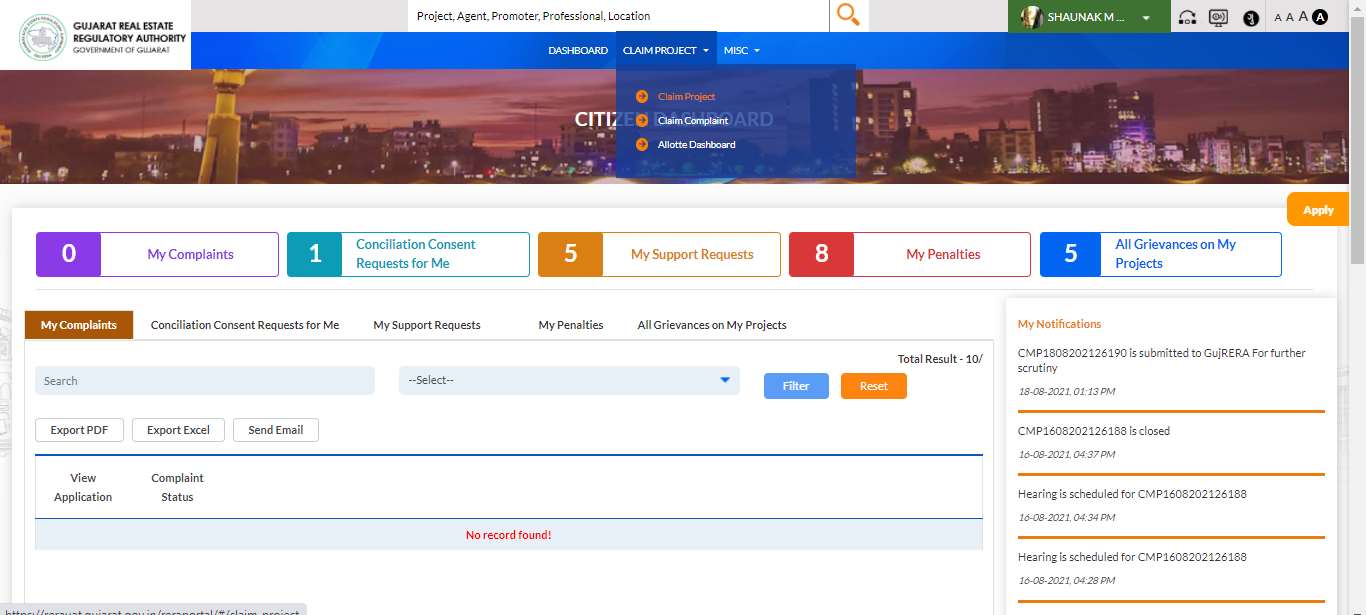
Log in to the GujRERA portal. On the top navigation bar, click CLAIM PROJECT to expand the dropdown menu. Select Claim Project.
Step 2: Fill the Claim Project Form
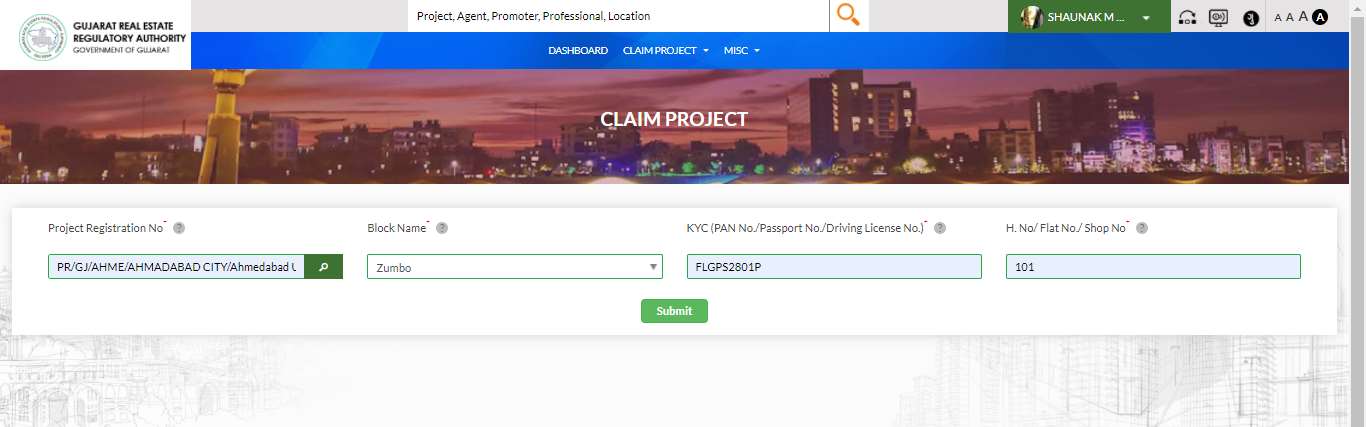
The CLAIM PROJECT form requires four details to verify your allotment:
| Field | Notes |
|---|---|
| Project Registration No.* | Use the search button to look up by project name or promoter |
| Block Name* | Select from dropdown |
| KYC (PAN No. / Passport No. / Driving License No.)* | Any one valid KYC document number |
| H. No. / Flat No. / Shop No.* | As registered with the promoter at time of booking |
Click Submit to send an OTP for verification.
Step 3: Verify OTP
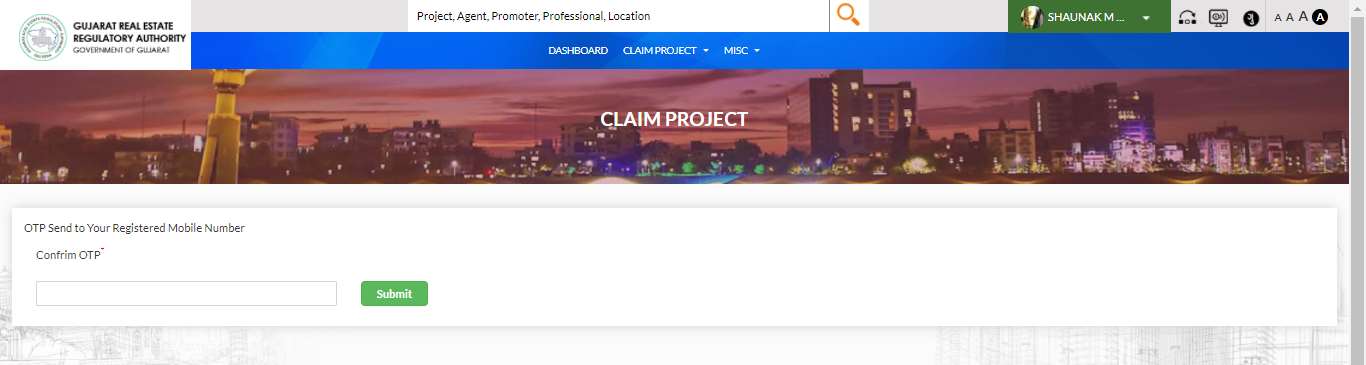
After submitting the Claim Project form, an OTP is sent to the mobile number you registered with the promoter at the time of booking (not necessarily your GujRERA portal mobile number).
Enter the OTP in the Confirm OTP* field and click Submit.
Step 4: View Your Claimed Project and Access Defect Complaint
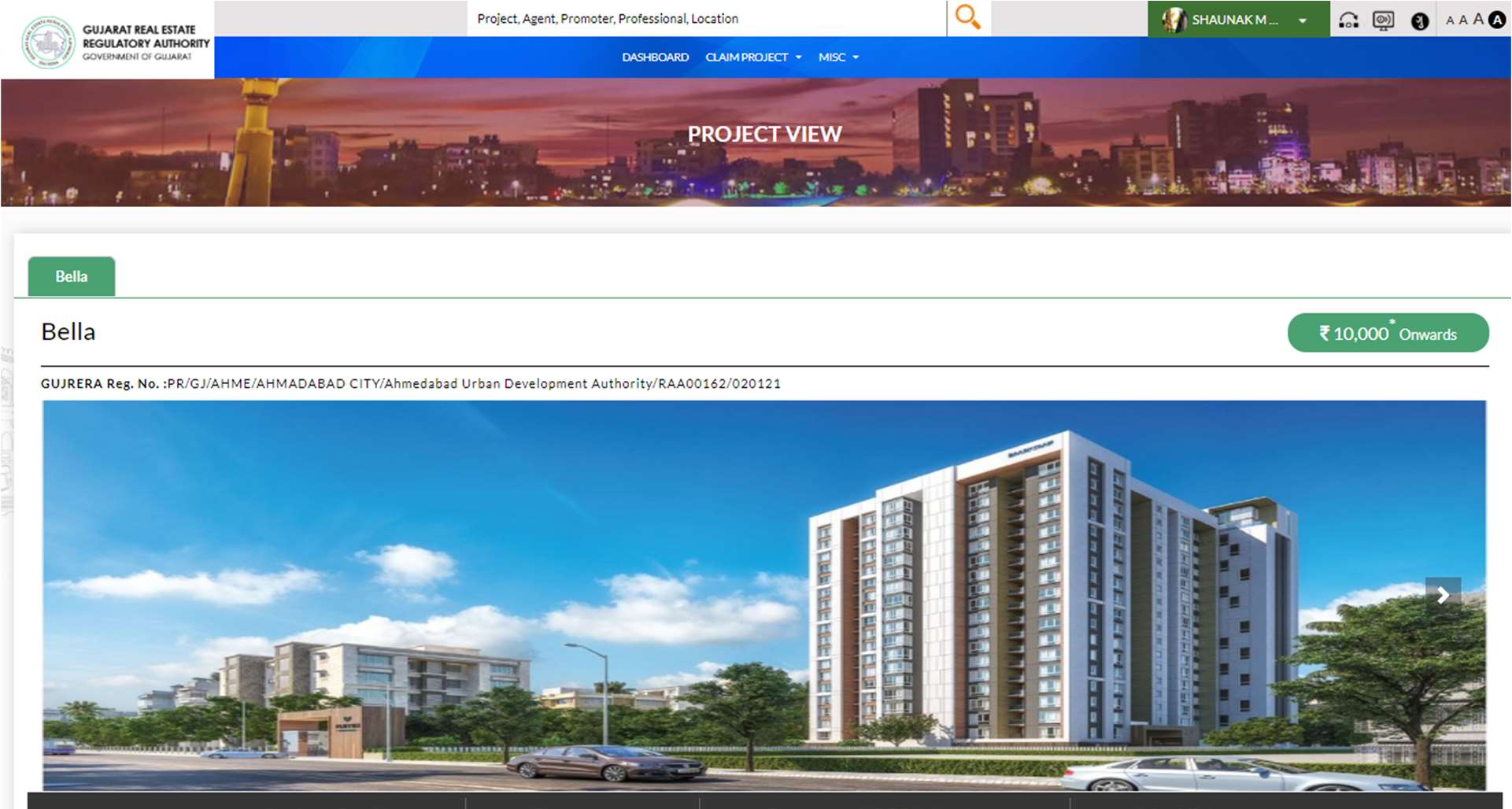
After OTP verification, the project is linked to your GujRERA account. You can now view it in the Allottee Dashboard under CLAIM PROJECT.
Click on any claimed project to open the PROJECT VIEW, which shows the full project profile along with your allotment details.
From the Allottee Dashboard, your claimed projects appear as cards. Click More Details on the relevant project.
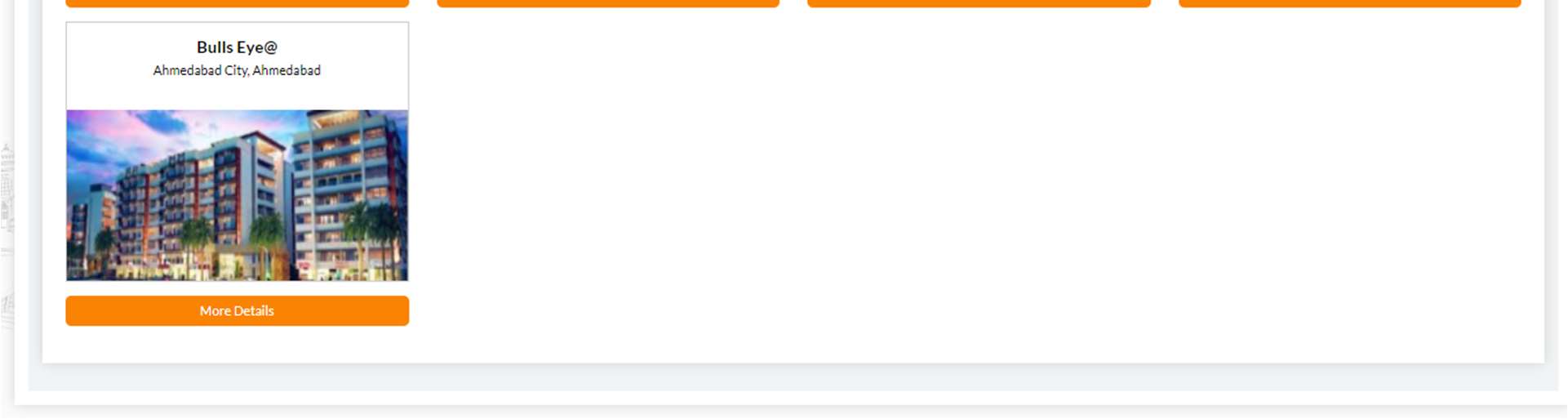
Inside Project View, go to the My Allotment tab. Your allotted unit details are displayed there, along with the "File Defect Liability Complaint" orange button in the top-right corner. Click it to begin the complaint form.
Step 5: Fill the Defect Liability Complaint Registration Form
The Defect Liability Complaint Registration form opens with project details auto-filled:
Project Details (auto-filled, read-only):
- RERA Registration No., Project Name, Project Pin Code, District, Taluka, Project Address
FORM TYPE (radio — select one):
- FORM-A — Complaint to Regulatory Authority under Section 31 of the Act
- FORM-B — Application to Adjudicating Officer (claim for compensation under Section 31 read with Section 71)
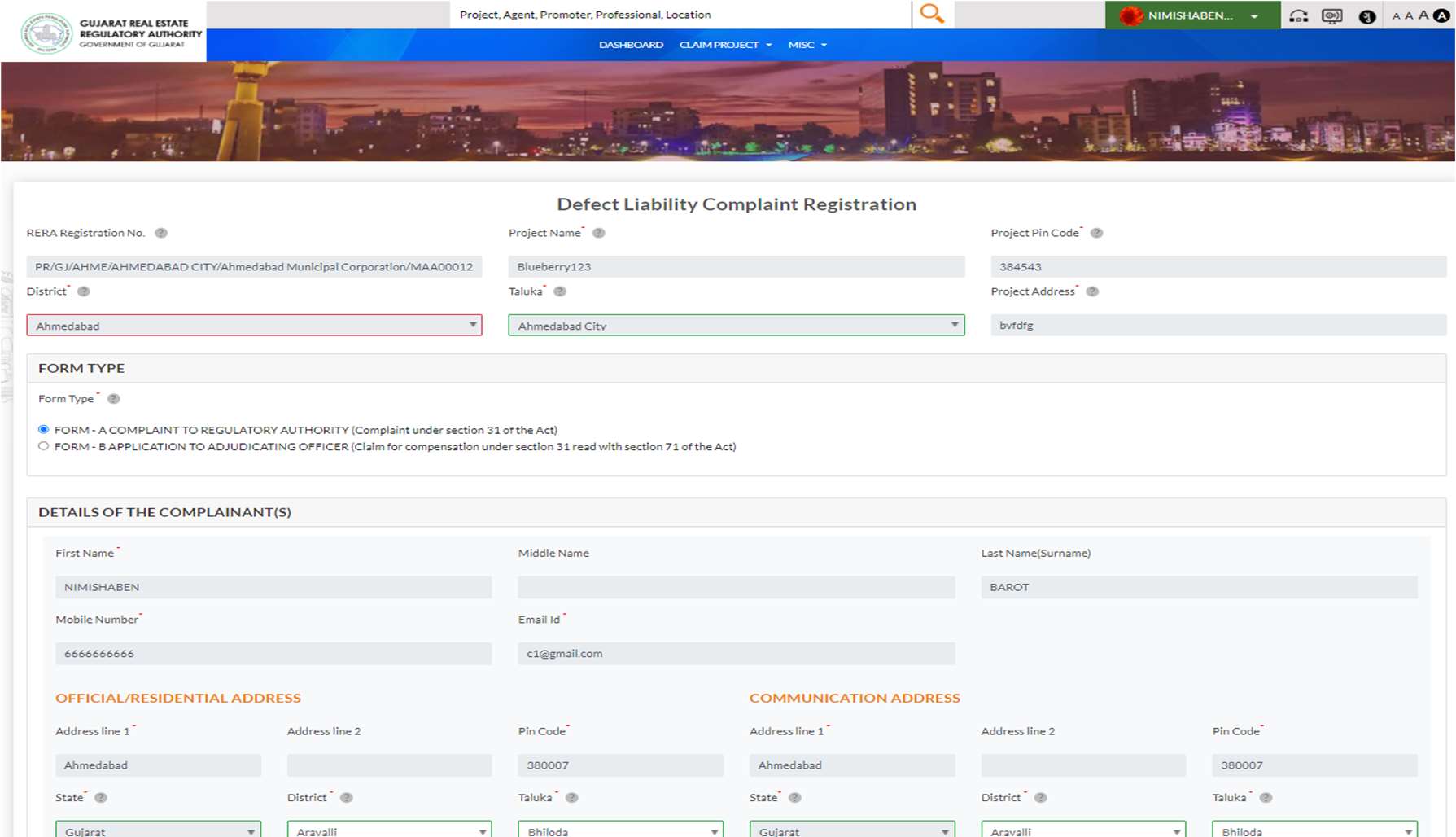
DETAILS OF THE COMPLAINANT(S):
| Field | Required |
|---|---|
| First Name, Middle Name, Last Name | Yes* |
| Mobile Number | Yes* |
| Email Id | Yes* |
| Official/Residential Address (Address 1, Pin Code, State, District, Taluka) | Yes* |
| Communication Address | Yes* (or tick "Same as Residential") |
DETAILS OF THE RESPONDENT(S): Auto-filled from project records (housing society Secretary or Authority). Additional respondents can be added manually or by searching their registered email.
DETAILS OF THE DEFECT:
| Field | Required | Notes |
|---|---|---|
| Subject of Defect | Yes* | Brief subject line |
| Facts of Defect | Yes* | Detailed description of the defect |
| Relief(s) Sought | Yes* | What outcome you are requesting |
| Interim Order Required | Yes | Yes / No radio |
SUPPORTING DOCUMENTS: Upload evidence (Caption* required per file; Delete button per row).
DECLARATION (3 mandatory checkboxes):
- Subject matter falls within the jurisdiction of the Adjudicating Officer.
- Matter not pending before any Court of Law or other Authority or Tribunal.
- Contents are true; no material facts suppressed.
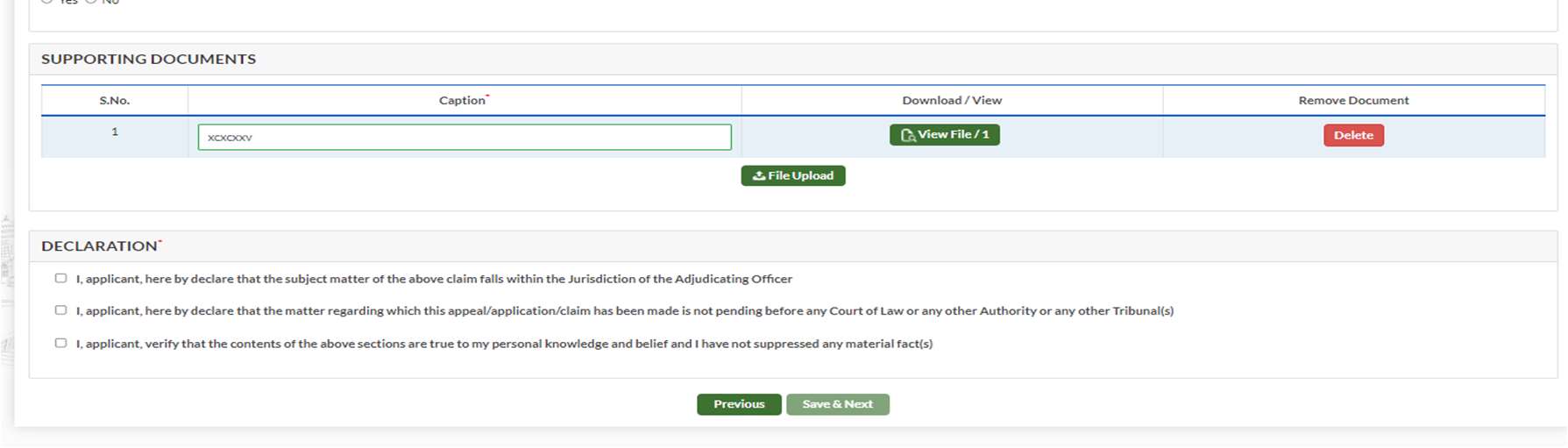
Click Save & Next to proceed to payment.
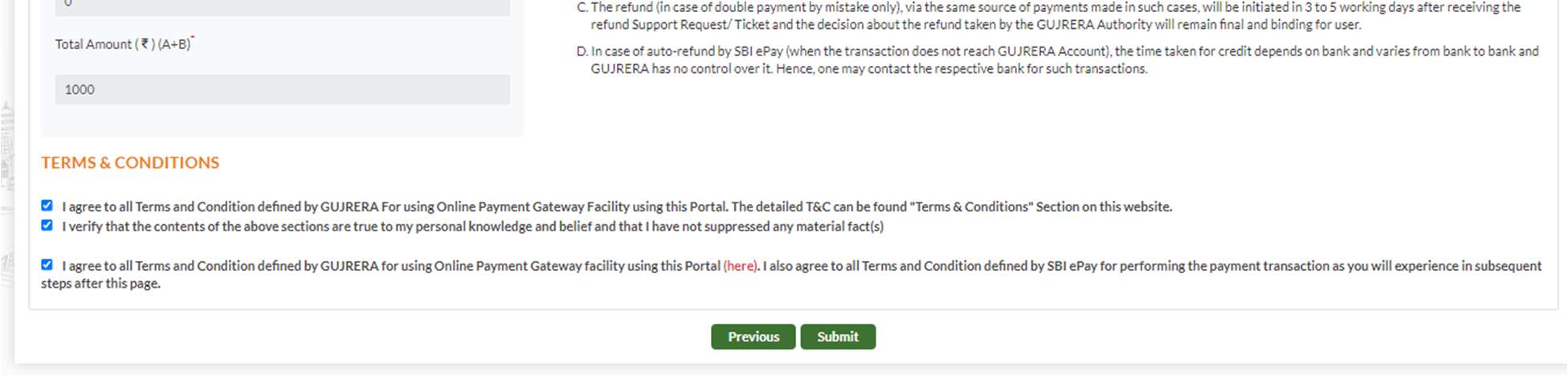
Step 6: Pay the Application Fee (₹1,000)
The payment screen appears after submitting the form, with the warning:
"PLEASE DO NOT PRESS BACK OR REFRESH FROM THIS POINT ONWARDS."
Payment Details:
| Field | Value |
|---|---|
| Payment Head | Defect Liability |
| GujRERA Unique Token Number | System-generated (e.g., CMPP1Z7CE5008) |
| Amount (₹)(A) | ₹1,000 |
| Addl. Amount (₹)(B) | ₹0 |
| Total Amount | ₹1,000 |
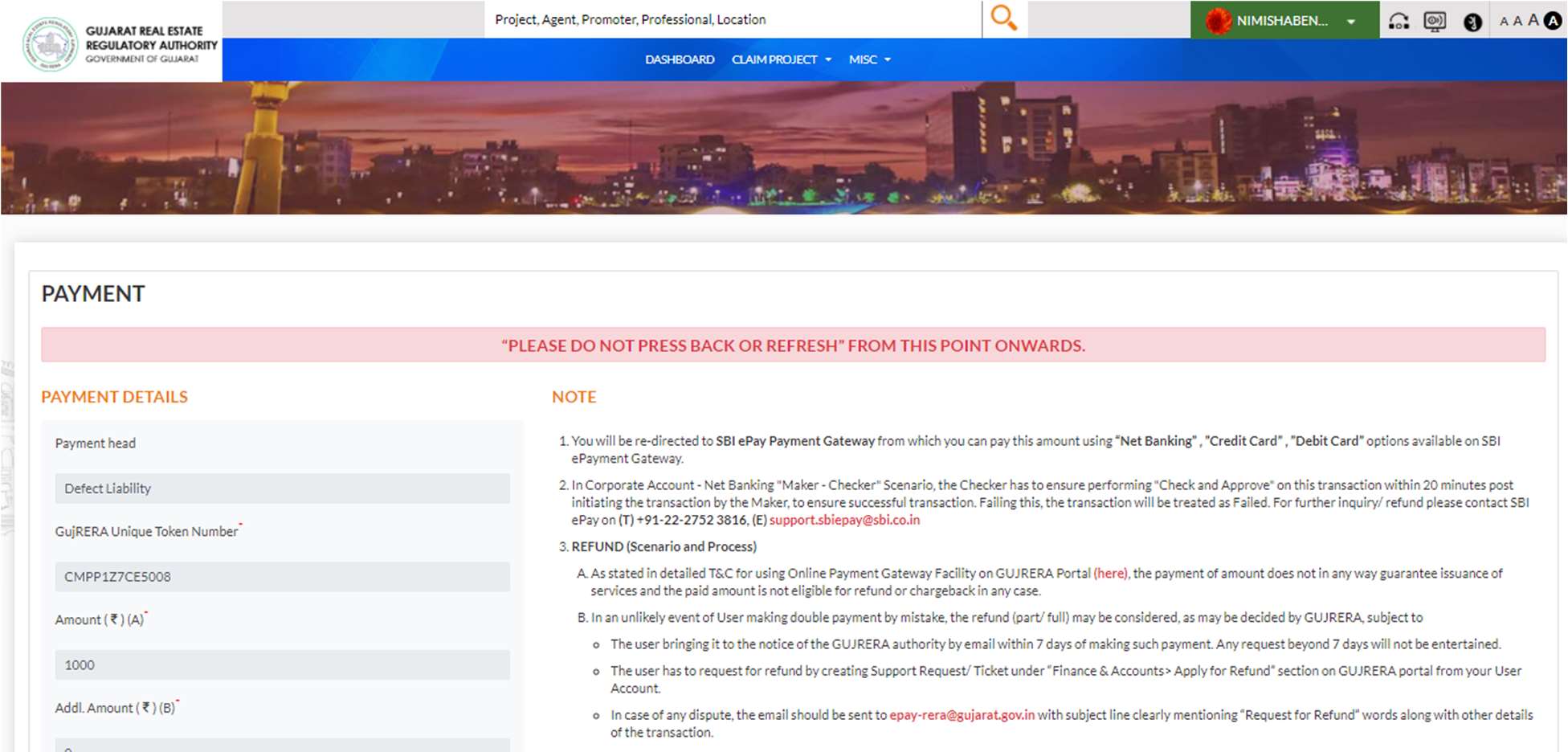
Accept the Terms & Conditions (3 checkboxes) and click Submit to proceed to the payment gateway.
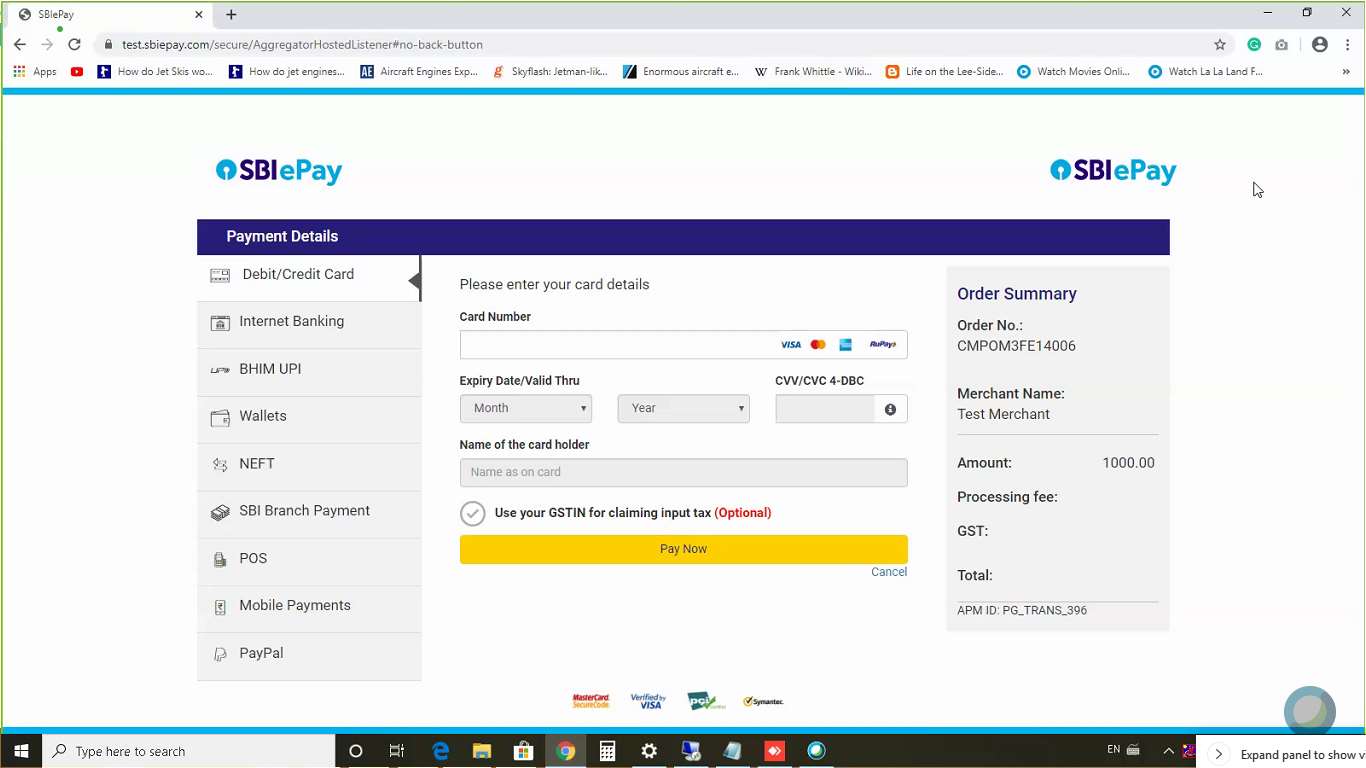
Select your payment gateway (SBI ePay or HDFC) and complete payment.
Step 7: Confirmation and Defect Liability Stamp Number
After successful payment, the portal displays a confirmation message:
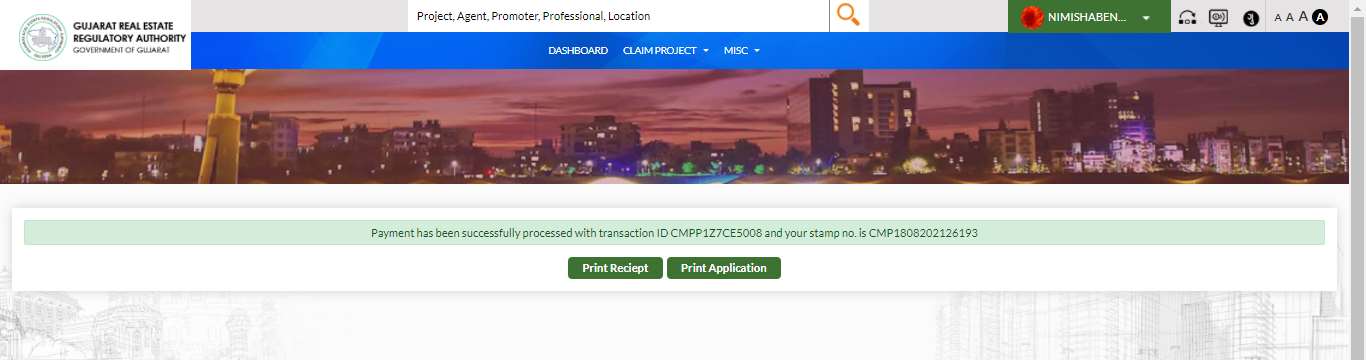
Confirmation includes:
- Transaction ID (e.g., CMPP1Z7CE5008)
- Defect Liability Stamp No. (e.g., CMP1808202126193)
- Print Receipt and Print Application buttons
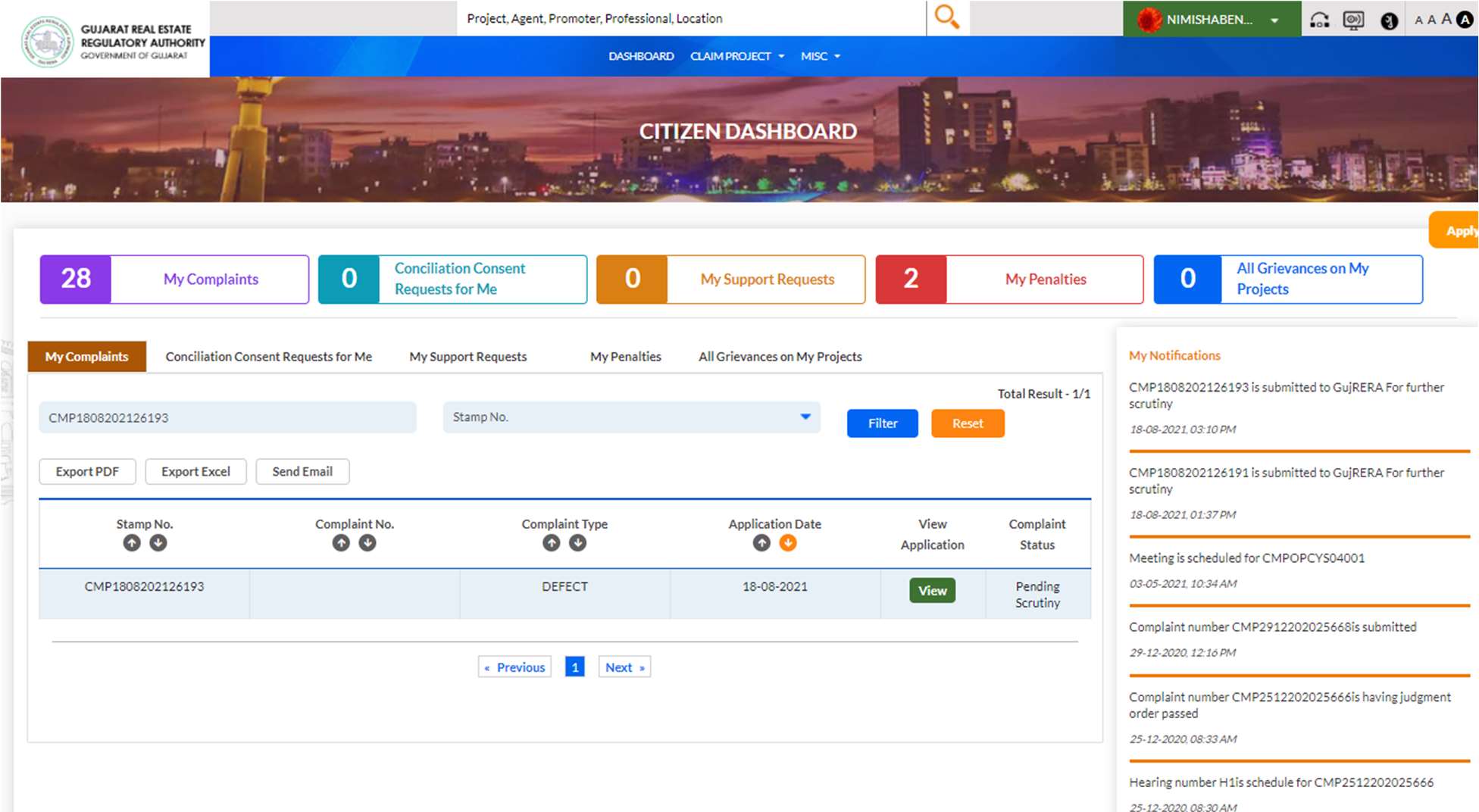
Step 8: Track Your Complaint on the Dashboard
Log in → Citizen Dashboard → My Complaints tab. Filter by Complaints Type = DEFECT.
Step 9: View the Full Application via eCourt
Click the View button next to your complaint to open the full eCourt application record.
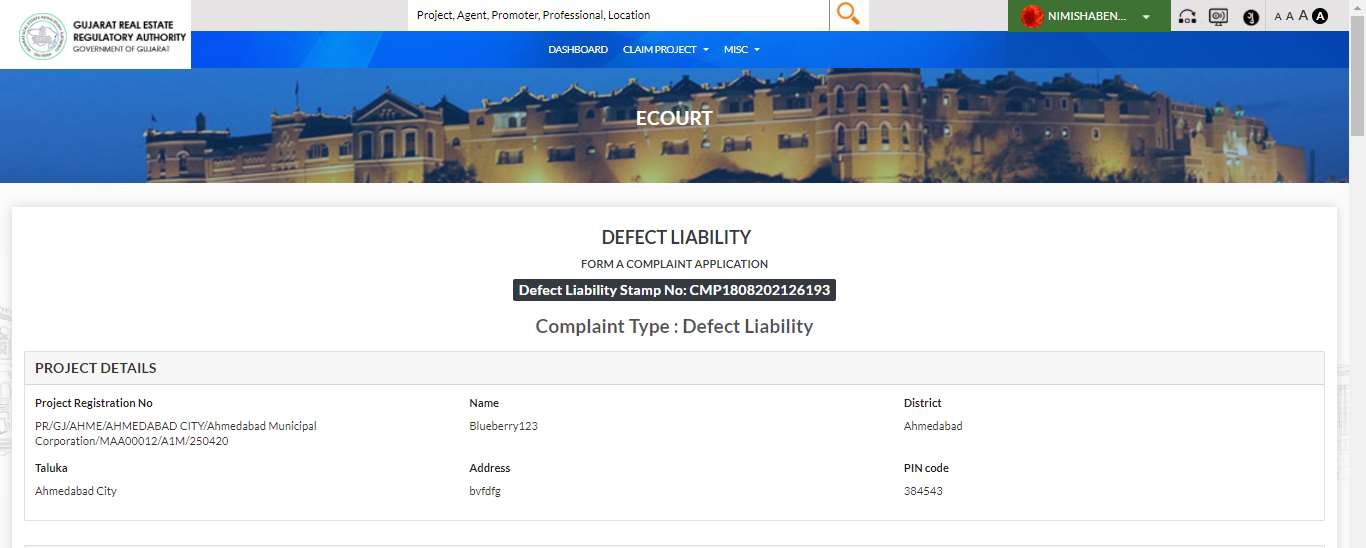
The eCourt view includes:
- All submitted form sections (read-only)
- PAYMENT section: Token No., Transaction No., Amount, Transaction Date, Status
- ACTIVITY LIST: log of all authority actions with dates and attachments
- Buttons: Back | Print Application | Print Receipt | Download PDF
Common Issues
Cannot find the "File Defect Liability Complaint" button: This button only appears in the My Allotment tab inside Project View. Navigate to CLAIM PROJECT → Allottee Dashboard → click the project → open the My Allotment tab.
Project not available after OTP: The OTP is sent to the mobile number registered with the promoter at the time of booking — not your GujRERA portal number. If you can no longer access that number, contact the promoter or GujRERA support.
Complaint outside 5-year window: The portal validates the project end date against the complaint date. Complaints outside the Defect Liability period will be blocked.
Payment failure: Your unique token is preserved. Do not create a duplicate application — contact GujRERA at epay-rera@gujarat.gov.in within 7 days to claim a refund for any deducted amount.
Official Reference
This guide is based on the official GujRERA portal documentation:
Manual: GujRERA User Manual – Grievance Redressal – External Users (V.0.1)
Section: 5 — Complaints During Defect Liability
Pages: 39–47
Official Portal Guide: https://gujrera.gujarat.gov.in/#/website-guide/grievance-redressal