
GujRERA promoter account creation is the mandatory first step for any real estate developer who wants to register a project on the Gujarat RERA portal. Before you can submit a project application, apply for extensions, or file compliance reports, you must have an active Promoter user account on GujRERA RERA 2.0.
This guide covers the complete process for new promoters — developers whose projects are not yet registered on RERA 1.0. If your projects were already approved under RERA 1.0, use the Promoter Claim 1.0 option instead (covered in a separate guide).
Table of Contents
- Before You Begin
- Step 1: Open the Portal and Click Login
- Step 2: Fill the Enrollment Form — Email, Mobile and Type
- Step 3: Verify via OTP
- Step 4: Select Your Promoter Type
- Step 5: Fill the KYC Form and Parent Entity Details
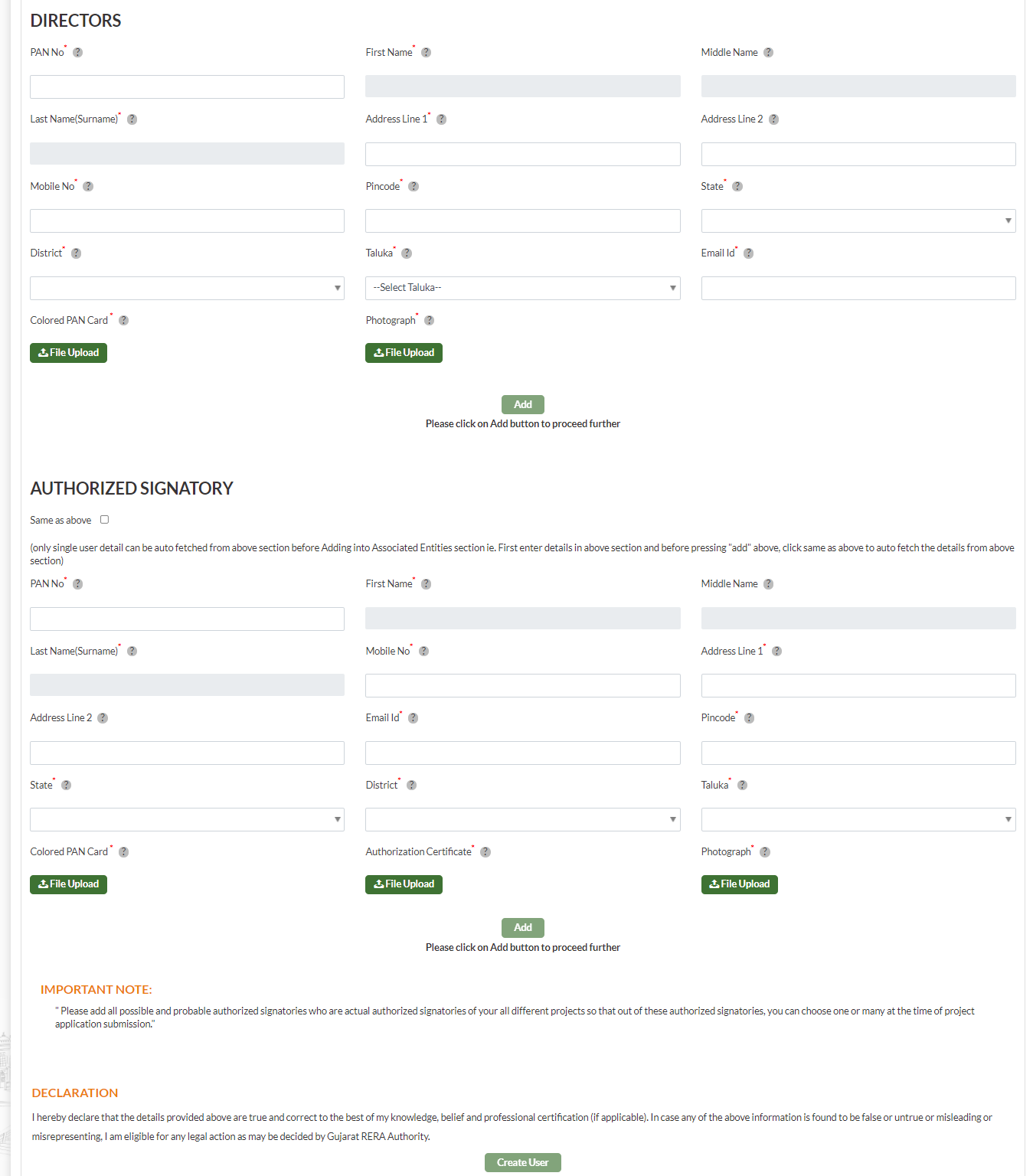
- Step 6: Add Directors and Authorized Signatories
- Step 7: Submit Your Application
- After Your Account is Approved
- Common Issues and Fixes
- What’s Next
Before You Begin
Make sure you have the following ready before starting:
- Active PAN card of the promoter entity (Company / LLP / Individual / Partnership etc.)
- Registration certificate — CIN for Company, LLPIN for LLP, RoF No. for Partnership Firm
- Memorandum & Articles of Association (for Company and LLP)
- PAN cards and photographs of all Directors / Partners
- Authorized Signatory details — PAN, authorization certificate, photograph
- Active email address and mobile number (both will receive OTPs during signup)
- Company logo and colored PAN card scan (JPEG or PNG, clearly legible)
Existing RERA 1.0 promoters: If your projects are already registered under RERA 1.0, do not use Sign Up. Click the Promoter Claim 1.0 button on the login modal to auto-fetch your existing data — a separate guide covers that process in detail.
Step 1: Open the Portal and Click Login
Open the GujRERA portal at https://gujrera.gujarat.gov.in/. On the homepage click the orange Login button in the top-right corner. A login modal will appear on screen.

Step 2: Fill the Enrollment Form — Email, Mobile and Type
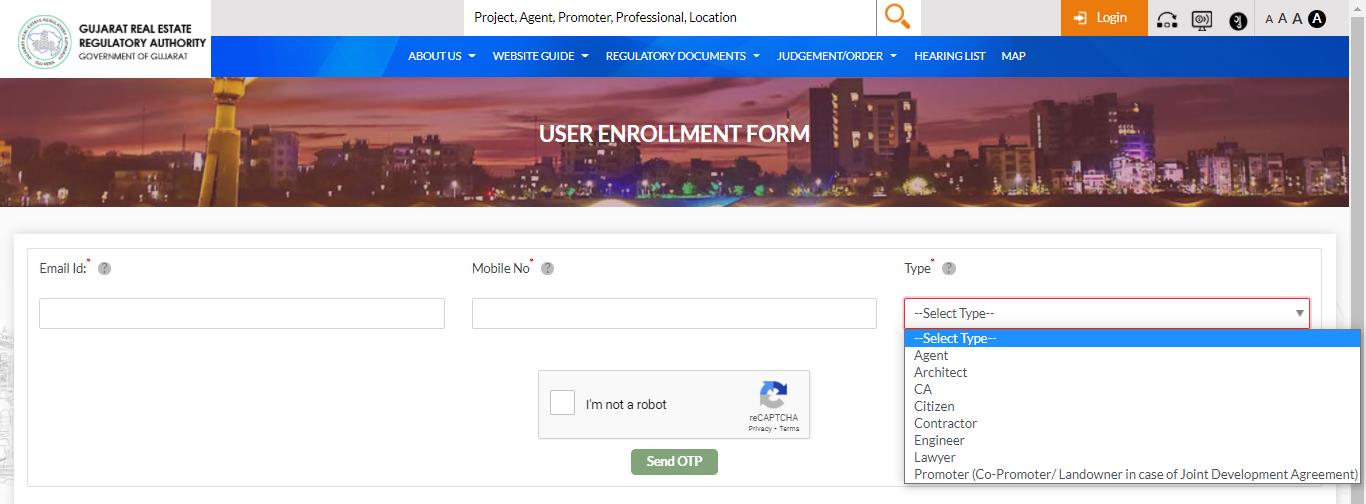
Click the green Sign Up (for New Users) button. You are redirected to the User Enrollment Form. Fill in:
- Email ID* — this becomes your permanent login credential; use your official business email
- Mobile No* — must be the number currently active and able to receive SMS
- Type* — select Promoter (Co-Promoter/Landowner in case of Joint Development Agreement)
Complete the reCAPTCHA and click Send OTP.
Step 3: Verify via OTP
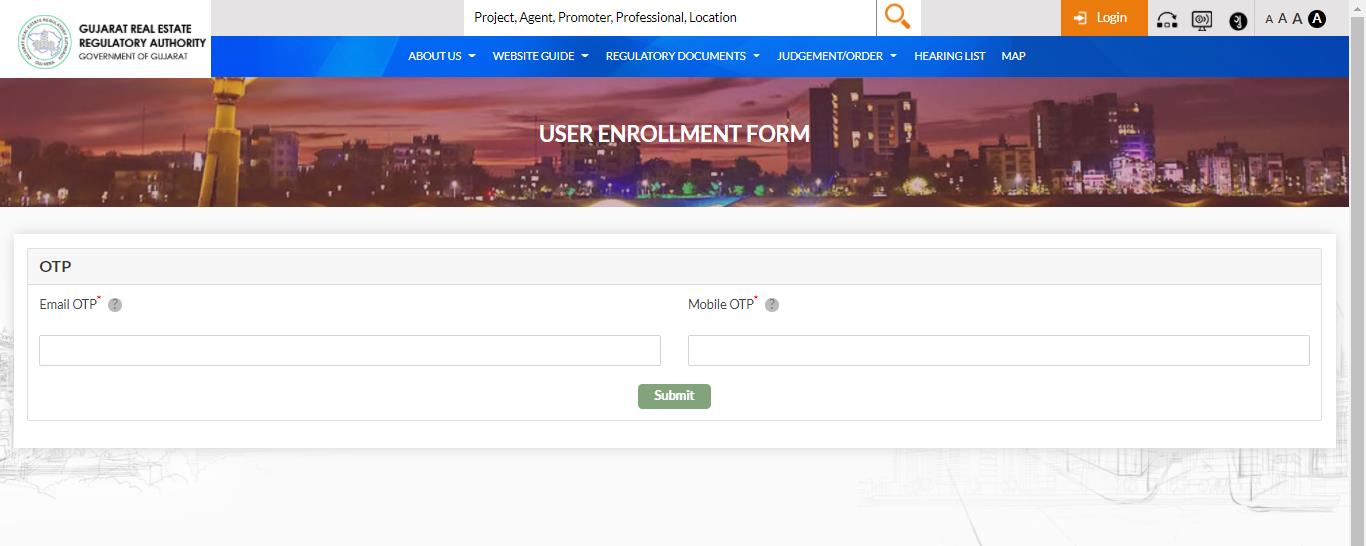
Two One-Time Passwords are sent simultaneously — one to your email and one to your mobile. Enter both in the OTP verification form and click Submit.
This dual-OTP step confirms that the email and mobile you entered are active and belong to you. GujRERA will use these for all future notifications, queries, and alerts.
Step 4: Select Your Promoter Type
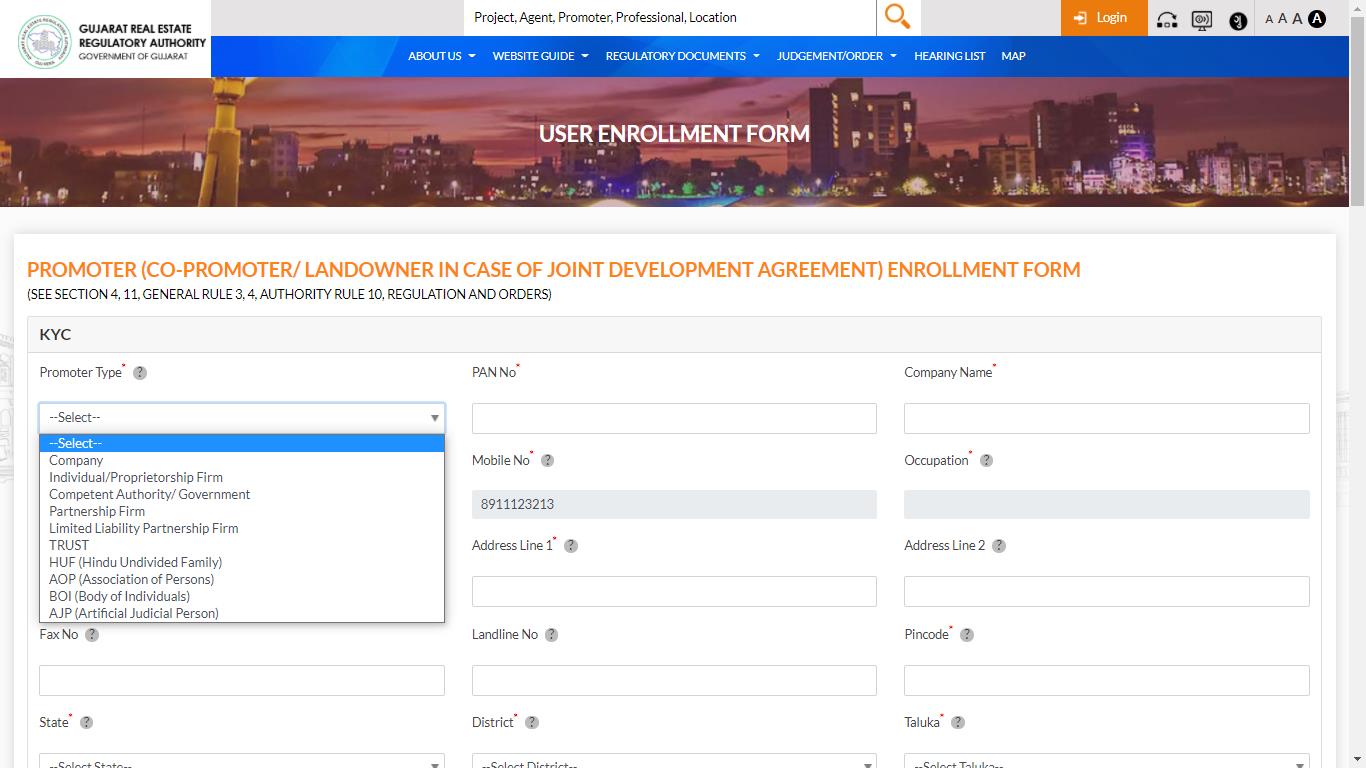
After OTP verification you land on the Promoter Enrollment Form. The first field is Promoter Type. Select the option that matches your legal entity structure:
| Promoter Type | PAN Format |
|---|---|
| Company | AAACA1111A |
| Individual / Proprietorship Firm | AAAPA1111A |
| Competent Authority / Government | AAAGA1111A |
| Partnership Firm | AAAFA1111A |
| Limited Liability Partnership (LLP) | AAAFA1111A |
| TRUST | AAATA1111A |
| HUF (Hindu Undivided Family) | AAAHA1111A |
| AOP (Association of Persons) | AAAAA1111A |
| BOI (Body of Individuals) | AAABA1111A |
| AJP (Artificial Judicial Person) | AAAJA1111A |
After selecting the type, the form fields update to match your entity. Entering your PAN Number auto-fetches the entity name from the PAN database.
Step 5: Fill the KYC Form and Parent Entity Details
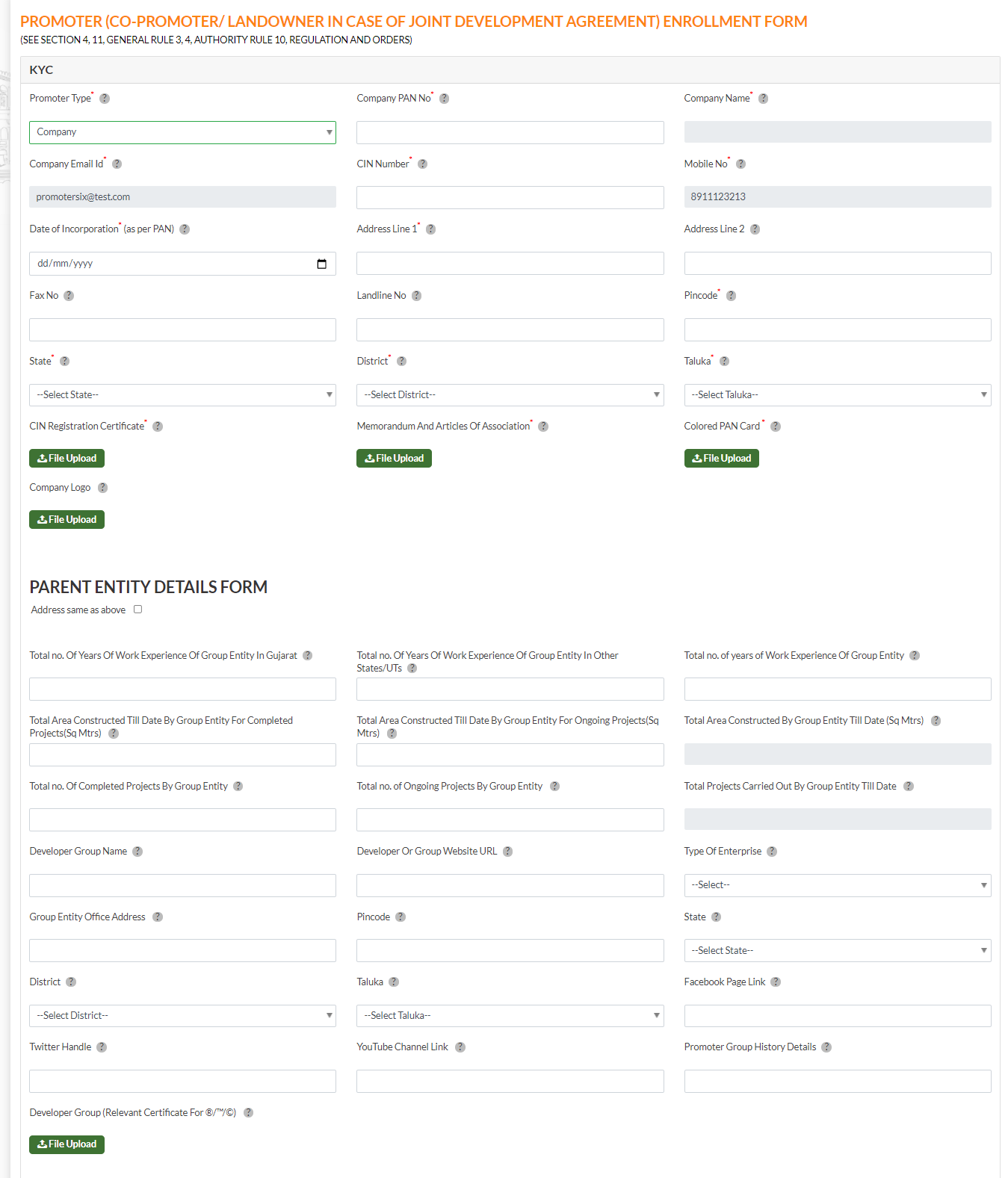
Fill in all mandatory fields (marked with a red asterisk *). The portal auto-fills some fields after you enter the PAN and Pincode.
KYC Section (Company type example):
- Company PAN No* → Company Name auto-fills
- CIN Number* (from Ministry of Corporate Affairs certificate)
- Company Email ID*, Mobile No*
- Date of Incorporation* (as per PAN)
- Address Line 1*, Address Line 2
- Fax No, Landline No
- Pincode* → State, District, Taluka auto-fill
Required document uploads:
- CIN Registration Certificate*
- Memorandum and Articles of Association*
- Colored PAN Card*
- Company Logo
Parent Entity Details Form:
- Total years of work experience of the Group Entity (in Gujarat / other states / overall)
- Total area constructed till date (completed projects / ongoing projects / overall) in Sq Mtrs
- Total completed / ongoing / total projects count by Group Entity
- Developer Group Name, Developer / Group Website URL, Type of Enterprise
- Group Entity Office Address, Pincode, State, District, Taluka
- Facebook Page Link, Twitter Handle, YouTube Channel Link
- Promoter Group History Details
- Developer Group Relevant Certificate (file upload)
Step 6: Add Directors and Authorized Signatories
Directors / Partners section
For each Director (Company), Partner (Partnership / LLP), or applicable member per your entity type, enter:
- PAN No* — First and Last Name auto-fetch from PAN
- Middle Name, Address Line 1*, Address Line 2
- Mobile No*, Pincode*, State*, District*, Taluka*
- Email ID*
- Colored PAN Card* (upload), Photograph* (upload)
Click Add after each entry to add them to the list. Repeat for all Directors / Partners.
LLP entities with Company or LLP partners: Non-individual partners must first create their own Promoter user accounts on the GujRERA portal. Once enrolled, add them here by searching their PAN number — all details auto-fill and cannot be edited as they are approved data.
Authorized Signatory section
Add every person who is or may be an authorized signatory on any of your projects. Use the "Same as above" checkbox to auto-fill from the last Director entry.
Additional field: Authorization Certificate* (upload)
Critical: Add all possible authorized signatories now. At the time of project application you select the correct signatory with one click. Anyone not added here cannot be easily assigned later.
Step 7: Submit Your Application
Read the Declaration statement carefully. Once satisfied that all details are correct and all documents are uploaded, click the Create User button.

Your enrollment application is sent to the concerned GujRERA official for verification and approval. If any information is missing or needs correction, GujRERA will raise a query on your registered email ID.
After Your Account is Approved
- Log in to RERA 2.0 using the Email ID provided during enrollment
- From the Promoter Dashboard you can apply for Project Registration, submit QPRs, file Form 5 (Annual Audit), respond to complaints, and manage all compliance activities under one account
- All future projects registered under the same PAN will be linked to this account automatically
Common Issues and Fixes
PAN not recognized: Ensure the PAN is active and follows the correct format for your entity type (see the PAN format table in Step 4 above).
Pincode not auto-filling State / District / Taluka: Enter a valid 6-digit Indian pincode. Fields are auto-populated from the PIN database on blur.
LLP company partner not showing in PAN search: Non-individual LLP partners (other companies, LLP entities) must first create their own GujRERA Promoter user accounts before they can be found by PAN search.
Documents rejected — account not approved: GujRERA requires all uploaded documents to be clearly legible. Scan at a minimum of 200 DPI and check that text is readable before uploading. Blurry or incomplete documents result in account rejection.
Received wrong PAN data in RERA 1.0 auto-fetch: If you accidentally clicked Promoter Claim 1.0 and the auto-fetched data shows wrong PAN or Promoter Type, use the Create Ticket button on the enrollment form to raise a support request with GujRERA. The support team will correct the data and guide you through re-claiming.
What's Next
Once your Promoter account is active, the next steps are:
- Apply for New Project Registration — submit your first project application under your new account
- Add additional Authorized Signatories — update your profile if you need to add more signatories later
- Submit QPRs — file Quarterly Progress Reports once your project is registered and approved