
GujRERA contractor account creation is required for every contractor — individual or firm — engaged by a promoter to perform construction and related activities on a RERA-registered real estate project in Gujarat. Contractors are key stakeholders in the RERA framework, and their details are recorded as part of project employment and construction data submitted by the promoter.
To be assigned to a project on the GujRERA RERA 2.0 portal, a contractor must have an active user account on the portal.
Table of Contents
Before You Begin
Have the following ready before starting:
- PAN card (individual PAN or firm PAN depending on Contractor Type)
- Active email address and mobile number — both will receive OTPs during sign-up
- Professional experience in years and number of key projects completed
- Communication address with a valid 6-digit pincode
Step 1: Open the Portal and Click Sign Up
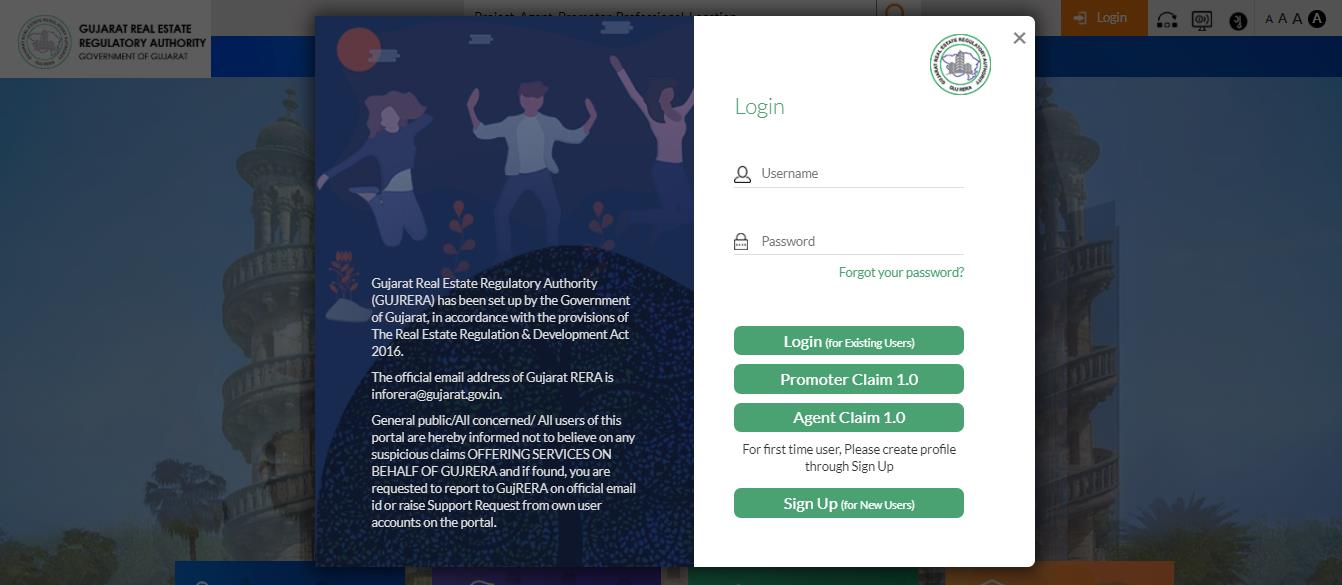
Open https://gujrera.gujarat.gov.in/. Click the orange Login button at the top right. In the login modal, click Sign Up (for New Users).
Step 2: Enter Email, Mobile and Select Contractor as User Type
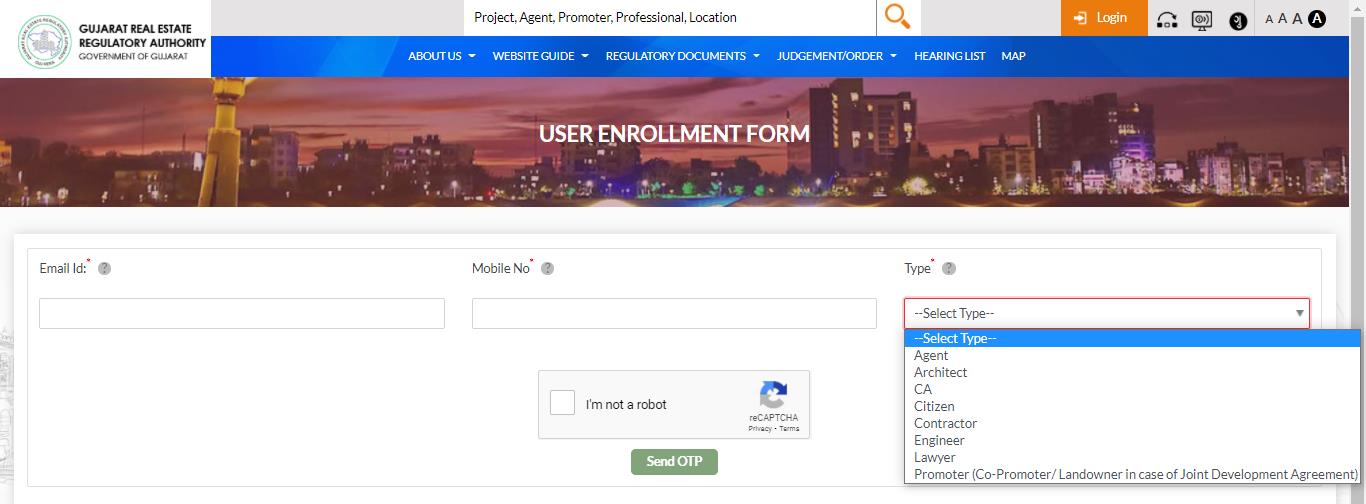
On the User Enrollment Form, fill in:
- Email ID* — your professional or business email; this becomes your login credential
- Mobile No* — active number that can receive SMS
- Type* — select Contractor from the dropdown
Complete the reCAPTCHA and click Send OTP.
Step 3: Verify Your Email and Mobile via OTP
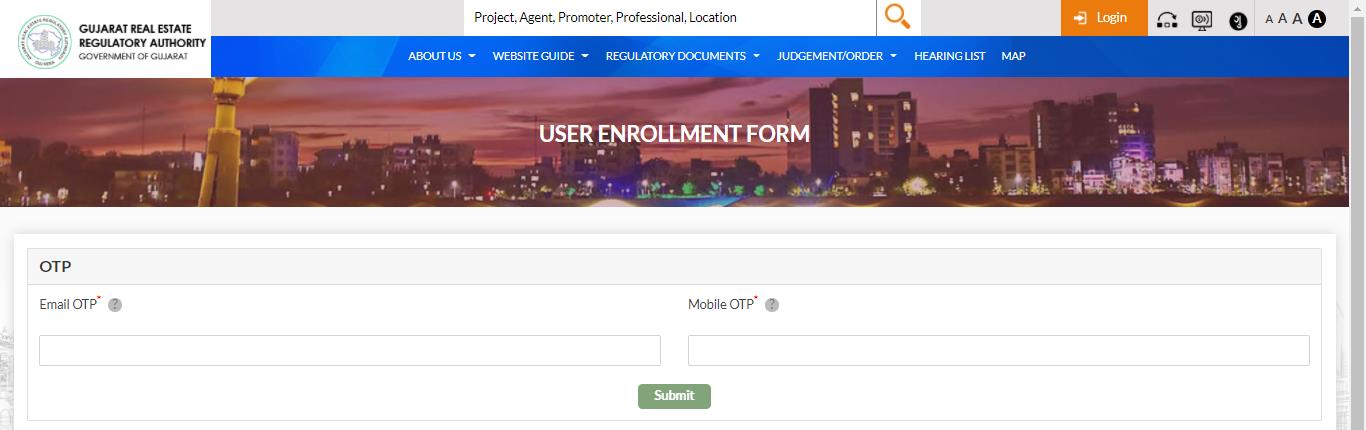
Two One-Time Passwords are sent — one to your email and one to your mobile. Enter both in the OTP verification screen and click Submit.
Step 4: Fill the Contractor Enrollment Form
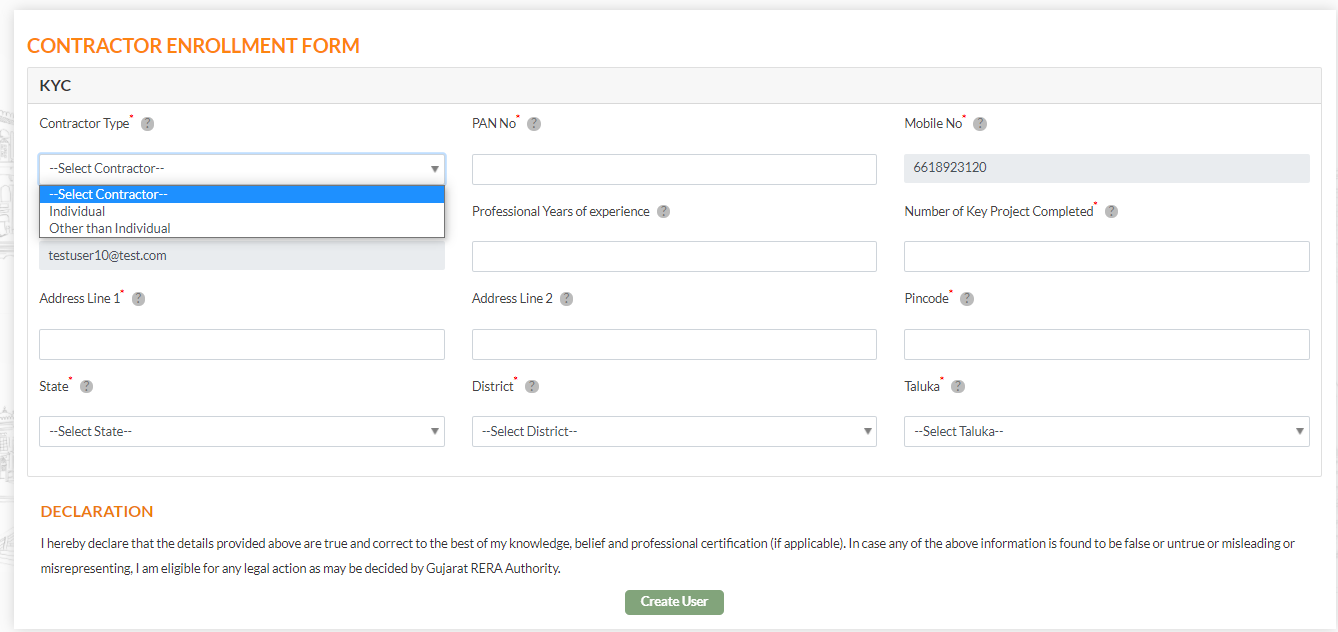
After OTP verification, the Contractor Enrollment Form opens. Fill all mandatory fields (marked with *):
Details:
- Contractor Type* — select from dropdown:
- Individual — sole proprietors and individual contractors
- Other than Individual — firms, companies, partnerships, LLPs and similar entities
- PAN No* — individual PAN for Individual type; firm/company PAN for Other than Individual
- Mobile No* (pre-filled from Step 2)
- Professional Years of Experience*
- Number of Key Projects Completed*
- Email ID* (pre-filled from Step 2)
Address for Communication:
- Address Line 1*, Address Line 2
- Pincode* — auto-fills State, District, Taluka
- State*, District*, Taluka*
Read the Declaration and click Create User.
After Submitting
Clicking Create User completes the Contractor account creation. The account is activated immediately upon submission.
Your Contractor User Account login credential is your Email ID — use it (along with your password) to log in to the GujRERA RERA 2.0 portal.
What You Can Do After Logging In
Once your Contractor account is active, a Promoter can assign you to a registered real estate project. Contractor details are recorded as part of the project's employment and activity data, as required under the RERA Act.
Common Issues
PAN not recognized: Ensure the PAN is active and belongs to the correct entity type — use an individual PAN for Individual contractor type, and a firm/company PAN for Other than Individual.
Email or mobile OTP not received: Check your spam folder for the email OTP. Ensure the mobile number entered is active and can receive SMS. Both OTPs must be submitted within the session timeout.