
GujRERA citizen account creation is the first step for any home buyer, property purchaser, or member of the public who wants to file a complaint against a promoter, claim an allotted unit, or actively track compliance of a real estate project in Gujarat.
While the GujRERA portal at https://gujrera.gujarat.gov.in/ allows anyone to view public project data, filing complaints and claiming units requires a registered Citizen account on the GujRERA RERA 2.0 portal.
Table of Contents
Before You Begin
Have the following ready:
- Active email address and mobile number — both will receive OTPs during sign-up
- PAN card (optional — you can choose not to provide it, but having it ready is recommended)
- Photograph (optional upload)
- Communication address with a valid 6-digit pincode
Citizen accounts are the simplest to create — fewer mandatory fields than any other user type on the portal. PAN is optional for citizens.
Step 1: Open the Portal and Click Sign Up
Open https://gujrera.gujarat.gov.in/. Click the orange Login button at the top right. In the login modal, click Sign Up (for New Users).
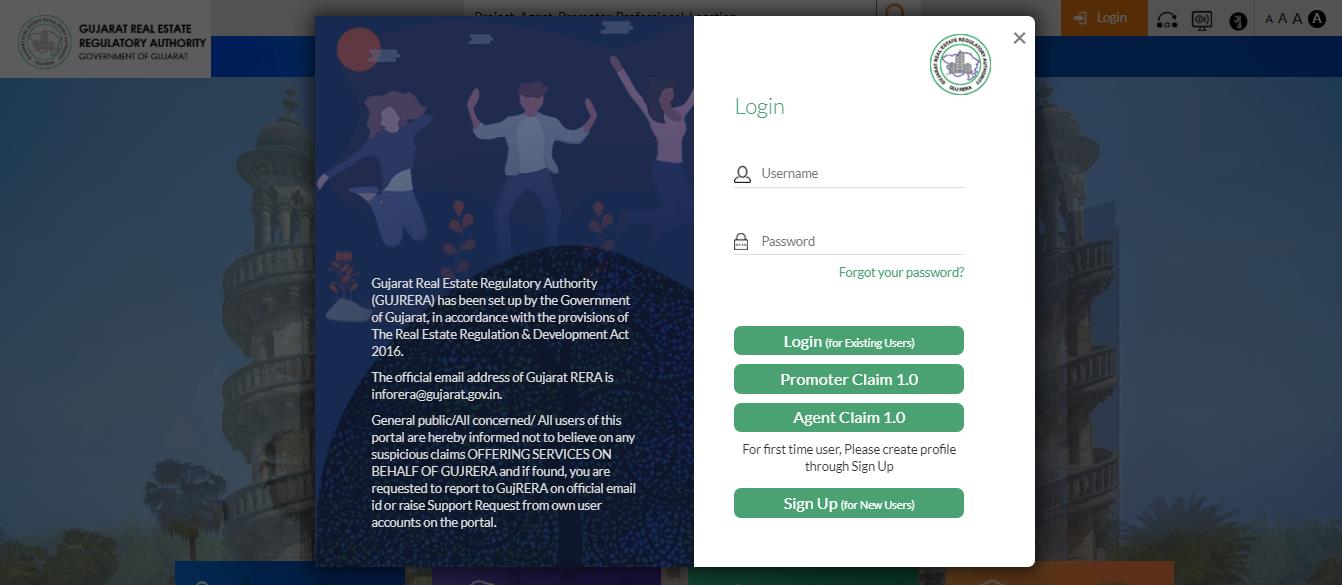
Step 2: Enter Email, Mobile and Select Citizen as User Type
On the User Enrollment Form, fill in:
- Email ID* — your personal email address; this becomes your login credential
- Mobile No* — active number that can receive SMS
- Type* — select Citizen from the dropdown
Complete the reCAPTCHA and click Send OTP.
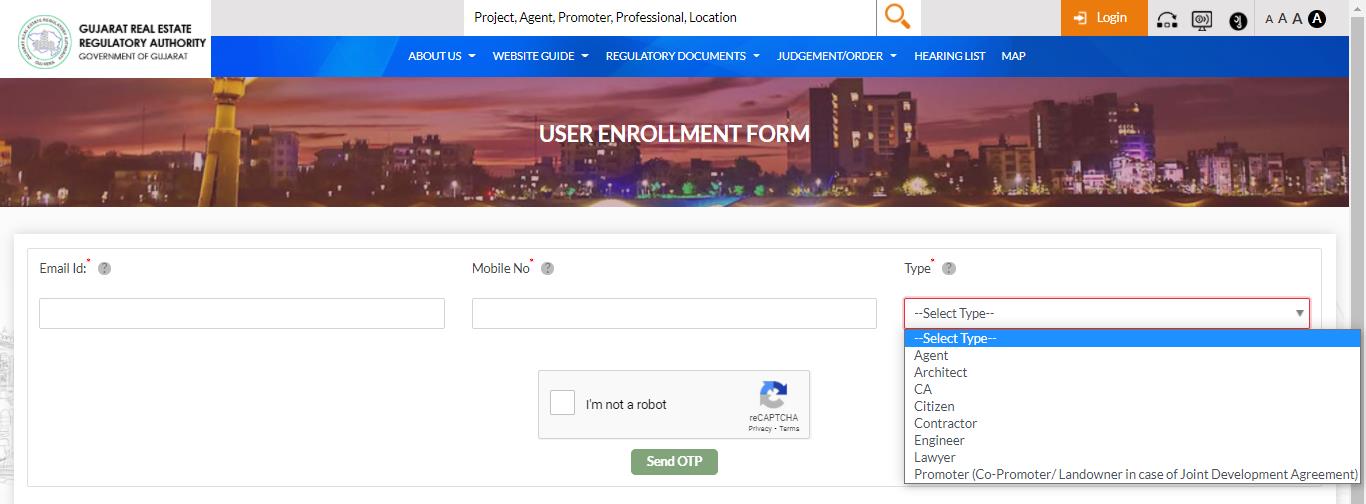
Step 3: Verify Your Email and Mobile via OTP
Two One-Time Passwords are sent — one to your email and one to your mobile. Enter both in the OTP verification screen and click Submit.
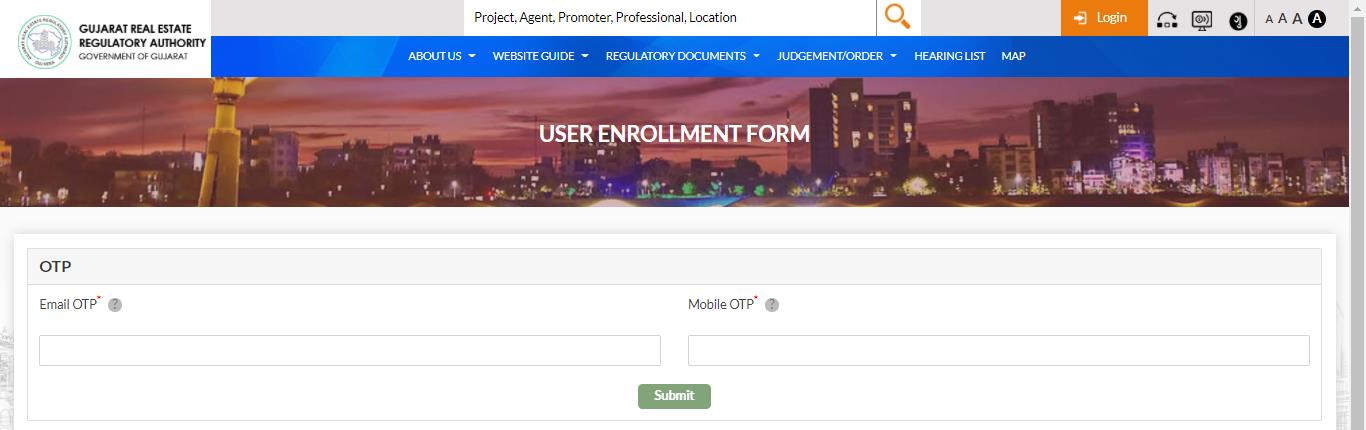
Step 4: Fill the Citizen Enrollment Form
After OTP verification, the Citizen Enrollment Form opens:
PAN Details (Optional):
- Do you have a PAN card? — select Yes or No via radio button
- If Yes: PAN No — enter your PAN number
Personal Details:
- First Name*, Middle Name, Last Name (Surname)*
- Email ID* (pre-filled from Step 2)
- Mobile No 1* (pre-filled from Step 2)
- Mobile No 2 (optional — alternate number)
Address for Communication:
- Address Line 1*, Address Line 2
- Pincode* — auto-fills State, District, Taluka
- State*, District*, Taluka*
Documents (Optional uploads):
- Photograph — upload a passport-size photo
- Colored PAN Card — upload a scan if PAN was provided
Read the Declaration and click Create User.
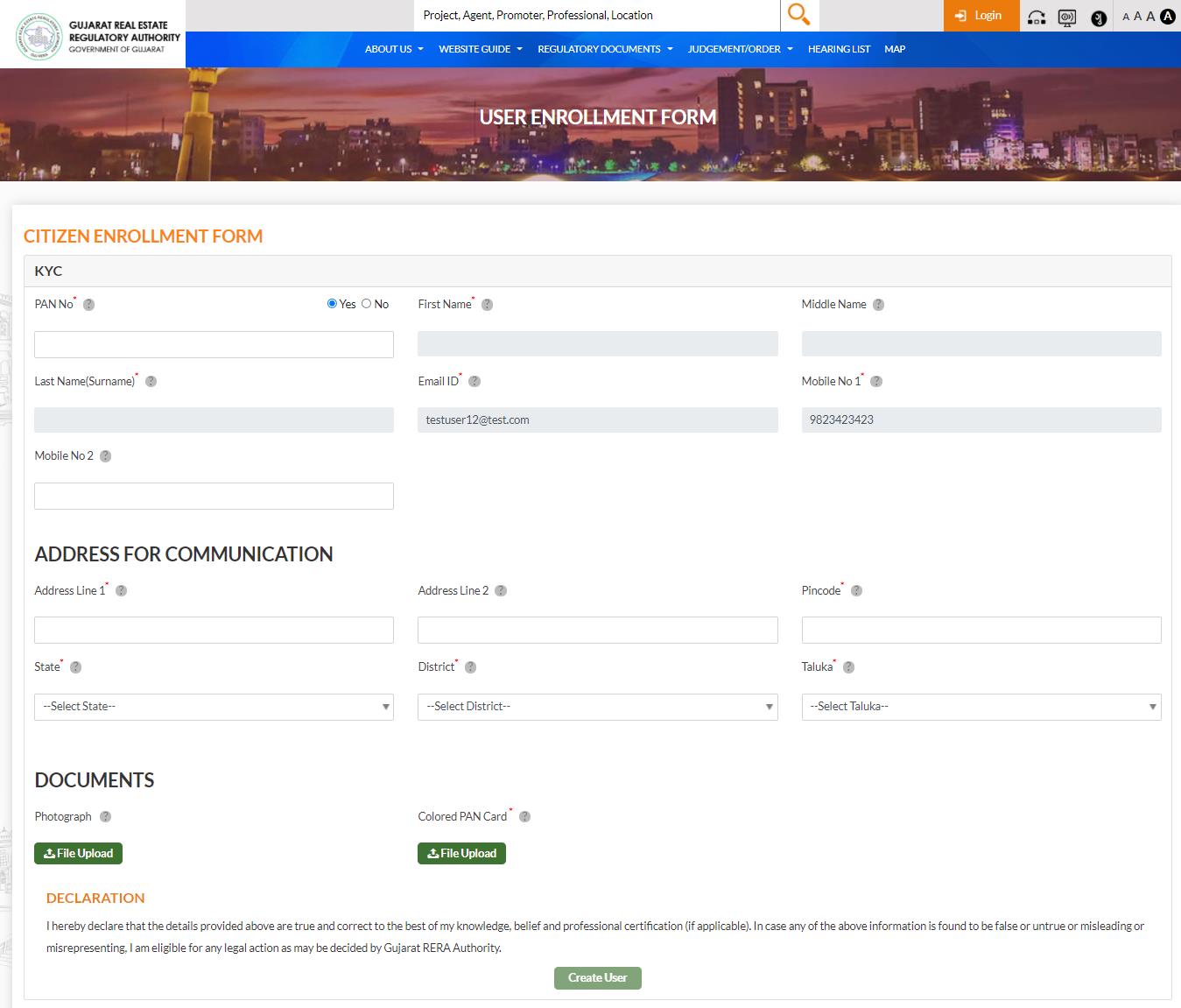
After Submitting
Clicking Create User completes your Citizen account registration. The account is activated immediately.
Your Citizen User Account login credential is your Email ID — use it (along with your password) to log in to the GujRERA RERA 2.0 portal.
What You Can Do After Logging In
The Citizen Dashboard gives you access to:
- My Complaints — view status of all complaints you have filed against a promoter or project
- File a New Complaint — raise a formal complaint under Form A or Form B against a registered project or promoter
- Claim Allotments / Complaints — if you had complaints filed in RERA 1.0, claim them into your RERA 2.0 account so they appear in your dashboard
- Conciliation Consent Requests — respond to or initiate conciliation requests from promoters
- My Support Requests — track queries raised with GujRERA
- My Penalties — view and pay any penalties issued to you
- All Grievances on My Projects — monitor all complaint activity on projects where you hold a unit
Common Issues
Forgot which email was used during Sign Up: All GujRERA notifications are sent to the email registered at Sign Up. If you cannot remember your email, check for any past emails from gujrera.gujarat.gov.in or contact GujRERA support with your mobile number for assistance.
Email or mobile OTP not received: Check your spam/junk folder for the email OTP. Ensure the mobile number entered is active and can receive SMS. Both OTPs must be submitted within the session timeout.
Want to claim a complaint filed on RERA 1.0: After logging in, go to Dashboard → Claim Allotments/Complaints TAB → Claim Complaint. Enter the Complaint Acknowledgement Number, Submission Date, Complainant Email ID and Mobile Number. Submit → OTP verification → complaint appears in My Complaints TAB.