
GujRERA CA account creation is required for every Chartered Accountant engaged by a promoter to certify financial documents for a registered real estate project in Gujarat. Under the RERA Act, a CA must sign the CA Certificate (Form 3), certify the Means of Finance (MoF), and file the Annual Audit Report (Form 5) for each project they are assigned to.
All these activities are performed on the GujRERA RERA 2.0 portal and require an active CA user account linked to a valid ICAI Membership Number.
Already on RERA 1.0? If you were enrolled as a CA on the old GujRERA 1.0 system, you do not need to create a new account. You can log in directly to RERA 2.0 using your existing ICAI Membership Number and password. No claim or migration process is required.
Table of Contents
Before You Begin
Have the following ready before starting:
- ICAI Membership Number (active, as issued by the Institute of Chartered Accountants of India)
- Enrollment Date (date of ICAI membership enrollment — dd/mm/yyyy)
- COP Date (Certificate of Practice issue date — dd/mm/yyyy)
- PAN card (individual PAN of the CA)
- Date of Birth (as per PAN / ICAI records)
- Active email address and mobile number — both will receive OTPs during sign-up
- Communication address with a valid 6-digit pincode
Step 1: Open the Portal and Click Sign Up
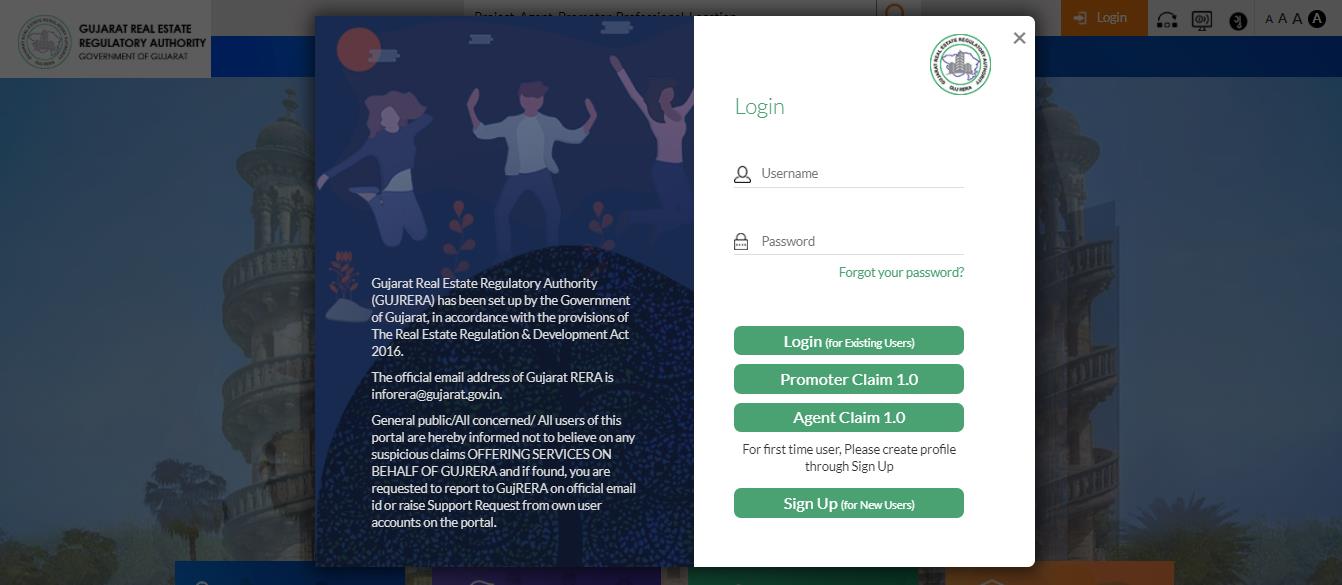
Open https://gujrera.gujarat.gov.in/. Click the orange Login button at the top right. In the login modal, click Sign Up (for New Users).
Step 2: Enter Email, Mobile and Select CA as User Type
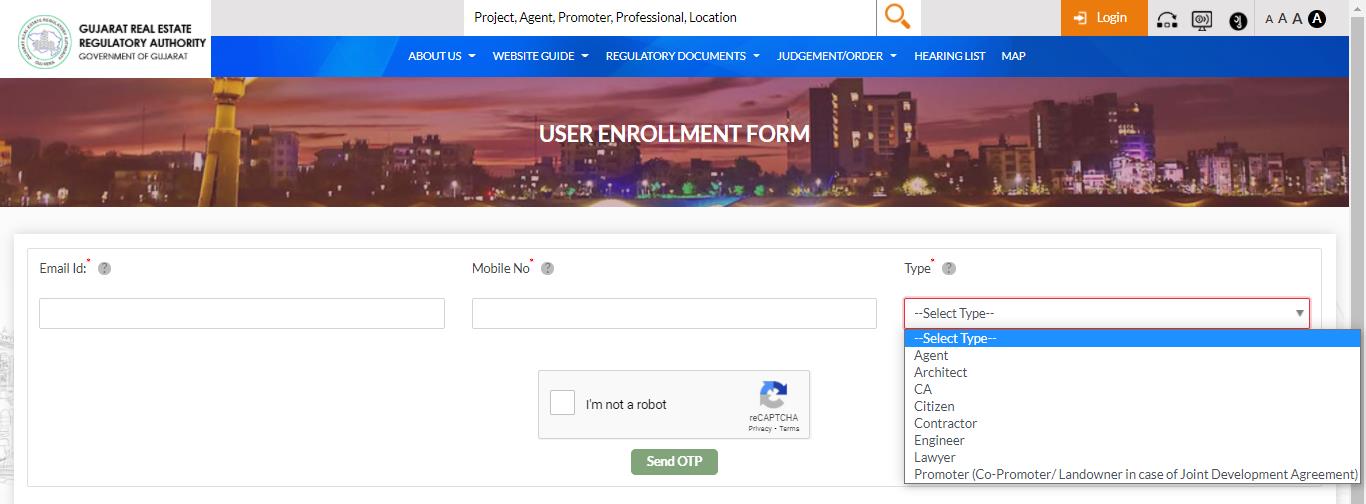
On the User Enrollment Form, fill in:
- Email ID* — your professional email address
- Mobile No* — active number that can receive SMS
- Type* — select Chartered Accountant (CA) from the dropdown
Complete the reCAPTCHA and click Send OTP.
Step 3: Verify Your Email and Mobile via OTP
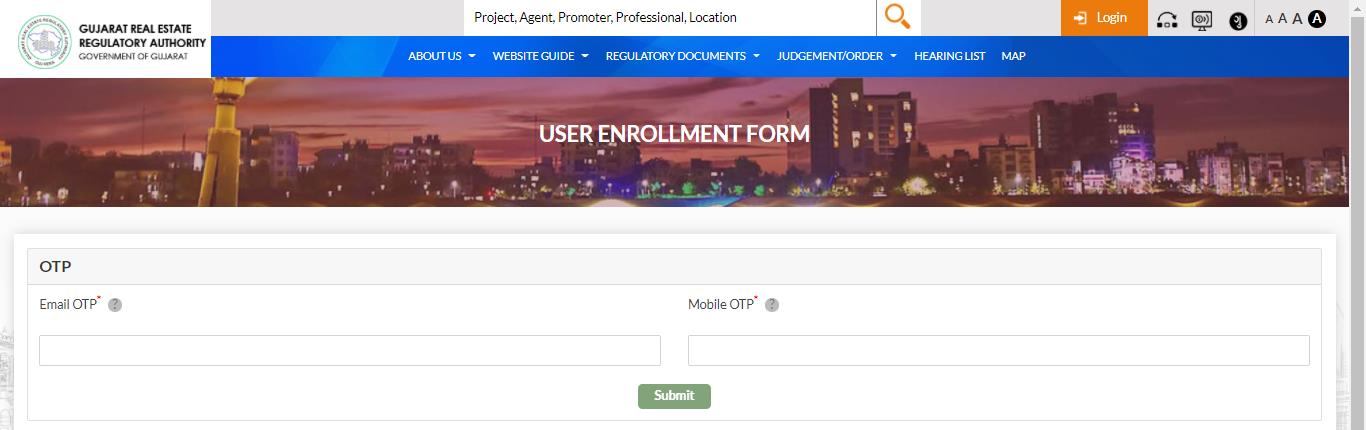
Two One-Time Passwords are sent — one to your email and one to your mobile. Enter both in the OTP verification screen and click Submit.
Step 4: Fill the CA Enrollment Form and Validate
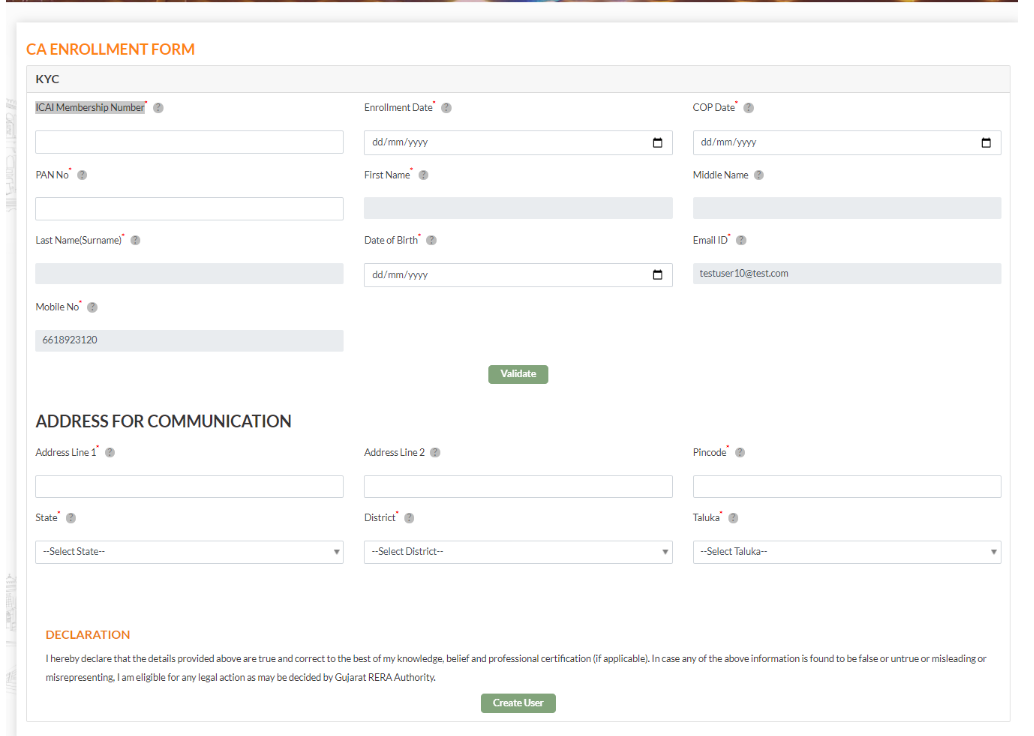
After OTP verification, the CA Enrollment Form opens. Fill in all mandatory fields (marked with *):
ICAI Details:
- ICAI Membership Number* — your active ICAI membership number
- Enrollment Date* (dd/mm/yyyy) — the date your ICAI membership was enrolled
- COP Date* (dd/mm/yyyy) — the date your Certificate of Practice was issued
Personal Details:
- PAN No* — entering PAN auto-fetches your name from PAN records
- First Name* (auto-fetched from PAN), Middle Name, Last Name (Surname)*
- Date of Birth* (dd/mm/yyyy)
- Email ID* (pre-filled from Step 2)
- Mobile No* (pre-filled from Step 2)
Click the Validate button — this verifies all the above details against the ICAI database. The form will not proceed until validation succeeds.
Address for Communication:
- Address Line 1*, Address Line 2
- Pincode* — auto-fills State, District, Taluka
- State*, District*, Taluka*
Read the Declaration and click Create User.
After Submitting
Clicking Create User completes the CA account creation. The account is activated immediately upon submission.
Your CA User Account login credential is your ICAI Membership Number — use it (along with your password) to log in to the GujRERA RERA 2.0 portal for all future project assignments.
What You Can Do After Logging In
Once your CA account is active, a Promoter can assign you to a registered project. After assignment you can:
- Certify the CA Certificate (Form 3) — sign and submit the certificate confirming the promoter's financial details
- Certify Means of Finance (MoF) — validate and certify that the financial plan for the project meets RERA requirements
- File the Annual Audit Report (Form 5) — submit the annual audit for each project you are assigned to, as required under Section 4(2)(l)(D) of the RERA Act
- Review financial progress — access project financial data uploaded by the promoter
Common Issues
Validation fails after entering ICAI details: Ensure the ICAI Membership Number, Enrollment Date, and COP Date all match exactly what is on record with the ICAI. Any mismatch will cause validation to fail. Cross-check your ICAI membership certificate for the correct dates.
PAN not recognized or wrong name auto-fetched: Ensure the PAN belongs to you individually (not a firm PAN). If the name auto-fetched is incorrect, verify against your ICAI membership records — the name on PAN must match ICAI records for validation to succeed.
Already on RERA 1.0 and getting "Email already registered" error: If you were enrolled as a CA in RERA 1.0, you do not need to sign up again. Use the standard login with your ICAI Membership Number and password. Contact GujRERA support if you do not know your RERA 1.0 password.
Email or mobile OTP not received: Check your spam folder for the email OTP. Ensure the mobile number entered is active and can receive SMS. Both OTPs must be submitted within the session timeout.