
How to Make Online Payments on GujRERA Portal — Fees, SBI ePay Gateway and Refund Guide

All fees payable to the Gujarat Real Estate Regulatory Authority — including Project Registration fees, QPR late submission charges, PCWF (Profile Change) fees, Bank Change Request fees, and Annual Audit charges — are collected exclusively through the online SBI ePay payment gateway on the GujRERA 2.0 portal. No offline payment or demand draft is accepted.
This guide explains the payment screen, gateway options, Corporate Net Banking flow, e-receipt, and the refund process.
Table of Contents
When Payments Are Required
GujRERA online payments are triggered at the final step of the following applications:
| Application | Payment Type |
|---|---|
| New Project Registration | Project Registration Fees |
| QPR (Quarterly Progress Report) — late filing | Late Submission Charges |
| PCWF — TP / Legal / Both Profile Change | Profile Change Fees |
| Bank Change Request (BCR) RA1+RA2 | BCR Application Fees |
| Agent Registration | Agent Registration Fees |
| Extension Application | Extension Fees |
In all cases, the portal auto-calculates the applicable fee — you do not enter a fee amount manually.
Step 1: Reach the Payment Screen
Complete all sections of the application (Project Registration, PCWF, BCR, etc.) on the portal. The payment screen appears automatically as the final step.
Before proceeding, click Preview Application (top right of the payment screen) to review the filled application form one last time.
The PAYMENT screen displays:
- Unique Token Number — a system-generated reference for this payment session (e.g.
PRCZDQPJZ4086); note this down for any refund or support queries - RERA Fees (A) — the base application fee auto-calculated by the portal
- RERA Late Submission Charges (B) — applicable if the filing is overdue (effective from 1 October; a "know more" link shows the applicable slab)
- Total = A + B
Critical warning displayed on screen: "PLEASE DO NOT PRESS BACK OR REFRESH FROM THIS POINT ONWARDS." — navigating away after this point can result in a payment that does not get linked to your application. If this happens, note the Token Number and contact GujRERA support.
Tick all Terms & Conditions checkboxes and click Agree & Pay to proceed to the SBI ePay gateway.
Step 2: Complete Payment on SBI ePay Gateway
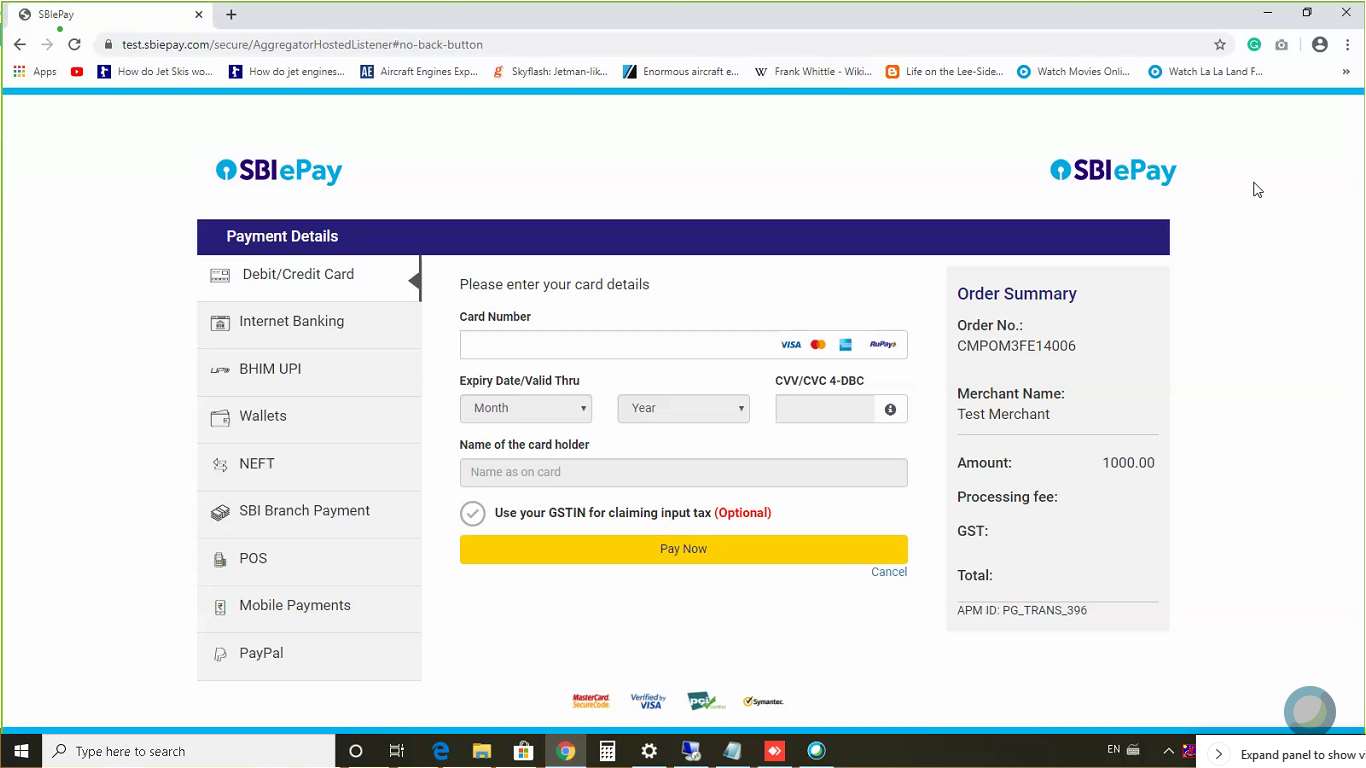
After clicking Agree & Pay, you are redirected to the SBI ePay payment gateway. Choose your preferred payment method from the left panel:
| Payment Method | Details |
|---|---|
| Debit / Credit Card | Visa, Mastercard, RuPay, Amex — enter card number, expiry, CVV |
| Internet Banking | Select your bank from the list; redirected to your bank's net banking |
| BHIM UPI | Enter UPI ID or scan QR code |
| Wallets | Mobile wallets supported |
| NEFT | Bank transfer via NEFT |
| SBI Branch Payment | Pay at an SBI branch |
| POS | Point of Sale terminal |
| Mobile Payments | Mobile banking apps |
| PayPal | PayPal account |
The Order Summary panel on the right shows the Order No., Merchant Name (Gujarat RERA), Amount, Processing Fee, GST, and Total before you confirm payment.
Click Pay Now to complete the transaction.
Corporate Net Banking — Maker-Checker Flow
If your organisation uses Corporate Net Banking (multi-user authorisation), the payment goes through a Maker-Checker approval sequence:
- Maker initiates the transaction on the bank portal
- Checker must log in and approve the transaction
Important: The Checker must "Check and Approve" the transaction within 20 minutes of the Maker initiating it. If the 20-minute window expires, the transaction is automatically marked as Failed and the payment will not be processed. You must restart the payment from the portal.
For Corporate Net Banking issues, contact SBI ePay directly (contact details in the refund section below).
Step 3: Download the E-Receipt
After successful payment, the portal generates an E-Receipt for Gujarat RERA Payment which you can download as a PDF. The receipt contains:
| Field | Description |
|---|---|
| Date of Payment | Date the payment was processed |
| Type of Payment | Application type (e.g. PROJECT_REG, QPR, PCWF) |
| GujRERA Token Number | Your unique payment token reference |
| SBI ePay Transaction Number | Gateway transaction reference |
| Fees (Rs) | Base RERA fee paid |
| Additional Charges (Rs) | Late submission charges (if applicable) |
| Total Amount (Rs) | Total amount charged |
| Applicant Name | Promoter / Agent / Complainant name |
| Email Id | Registered email ID |
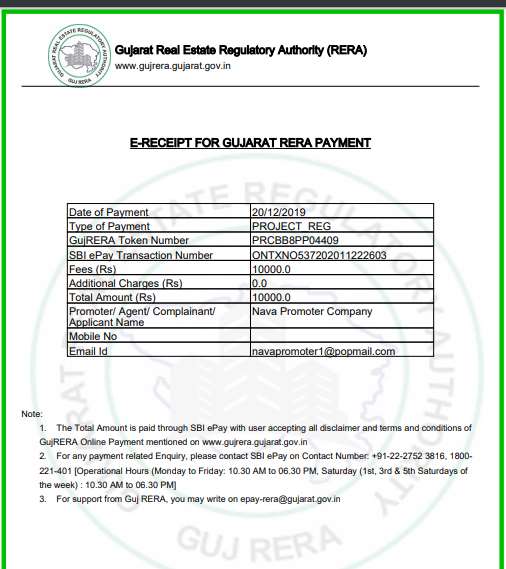
Save this receipt. The application status on your dashboard updates to reflect the payment and moves to the next processing stage.
Refund Process
Refunds on GujRERA payments are processed only in specific circumstances.
When a refund may be considered:
- Double payment — if the same application was paid twice by mistake, a partial or full refund may be approved as decided by the Authority
- Fees paid do not automatically guarantee issuance of services or approval of the application — a rejected application does not entitle the applicant to a refund as stated in the T&C
How to request a refund:
-
Raise a Support Ticket on the portal: Dashboard → Support Requests → Finance & Accounts → Apply for Refund. Provide the GujRERA Token Number, SBI ePay Transaction Number, amount, and date of payment with reason for refund request.
-
Send an email to
epay-rera@gujarat.gov.inwith subject "Request for Refund" including the same payment details.
Refund timelines:
- Double payment: refund initiated within 3–5 working days after verification
- Payment not reaching GujRERA account: timeline depends on the bank
Payment Support Contacts
For gateway-related issues (payment deducted but not confirmed, transaction failed, session timeout):
SBI ePay:
- Phone: +91-22-2752 3816 or 1800-221-401
- Operational hours: Monday–Friday 10:30 AM – 6:30 PM; Saturday (1st, 3rd & 5th Saturdays) 10:30 AM – 6:30 PM
- Email:
support.sbipay@sbi.co.in
GujRERA (portal-side issues):
- Email:
epay-rera@gujarat.gov.in - Phone: (079) 232-58659
- General:
inforera@gujarat.gov.in
Common Issues
"Agree & Pay" button not activating: All Terms & Conditions checkboxes must be ticked before the button becomes active. Scroll down to check if any checkbox is unticked.
Payment deducted but application still shows unpaid: Do not attempt payment again immediately. Note the GujRERA Token Number and the SBI ePay Transaction Number from your bank statement. Raise a Support Ticket on the portal and email epay-rera@gujarat.gov.in — the payment will be manually reconciled.
Corporate Net Banking transaction expired: The Maker-Checker flow must be completed within 20 minutes. If it expired, return to your application on the GujRERA portal and initiate a fresh payment from the payment step.
Late submission charges appeared unexpectedly: RERA Late Submission Charges (B) are added automatically from 1 October when the filing deadline for the applicable QPR or other compliance has passed. The portal applies the late fee slab as per GujRERA regulations — click "know more" on the payment screen for the applicable rate.