
How to File Form 5 Annual Audit Report on GujRERA 2.0 Portal — Step-by-Step Guide
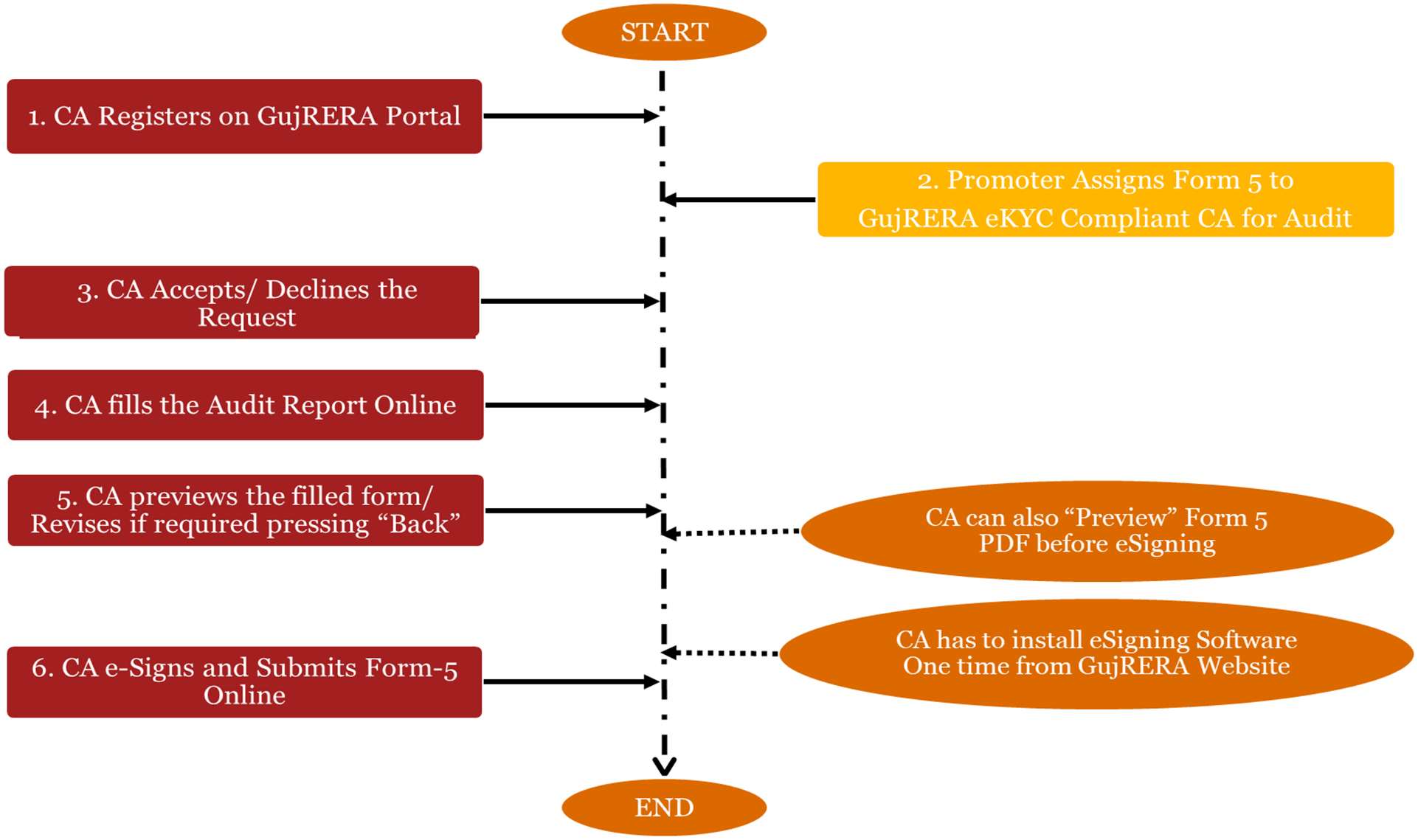
GujRERA Form 5 filing is an annual compliance requirement for every registered real estate project in Gujarat. Under Chapter II, Section 4(2)(l)(D) of the RERA Act, the promoter must get project accounts audited within 6 months after the end of every financial year by a Chartered Accountant in practice, and submit the certified statement as Form 5 (Annual Report on Statement of Accounts) to the GujRERA Authority.
This is a two-party process — the Promoter initiates and assigns the audit to a CA, the CA fills and e-signs the form, and the Promoter reviews and submits to the Authority.
Table of Contents
Who Must File Form 5
A project is eligible for Form 5 if:
- The project was approved before 1 April of a particular financial year, AND
- The project is not complete (Q-E / Form 4 not filed) before 1 April of the same FY
Filing deadline: Annual return for each FY must be submitted before 30 September of the following financial year.
Example: A project registered on 31 March 2020 with end date 31 December 2022 must file:
- FY 2019–20 → before 30 September 2020
- FY 2020–21 → before 30 September 2021
- FY 2021–22 → before 30 September 2022
CA restriction: The CA who filed Form 3 (CA Certificate) for a project in a particular FY cannot file Form 5 for the same project for the same FY. A different CA must be assigned for Form 5.
DSC requirement: The CA must install the eSigning Software from the GujRERA website once before the first Form 5 submission. Digital signatures can take a few hours to days for activation after issuance — obtain and validate the DSC well before the compliance deadline.
Before You Begin
Promoter needs:
- Promoter login credentials (Email ID + password)
- ICAI Membership Number of the CA you want to assign
CA needs:
- CA login credentials (ICAI Membership Number + password)
- RERA Bank Account details for the project (IFSC, Account No, Bank Name, Branch, Opening Balance, Deposits, Withdrawals for the FY)
- Details for all audit questions (see Step 4)
- Firm Registration Number, CA Firm Name, Designation, and UDIN (Unique Document Identification Number)
- Valid DSC (Digital Signature Certificate) installed from the GujRERA website
Part A — Promoter: Initiate and Assign Form 5
Step 1: Open the Form 5 Section and Select Financial Year
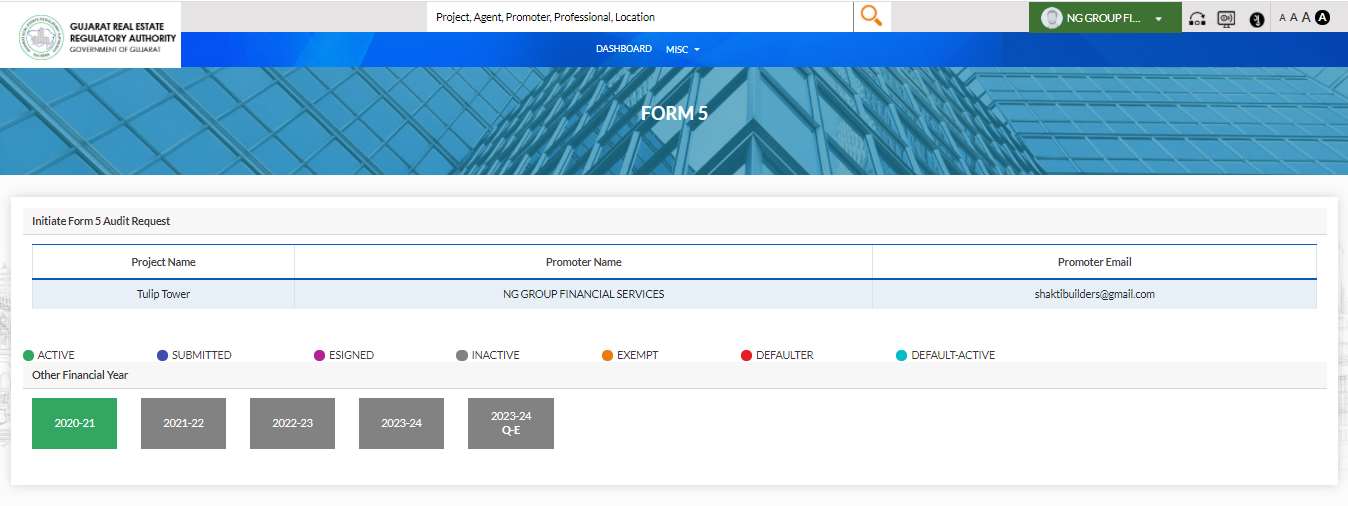
Log in to your Promoter account on https://gujrera.gujarat.gov.in/. On your Dashboard, navigate to the Form 5 section.
The Initiate Form 5 Audit Request screen shows your project with the Financial Year tiles. Each tile is colour-coded:
| Colour | Status |
|---|---|
| Green | ACTIVE — open for filing |
| Blue | SUBMITTED — filed by CA |
| Pink/Purple | ESIGNED — CA has e-signed |
| Grey | INACTIVE |
| Yellow/Orange | EXEMPT |
| Red | DEFAULTER |
| Teal | DEFAULT-ACTIVE |
Click the green ACTIVE tile for the financial year you want to file.
Step 2: Search for the CA and Submit the Assignment
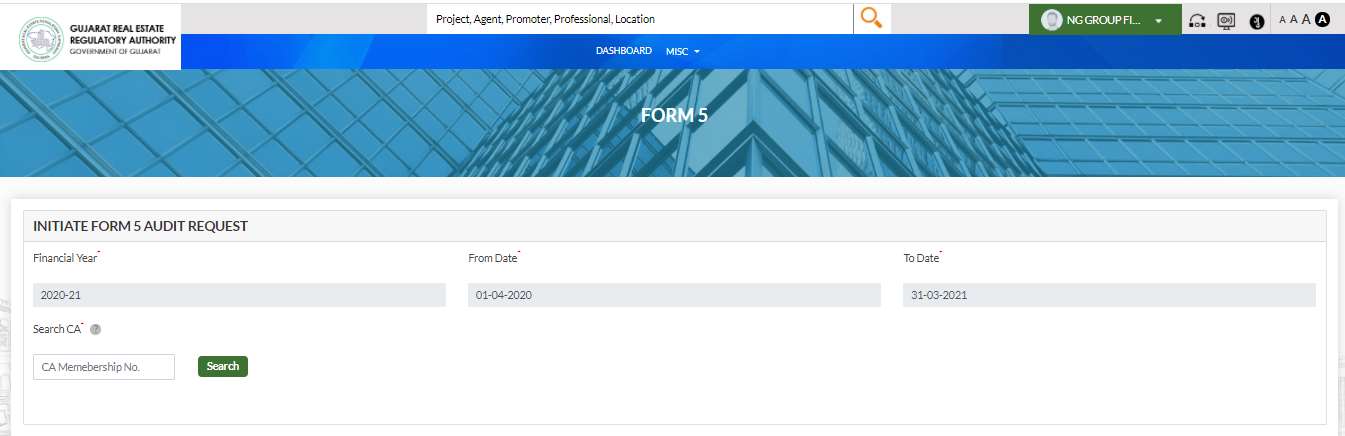
After clicking the FY tile, the Initiate Form 5 Audit Request form opens showing the Financial Year, From Date, and To Date pre-filled.
Enter the CA's ICAI Membership Number in the Search CA field and click Search.
The CA's details auto-populate: CA Membership Number, CA Name, Email ID, and CA Mobile No. Add any Remarks for the CA (e.g. specific documents to review, instructions), then click Submit.
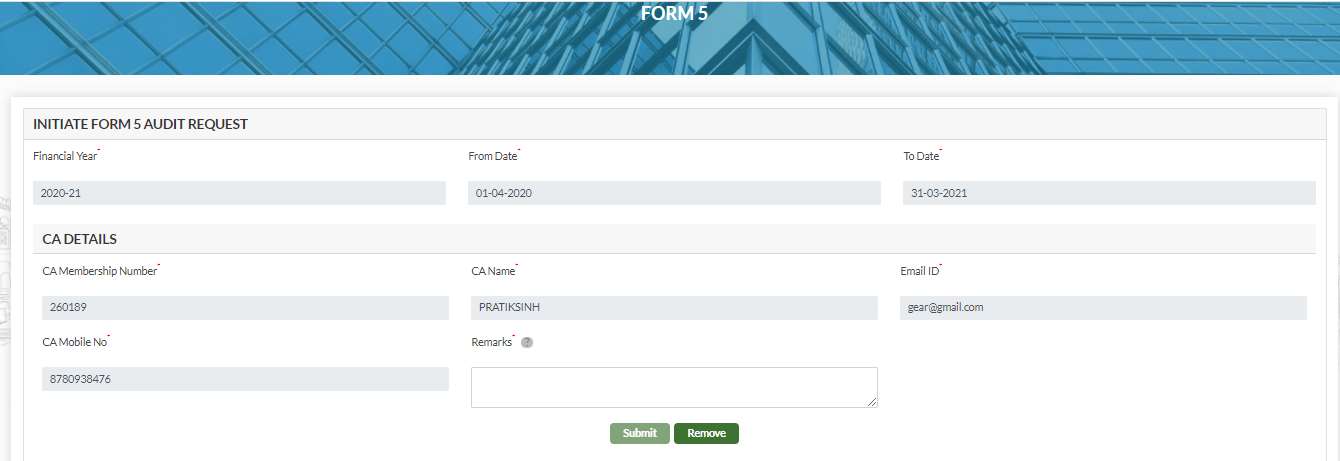
The Form 5 audit request is now sent to the CA. The FY tile changes from ACTIVE to reflect the assignment status. The Promoter can reject the assignment at any point before CA submission if needed.
Part B — CA: Accept, Fill and E-sign Form 5
Step 3: CA Accepts the Form 5 Request
Log in to the CA account on https://gujrera.gujarat.gov.in/. The Form 5 audit request from the Promoter appears on the CA Dashboard. Click Accept to proceed, or Reject if you are unable to complete the audit.
Once accepted, the CA can view the Form-5 History tab to see all previously submitted Form 5 reports for this project — useful for cross-referencing prior year figures.
Step 4: CA Fills the Form 5 — Section by Section
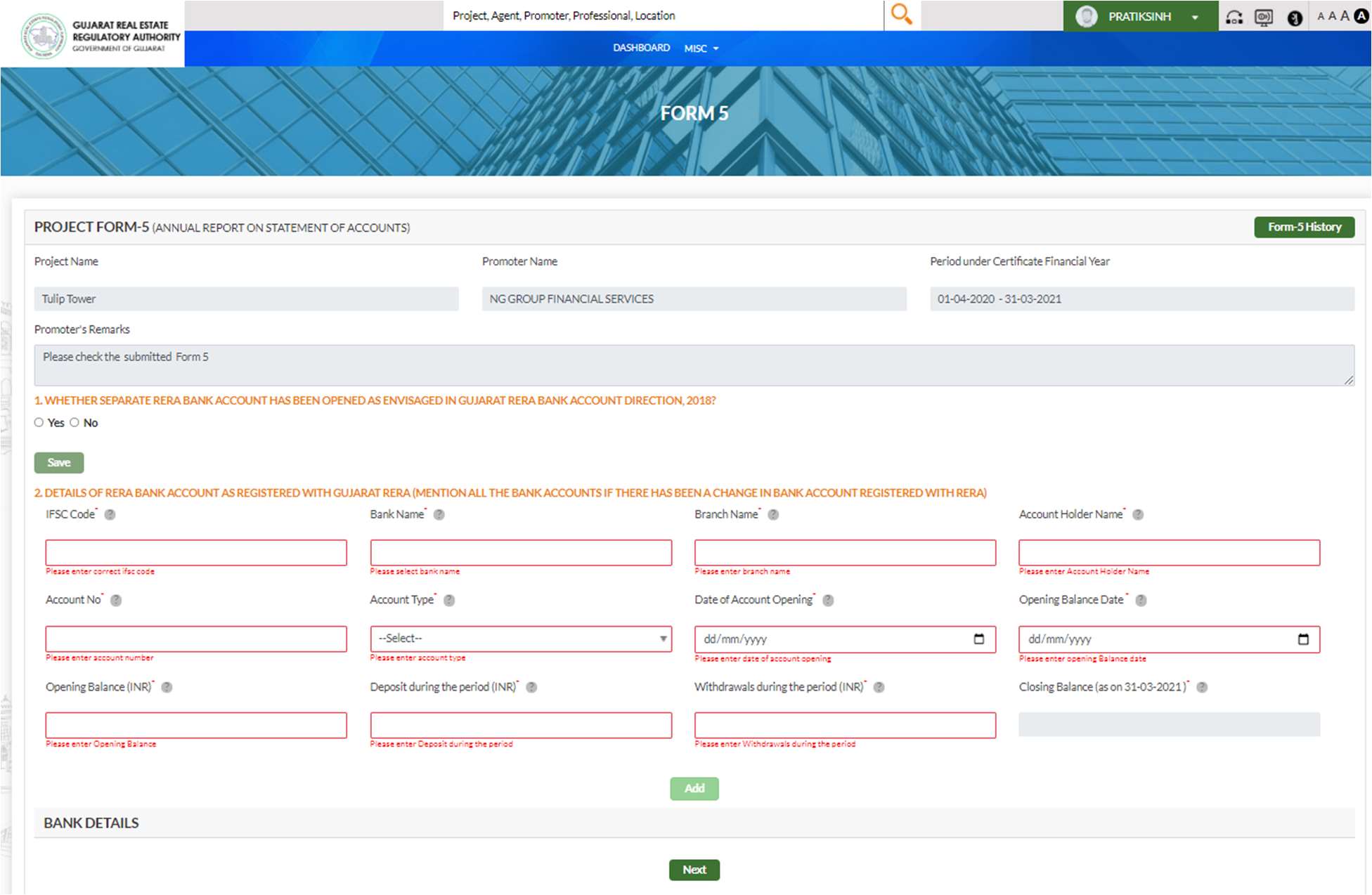
The PROJECT FORM-5 (Annual Report on Statement of Accounts) form opens. The form is divided into multiple sections navigated using Previous, Save, and Next buttons. Progress can be saved at any point.
Section 1 — RERA Bank Account Details:
The first two questions establish the RERA bank account position:
- Q1: Whether a separate RERA Bank Account has been opened as per Gujarat RERA Bank Account Direction, 2018? (Yes / No)
- Q2: Details of RERA Bank Account registered with Gujarat RERA — enter all bank accounts, especially if there has been a change:
- IFSC Code*, Bank Name*, Branch Name*, Account Holder Name*
- Account No*, Account Type*, Date of Account Opening*, Opening Balance Date* (must be within the FY period)
- Opening Balance (INR)*, Deposit during the period (INR)*, Withdrawals during the period (INR)*
- Closing Balance (as on 31-03-YYYY) — auto-calculated
- Click Add for each bank account; multiple accounts can be added
Sections 2–8 — Audit Compliance Questions:
The form asks a series of Yes/No compliance questions. Answer each one carefully:
- Q3: Whether change in RERA Bank Account had prior approval from GujRERA under Bank Account Directions, 2018?
- Q4: Whether Form 3 mandated 100% deposit of money collected from allottees into RERA Bank Account?
- Q5: Whether the required proportion of money collected from allottees (as indicated in Form 3) was deposited in the RERA Bank Account?
- Q6: Whether the project registration is New or Ongoing?
- Q7: Whether all amounts withdrawn from RERA Bank Account were within the withdrawal limit certified under the relevant Form 3?
- Q8: Whether the Promoter has been maintaining a separate account for each project?
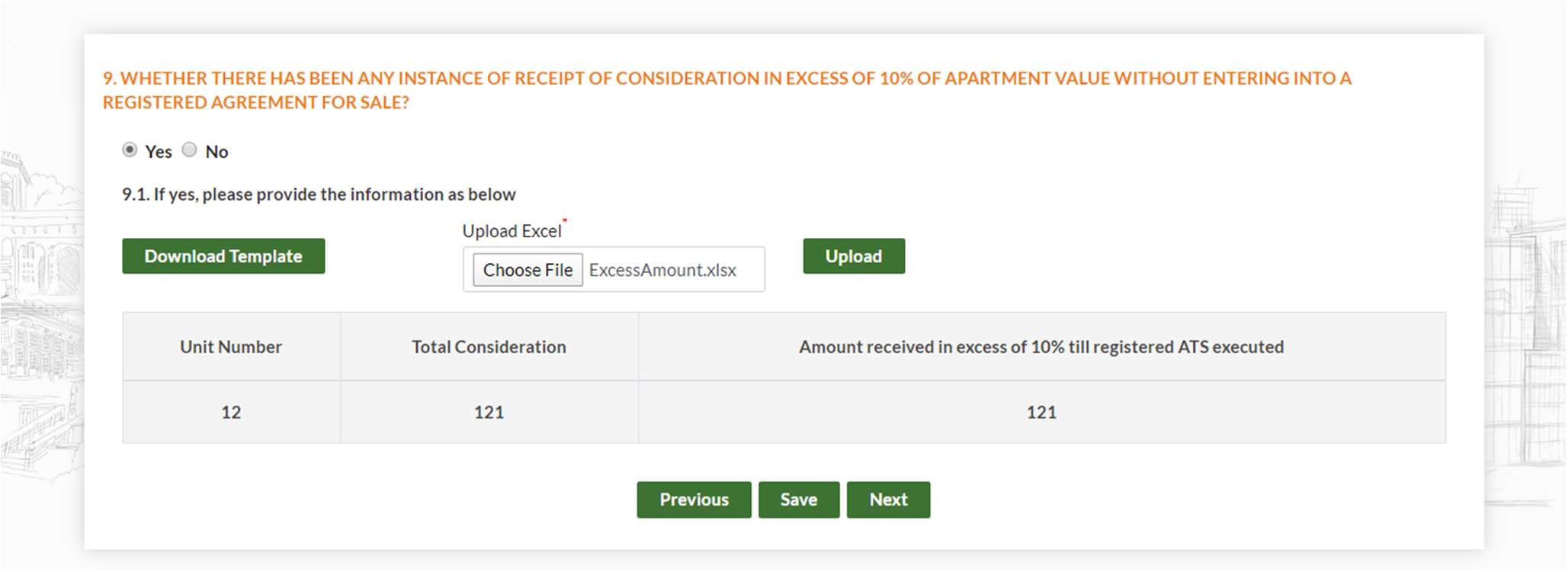
Q9 — Excel Upload for Violations:
If any consideration exceeding 10% of apartment value was received without a registered Agreement for Sale, answer Yes and upload the violations using the Excel template provided.
Click Download Template to get the Excel file, fill it (Unit Number, Total Consideration, Amount received in excess of 10%), and upload it.
- Q10: Whether the project was executed by availing any loans or borrowings? If Yes, provide loan details via Excel upload (Lender Name, Type, Amount Sanctioned, Sanction Date, Loan Outstanding as on 31 March, Collateral/Mortgage Details). Sub-question 10.2 asks whether the financial encumbrance was reported to Gujarat RERA.
- Q11: Financial statements — Balance Sheet, Profit & Loss Account, and Cash Flows Statement uploads
Q11 History: On Question 11, the complete history of all Form 1, Form 2, Form 2A, Form 3 and Form 5 submissions for this project is visible under the History tab — useful for verifying the audit trail.
Step 5: CA Submits with Declaration and UDIN
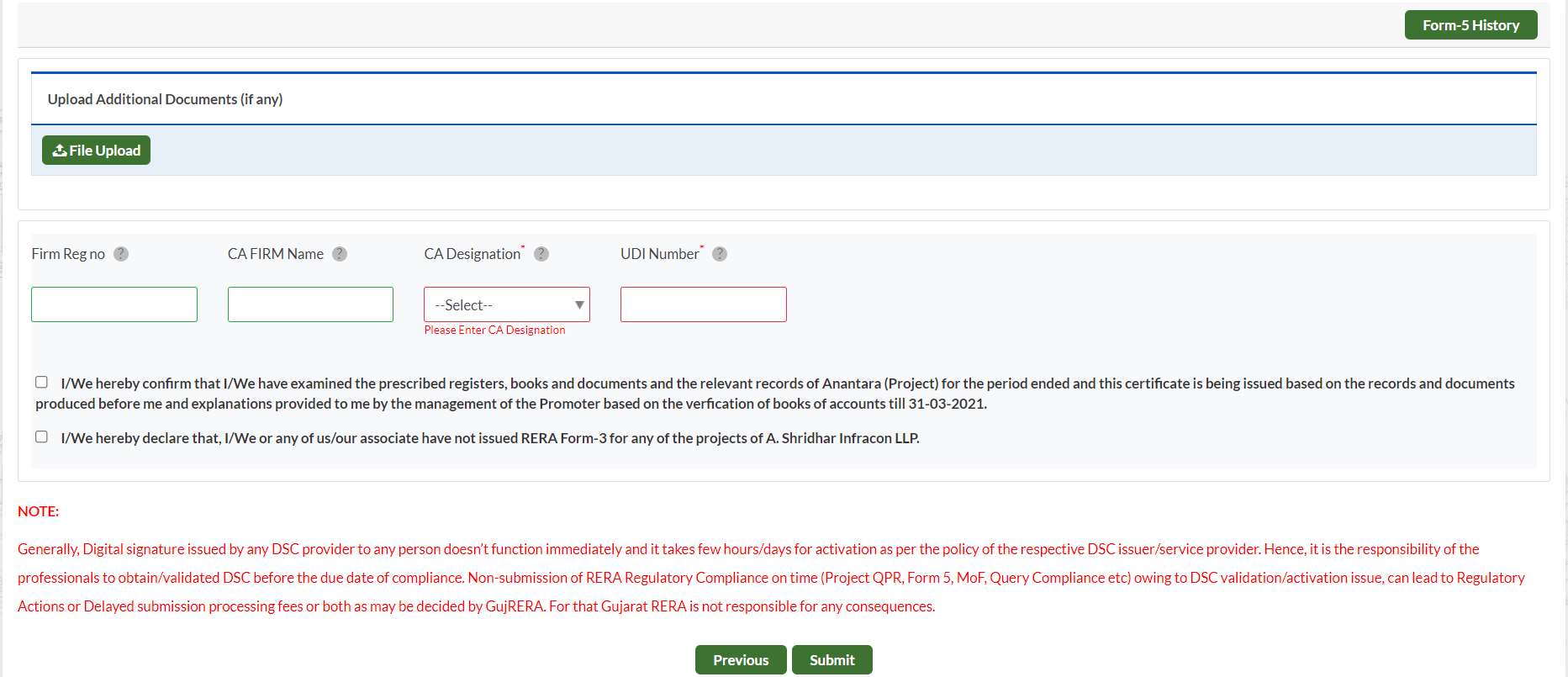
On the final section, complete the CA firm details and declaration:
- Upload Additional Documents (if any) — supporting documents for the audit
- Firm Reg No — ICAI firm registration number
- CA FIRM Name
- CA Designation* — select from dropdown (e.g. Proprietor, Partner)
- UDI Number* — Unique Document Identification Number (generated on UDIN portal for this Form 5)
Tick both Declaration checkboxes:
- Confirmation of examining prescribed registers, books, and documents
- Declaration that no RERA Form-3 has been issued for any projects of this promoter entity
DSC Warning (in red on portal): "Generally, Digital Signature issued by any DSC provider doesn't function immediately — it takes a few hours/days for activation. It is the responsibility of the professionals to obtain/validate DSC before the due date. Non-submission on time can lead to Regulatory Actions or Delayed submission processing fees."
Click Submit.
Step 6: CA Generates PDF and E-signs
After submitting, the complete Form 5 is displayed in read-only review mode showing all entered data and bank account figures. A Generate PDF button appears at the top right.
Click Previous to go back and make any corrections before e-signing. Once satisfied, click Generate PDF to produce the Form 5 PDF, then apply your Digital Signature Certificate (DSC) to e-sign it.
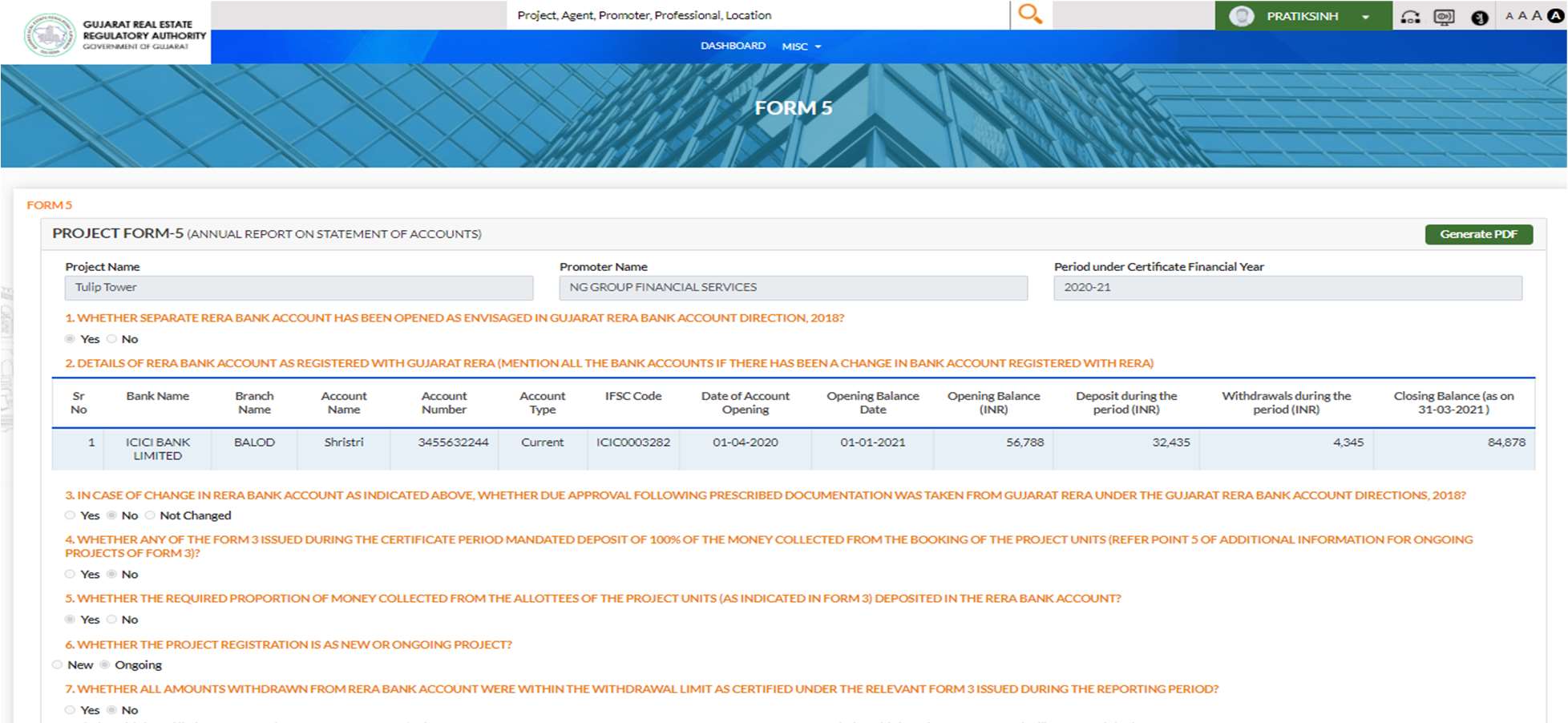
Only an e-signed Form 5 can be submitted to the Authority — the portal does not accept unsigned Form 5 reports.
Part C — Promoter: Review RAF Flags and Submit to Authority
Step 7: Promoter Reviews the E-signed Form 5 and RAF Flags
Once the CA e-signs and submits, the FY tile on the Promoter's dashboard changes to ESIGNED (pink/purple). Click View to open the submitted Form 5.
The Promoter sees the complete Form 5 in read-only mode. RAF flags (Risk Assessment Framework) are shown as orange circles marked "Critical" next to questions where the answers indicate a compliance risk — for example, where the RERA Bank Account closing balance exceeds the withdrawal limit, or where bank account changes were made without prior GujRERA approval.
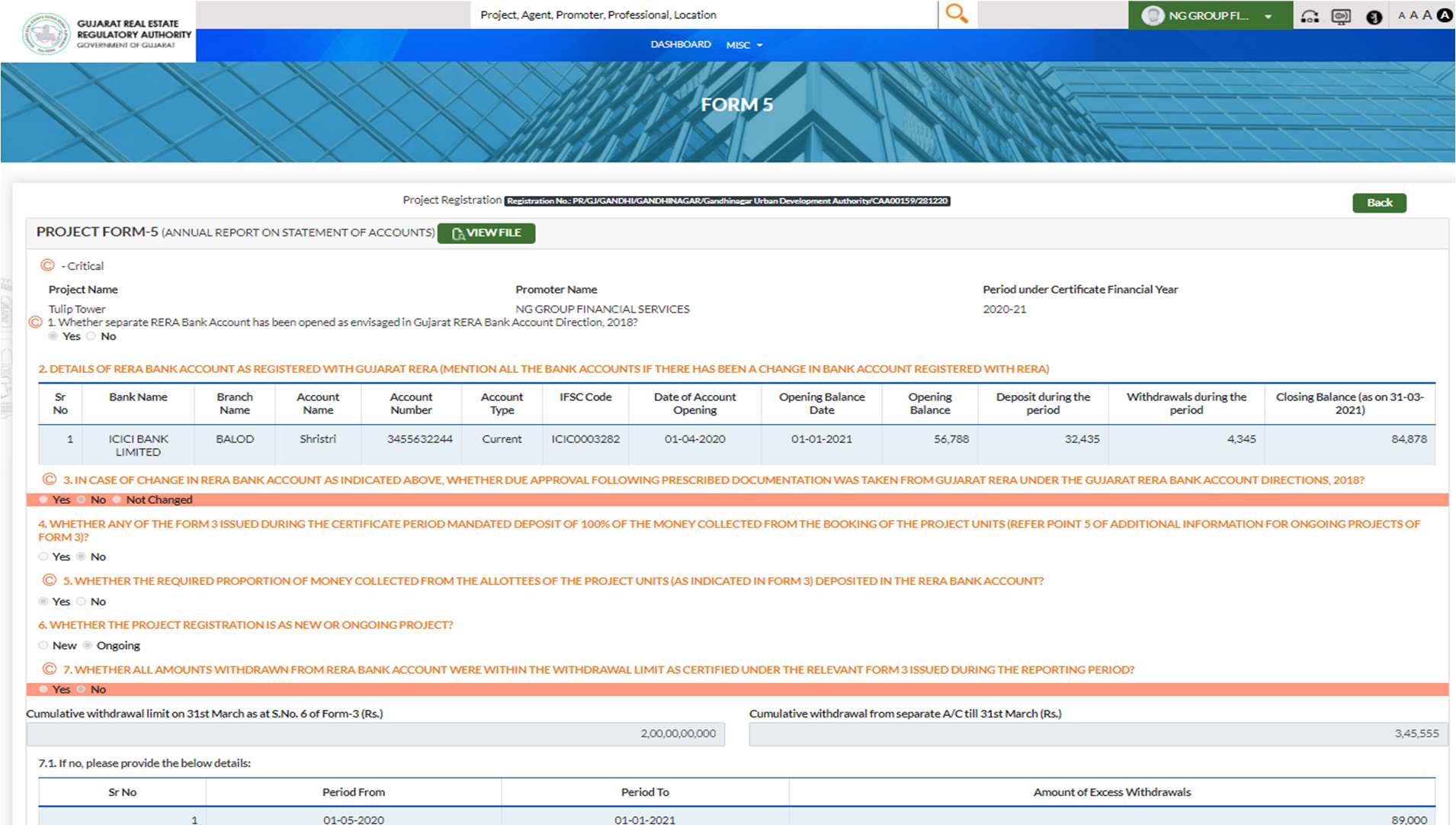
Step 8: Promoter Accepts or Rejects
After reviewing the Form 5 and RAF flags, the Promoter can:
- Click Accept — to confirm the Form 5 is correct and proceed to submit to Authority
- Click Reject — to send the Form 5 back to the CA for corrections; the CA must re-fill and re-submit
Once Accepted, the Form 5 is submitted to the Authority and the FY tile status updates to SUBMITTED.
Common Issues
CA not found when searching by ICAI Membership Number: The CA must have an active GujRERA 2.0 portal account created using their ICAI Membership Number (see the CA Account Creation guide). A CA without a portal account cannot be assigned Form 5.
CA who filed Form 3 is being rejected: A CA who has already certified Form 3 for this project in the same FY is ineligible to file Form 5 for the same project and FY. Assign a different CA.
UDIN validation error on submission: The UDIN must be generated on the ICAI UDIN portal specifically for this Form 5 document for the relevant project and FY. Using a UDIN from a different document will fail validation.
DSC not working on the day of submission: DSCs from new providers can take hours to days to activate. Obtain and test the DSC on the GujRERA portal well before the 30 September deadline.
Opening Balance Date outside FY period: The Opening Balance Date entered in the RERA Bank Account section must fall within the Financial Year period (1 April to 31 March). An out-of-range date will block the Next button.
FY tile shown as DEFAULTER (red): The 30 September filing deadline for the FY has passed. The project is in default status. File the overdue Form 5 as soon as possible — late filing may attract regulatory action or delayed submission processing fees as determined by GujRERA.