
How to File an Authority or Adjudicating Complaint (Form A / Form B) on GujRERA Portal — Step-by-Step Guide

Any registered GujRERA portal user — allottee, buyer, or other aggrieved person — can file a formal complaint against a promoter or other party through the GujRERA ECOURT module. Two types of complaints are available:
| Form | Legal Basis | Filed Against |
|---|---|---|
| Form A | Section 31 of RERA Act 2016 — Complaint to Regulatory Authority | Non-compliance by promoter, agent, or allottee |
| Form B | Section 31 read with Section 71 — Application to Adjudicating Officer | Compensation claims for loss or damage |
Registration fee: ₹1,000 (non-refundable) for both Form A and Form B. Payment is via SBI ePay gateway.
Before filing: GujRERA Rules 12C requires you to send a Registered AD Post to the respondent before filing a complaint. You must upload the AD Post Acknowledgement Receipt as a mandatory attachment in the form.
Source: This guide is based on GujRERA User Manual – Grievance Redressal – External Users (V.0.1), Section 2 (pages 4–16), published by Gujarat Real Estate Regulatory Authority.
Table of Contents
- Before You Begin
- Step 1: Log In to the GujRERA Portal
- Step 2: Open the Complaint Form from Your Dashboard
- Step 3: Choose Between Conciliation and Formal Complaint
- Step 4: Search and Select the Project
- Step 5: Fill Complainant Details
- Step 6: Fill Respondent Details
- Step 7: Fill Details of the Complaint
- Step 8: Select Nature of Complaint, Upload AD Post Receipt, and Add Supporting Documents
- Step 9: Accept the Declaration and Proceed
- Step 10: Review Payment Details and Pay ₹1,000
- Step 11: Collect Your Complaint Stamp Number
- Step 12: Track Your Complaint on the Dashboard
- Step 13: View the Filed Complaint (ECOURT Read-Only)
- Complaint Number Format
- Common Issues
- Official Reference
Before You Begin
- You must have a registered account on the GujRERA portal. New users must Sign Up first.
- Any respondent you add by email search must also be registered as a USER on the GujRERA portal.
- Prepare: the Project Registration Number of the project in dispute, the AD Post Acknowledgement Receipt (as per GujRERA Rules 12C), and any supporting documents (sale deed, booking form, brochure, etc.).
Step 1: Log In to the GujRERA Portal
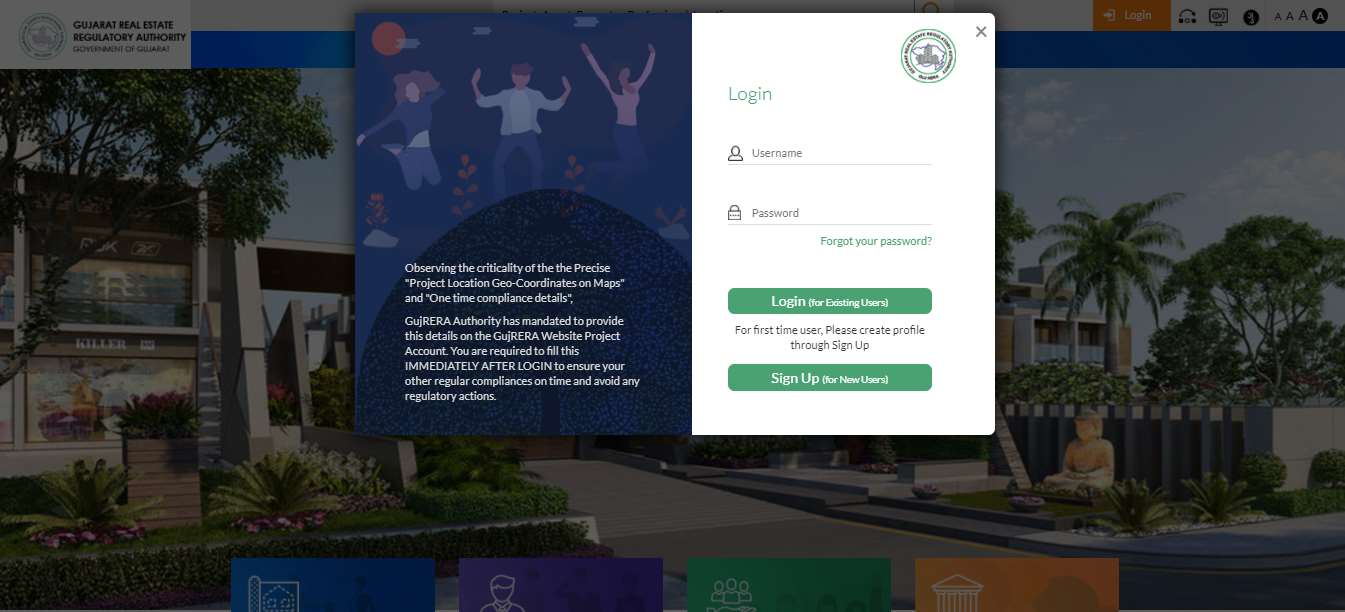
Go to https://gujrera.gujarat.gov.in/ and click the Login button in the top-right corner.
Enter your Username and Password and click Login (for Existing Users). First-time users must click Sign Up (for New Users) to create an account before filing a complaint.
Step 2: Open the Complaint Form from Your Dashboard
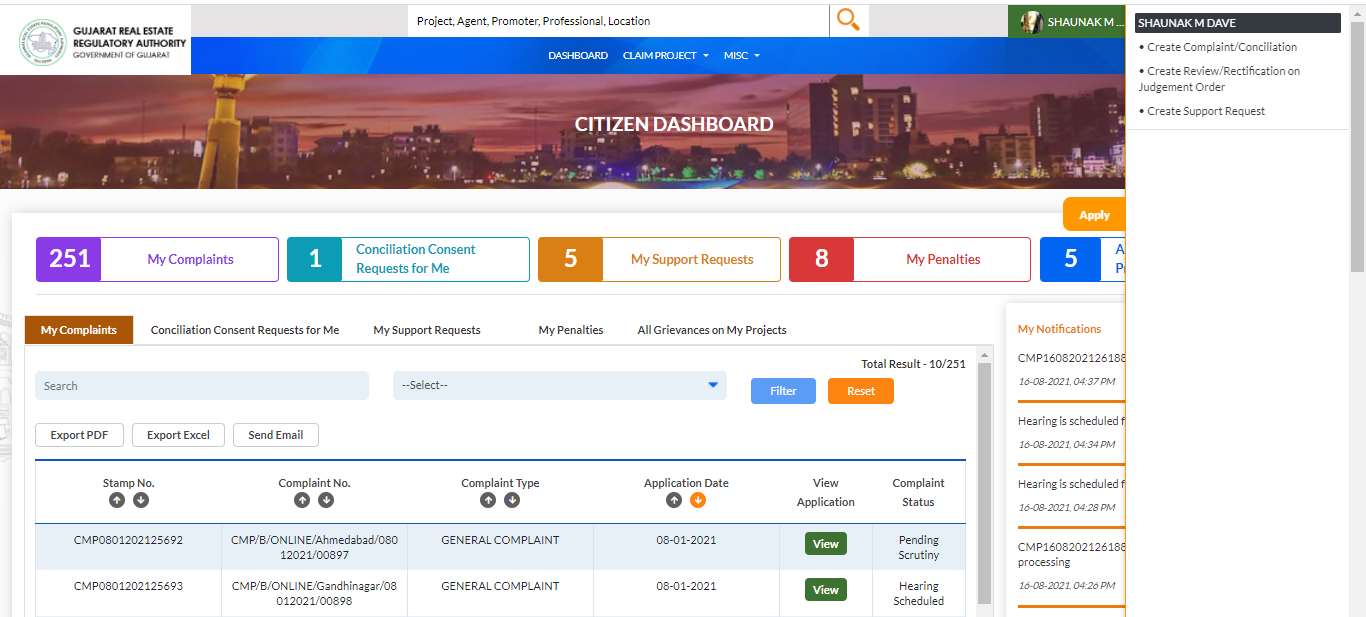
After login, you land on your Citizen Dashboard. On the right-side quick-access panel, click Create Complaint/Conciliation.
Step 3: Choose Between Conciliation and Formal Complaint
A popup appears asking “Do you want to opt for conciliation?”
- Click Yes → redirected to the Conciliation Forum application (faster, informal dispute resolution — see the Conciliation guide).
- Click No → proceeds to the formal complaint form (Form A / Form B).
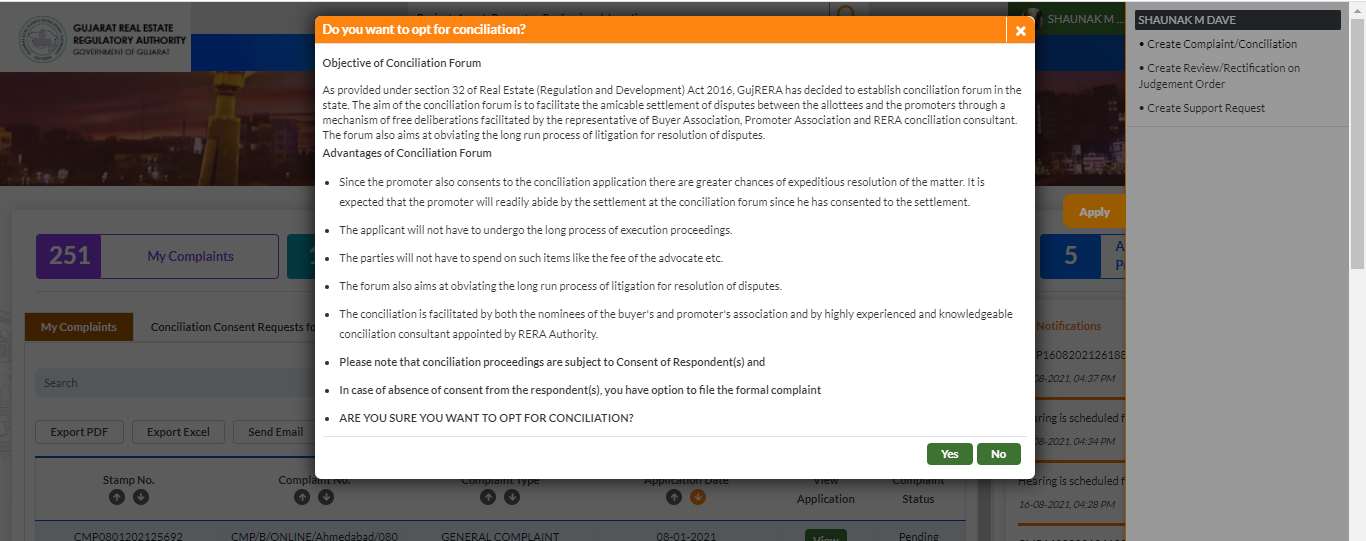
Tip: Conciliation is faster and free from advocate fees, but requires all respondents to consent. If you expect the respondent to refuse, choose No and file the formal complaint directly.
Step 4: Search and Select the Project
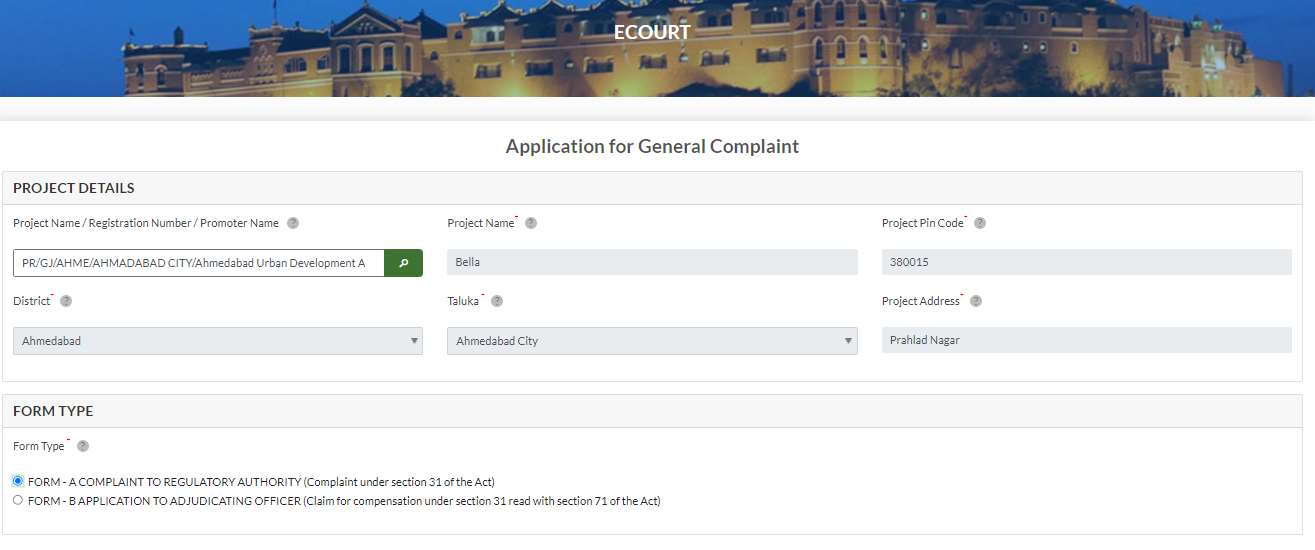
The ECOURT — Application for General Complaint form opens.
In the PROJECT DETAILS section, type the Project Name, Registration Number, or Promoter Name in the search box and click the search button. The form auto-fills:
- Project Name* — auto-filled on selection
- Project Pin Code* — auto-filled
- District* — auto-filled
- Taluka* — auto-filled
- Project Address* — auto-filled
In the FORM TYPE section, select the complaint type:
- FORM-A — Complaint to Regulatory Authority under Section 31 of the Act
- FORM-B — Application to Adjudicating Officer under Section 31 read with Section 71 of the Act
Step 5: Fill Complainant Details
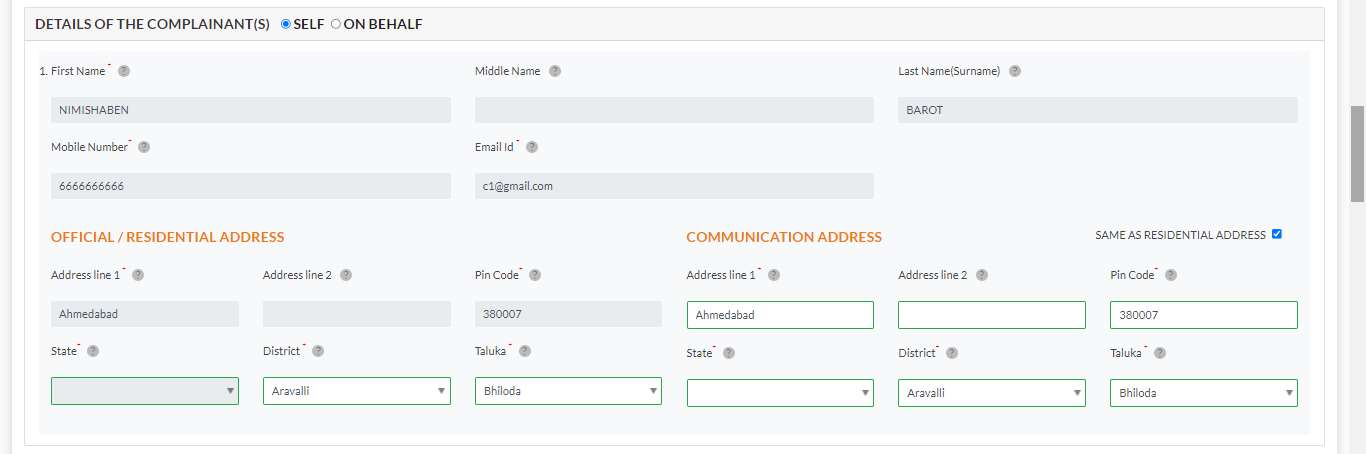
In the DETAILS OF THE COMPLAINANT(S) section, select SELF (filing on your own behalf) or ON BEHALF (filing for another person).
Fill in:
- First Name*, Middle Name, Last Name (Surname)*
- Mobile Number*, Email Id*
- Official / Residential Address: Address line 1*, Address line 2, Pin Code*, State*, District*, Taluka*
- Communication Address: same fields (tick “Same as Residential Address” to copy)
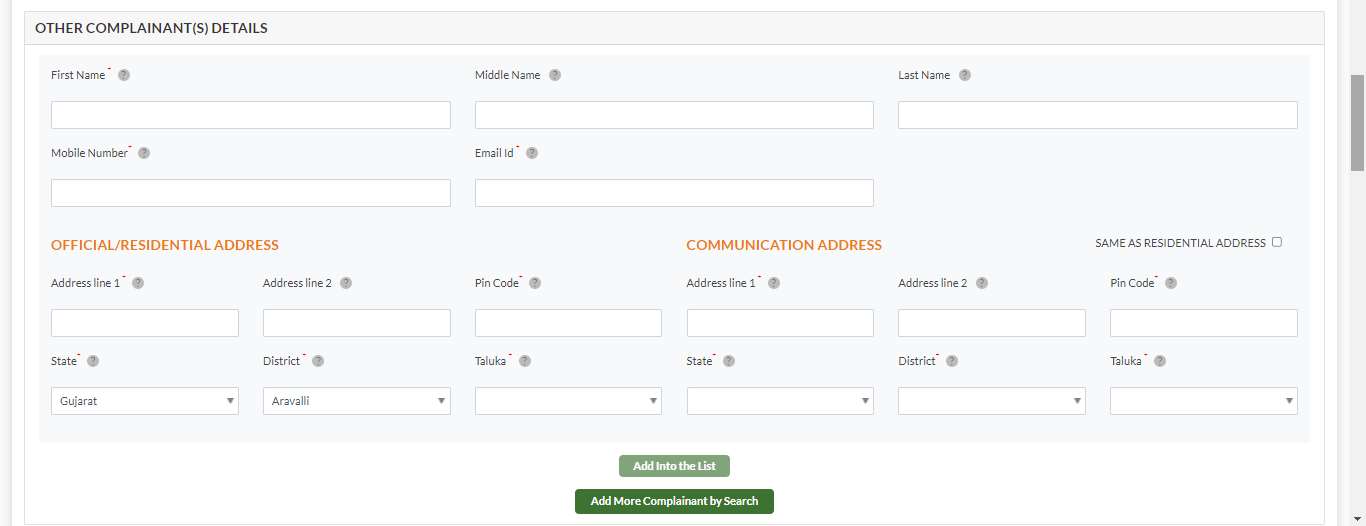
To add joint complainants, fill the OTHER COMPLAINANT(S) DETAILS sub-section and click Add Into the List. To search for a co-complainant who already has a GujRERA account, click Add More Complainant by Search and enter their registered email.
Step 6: Fill Respondent Details
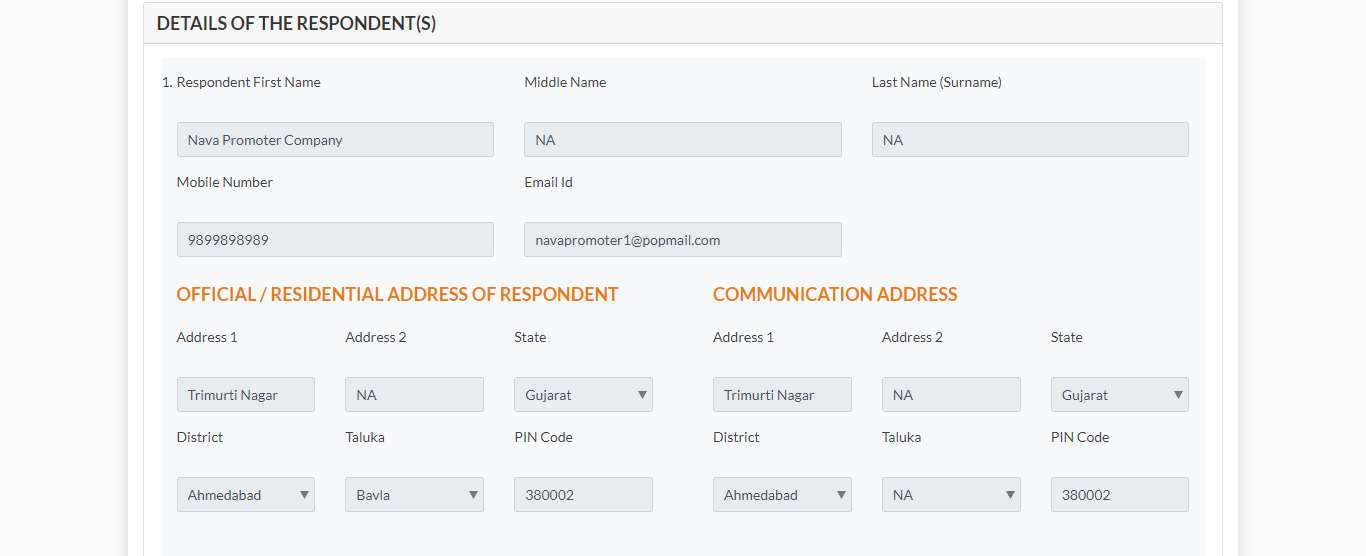
In the DETAILS OF THE RESPONDENT(S) section, fill the respondent’s information:
- Respondent First Name, Middle Name, Last Name (Surname)
- Mobile Number, Email Id
- Official / Residential Address of Respondent + Communication Address
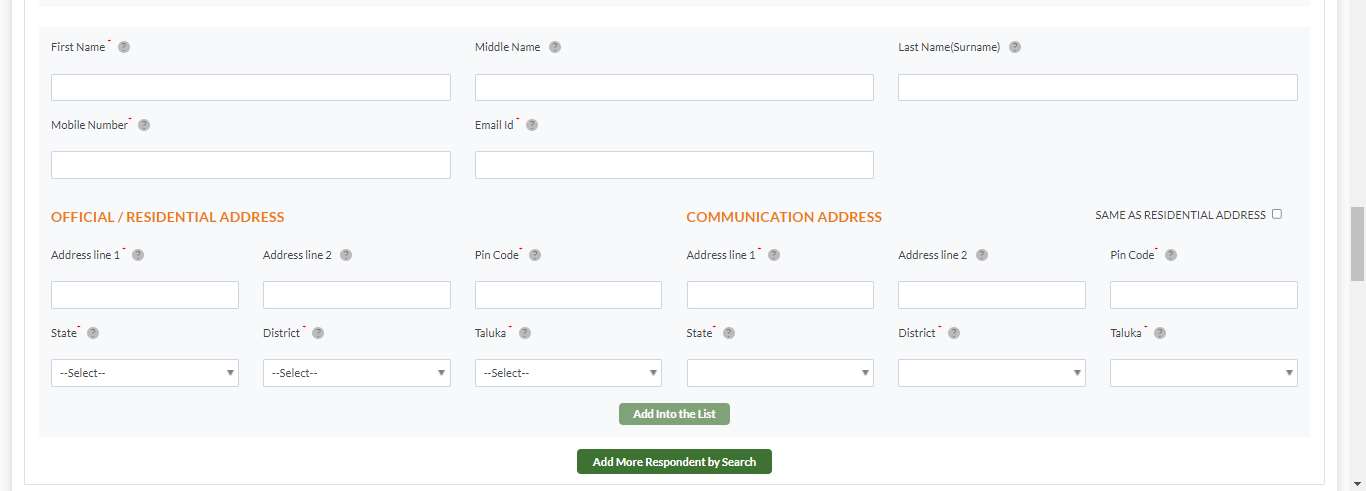
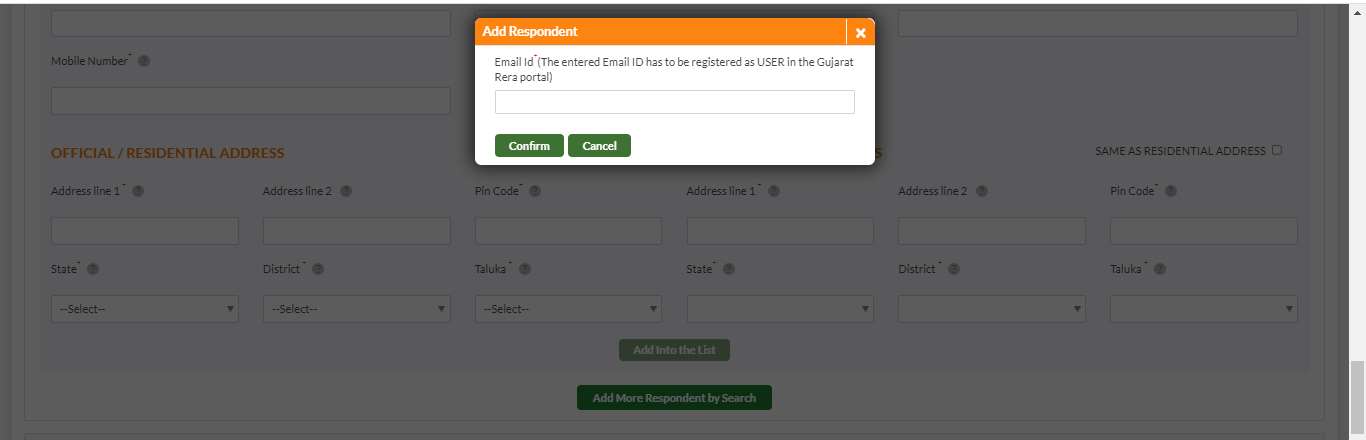
To add multiple respondents manually, scroll down and fill the next respondent block, then click Add Into the List. To search by registered email, click Add More Respondent by Search.
When you click Add More Respondent by Search, a popup appears requiring the respondent’s email address. The email must belong to a registered GujRERA portal user.
Step 7: Fill Details of the Complaint
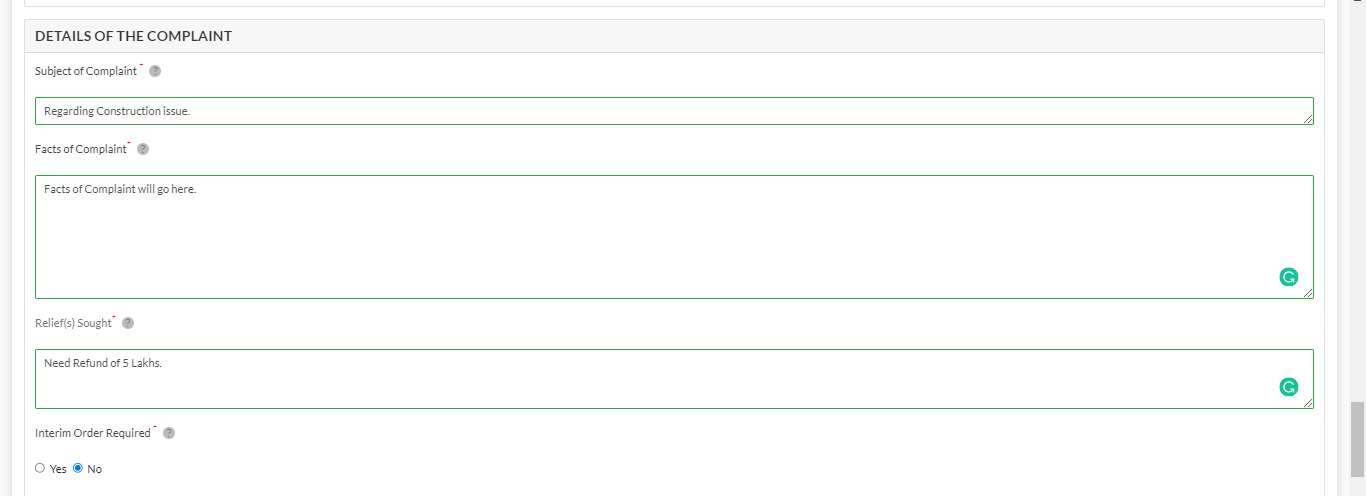
Scroll down to DETAILS OF THE COMPLAINT and fill:
- Subject of Complaint* — brief one-line description of the issue
- Facts of Complaint* — detailed narrative of the facts (use the full textarea)
- Relief(s) Sought* — specify exactly what you are asking the Authority to order (refund amount, possession date, compensation, etc.)
- Interim Order Required — select Yes if you need urgent interim relief; otherwise No
Step 8: Select Nature of Complaint, Upload AD Post Receipt, and Add Supporting Documents
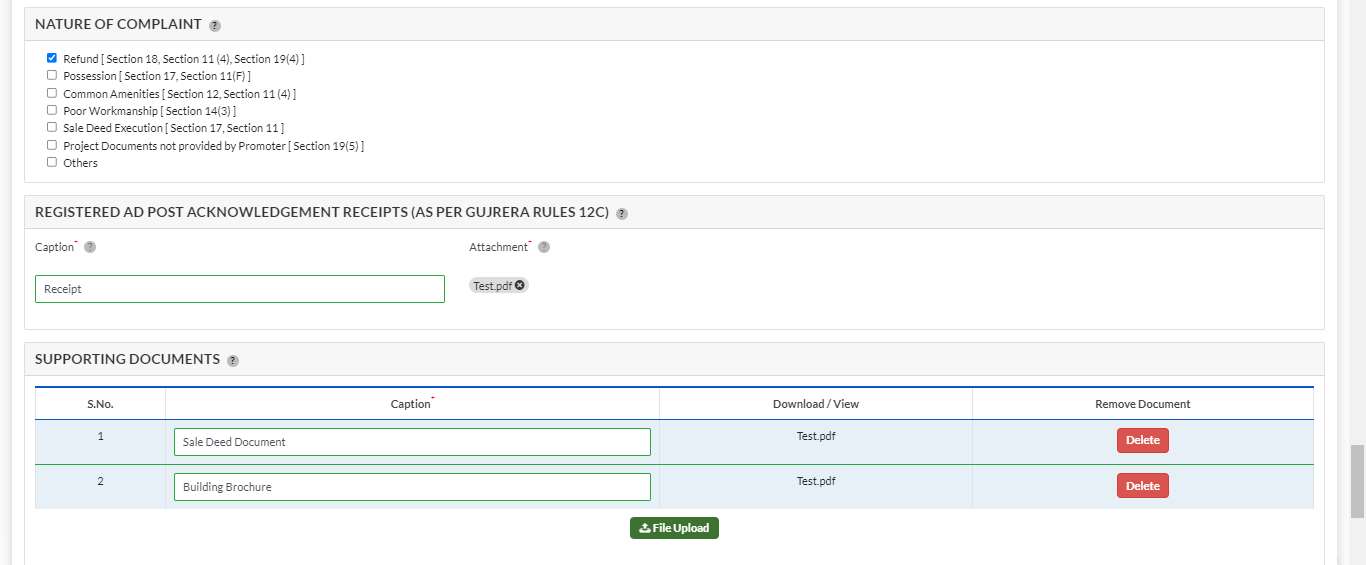
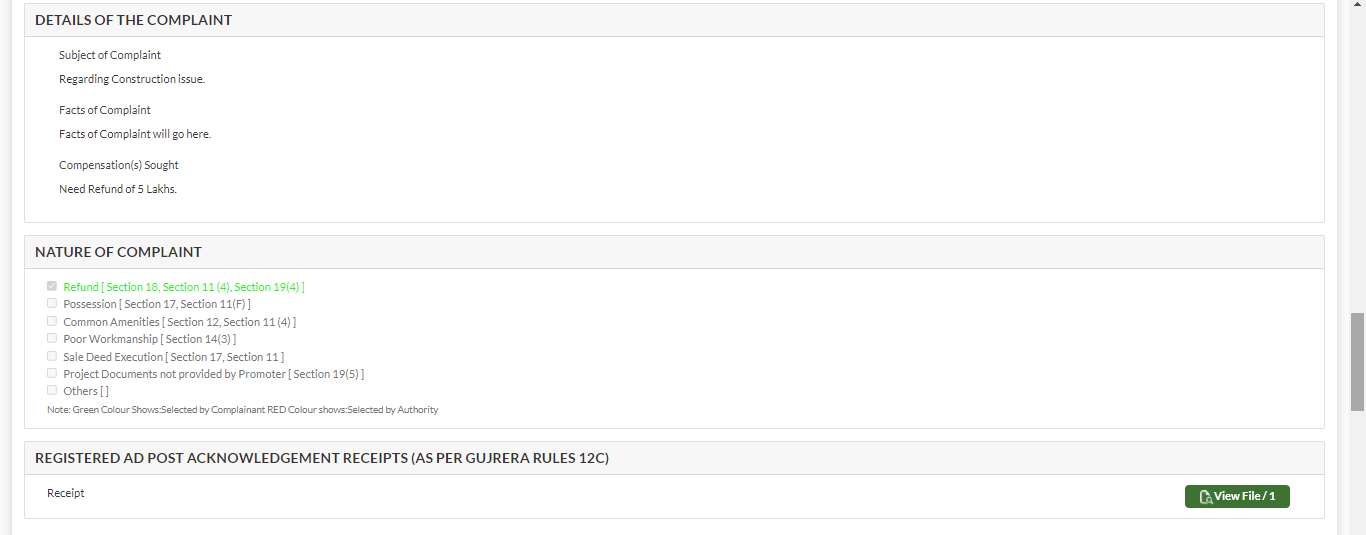
In the NATURE OF COMPLAINT section, tick all categories that apply:
- Refund [Section 18, Section 11(4), Section 19(4)]
- Possession [Section 17, Section 11(F)]
- Common Amenities [Section 12, Section 11(4)]
- Poor Workmanship [Section 14(3)]
- Sale Deed Execution [Section 17, Section 11]
- Project Documents not provided by Promoter [Section 19(5)]
- Others
In REGISTERED AD POST ACKNOWLEDGEMENT RECEIPTS (AS PER GUJRERA RULES 12C)*, enter a Caption and attach the scanned receipt of the registered AD post sent to the respondent. This is mandatory as per GujRERA Rules 12C.
In SUPPORTING DOCUMENTS, upload all relevant documents (sale deed, booking form, payment receipts, builder communications, brochure). Click File Upload to add each document with a Caption.
Step 9: Accept the Declaration and Proceed
Read the three DECLARATION* checkboxes and tick each one:
- The subject matter of the above claim falls within the Jurisdiction of the Authority
- The matter regarding which the complaint has been made is not pending before any Court of Law or any other Authority or any other Tribunal(s)
- The contents of the above sections are true to my personal knowledge and belief and I have not suppressed any material fact(s)
Click Save & Next to proceed to payment.

Step 10: Review Payment Details and Pay ₹1,000
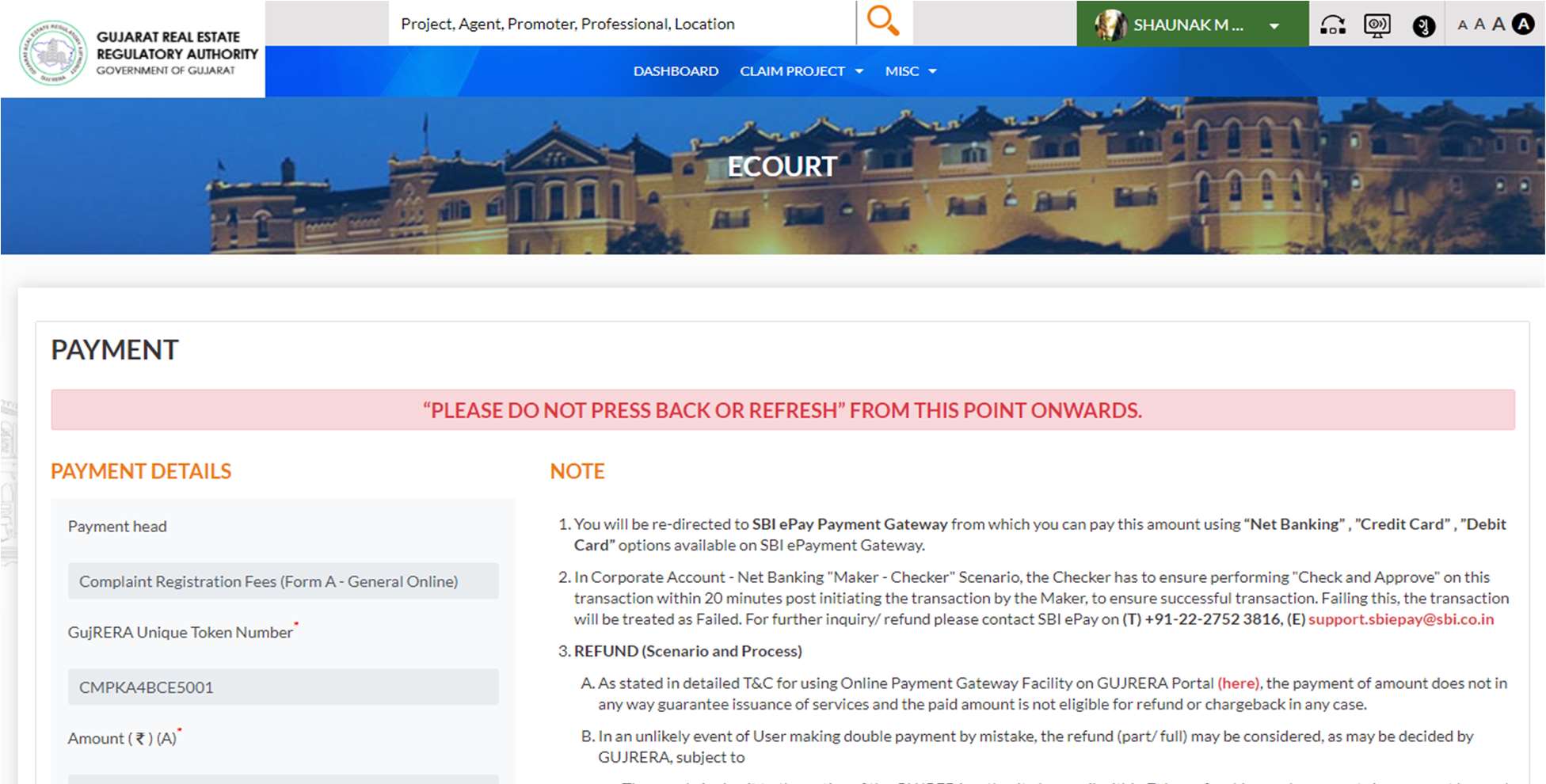
The PAYMENT screen appears within the ECOURT module.
“PLEASE DO NOT PRESS BACK OR REFRESH FROM THIS POINT ONWARDS.”
Review the payment details:
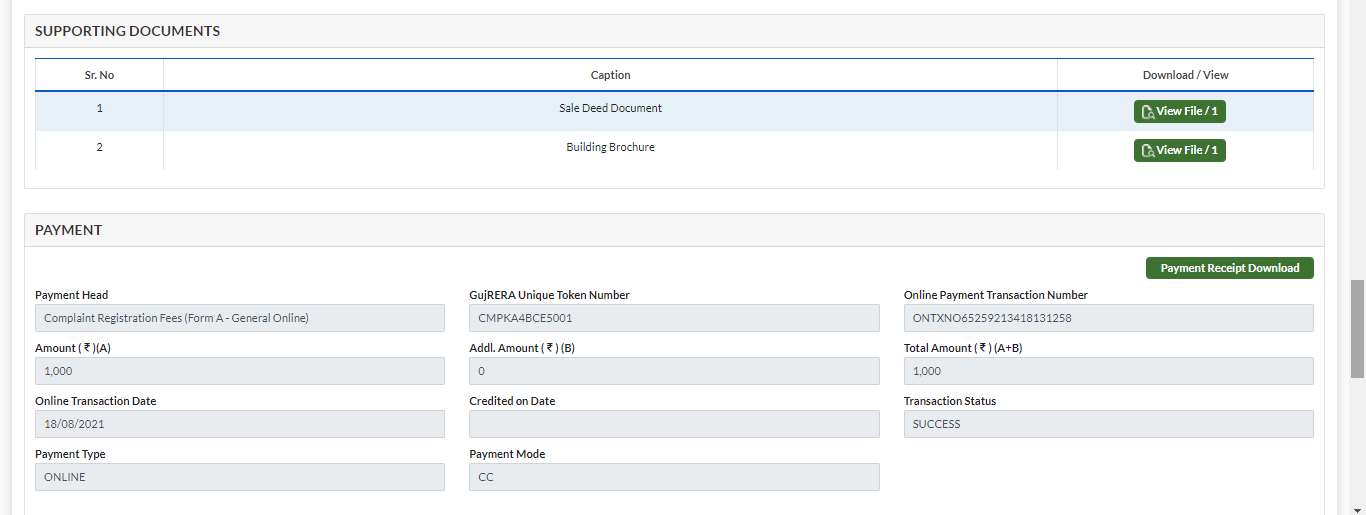
| Field | Value |
|---|---|
| Payment head | Complaint Registration Fees (Form A – General Online) |
| GujRERA Unique Token Number | Auto-generated (e.g., CMPKA4BCE5001) — note this down |
| Amount (₹)(A) | ₹1,000 |
| Additional Amount (₹)(B) | ₹0 |
| Total Amount (₹)(A+B) | ₹1,000 |
Read and tick the Terms & Conditions checkboxes, then click OK to proceed to gateway selection.
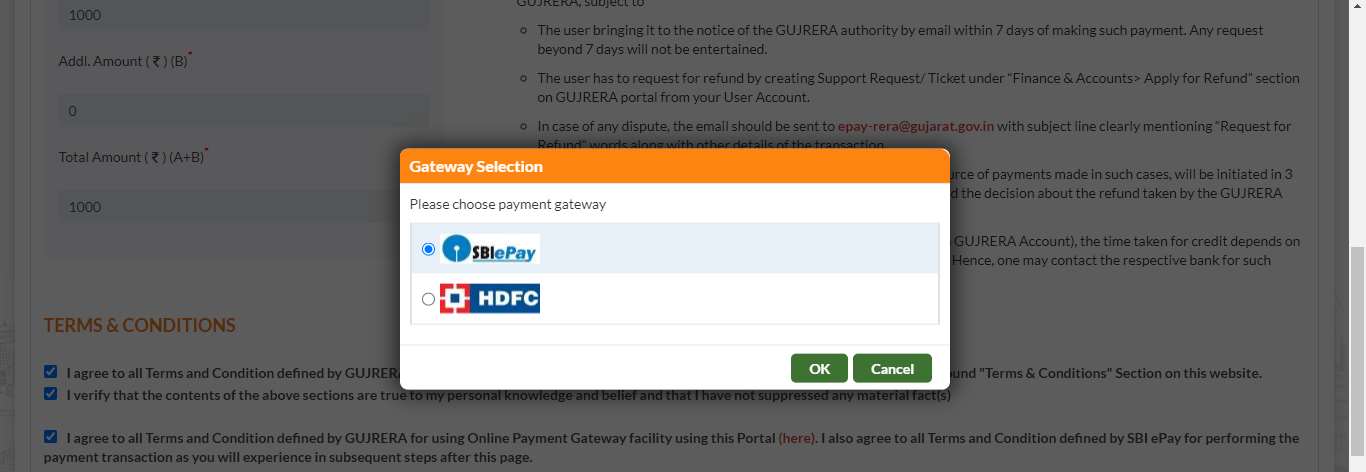
A Gateway Selection popup appears. Select SBI ePay (recommended) or HDFC and click OK.
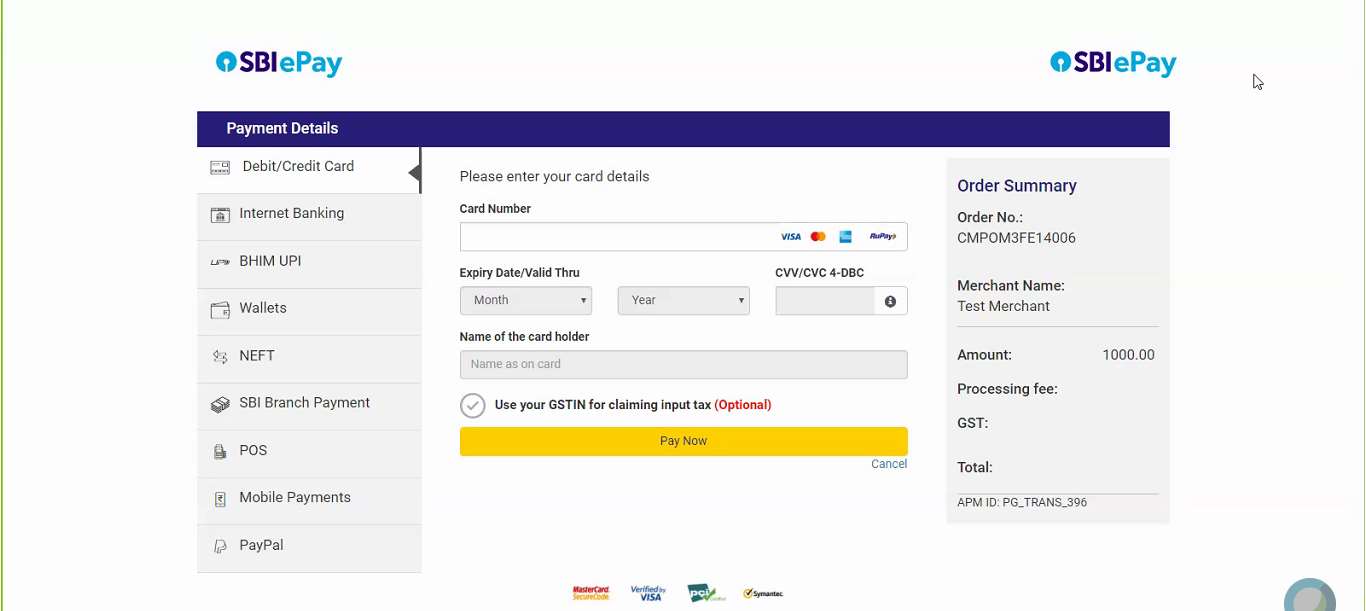
The SBI ePay payment page opens. Choose a payment mode from the left panel:
- Debit/Credit Card
- Internet Banking
- BHIM UPI
- Wallets
- NEFT
- SBI Branch Payment
- POS
- Mobile Payments
- PayPal
Complete the payment. For Corporate Net Banking (Maker-Checker), the Checker must approve within 20 minutes of the Maker initiating the transaction.
Step 11: Collect Your Complaint Stamp Number
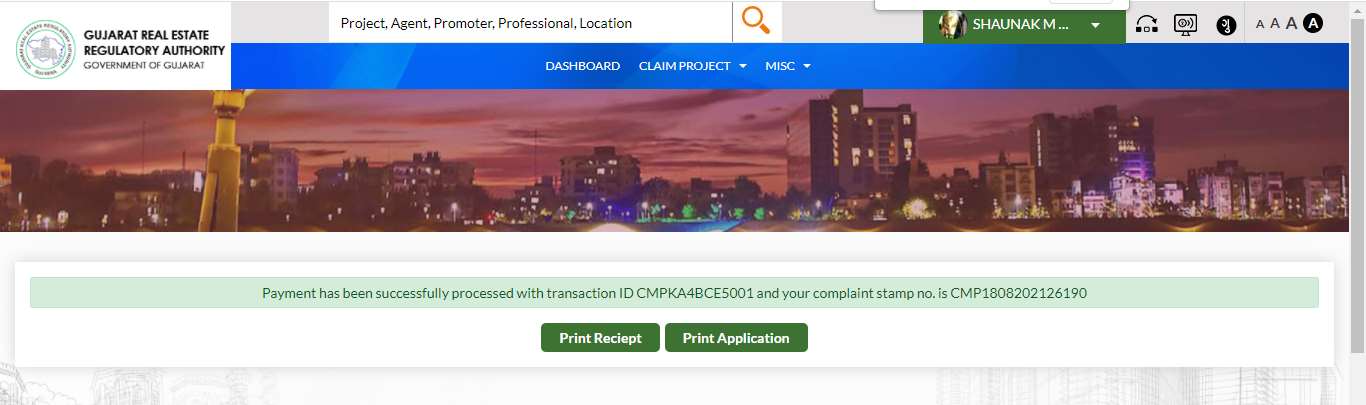
After successful payment, the portal returns to the ECOURT confirmation screen:
“Payment has been successfully processed with transaction ID [Token No.] and your complaint stamp no. is [Stamp No.]”
The Complaint Stamp Number (e.g., CMP1808202126190) is your complaint reference for all future communication with GujRERA.
Click Print Receipt to download the SBI ePay payment receipt. Click Print Application to download the full Form A/B complaint PDF.
An Email and SMS confirmation is sent to your registered mobile and email.
Step 12: Track Your Complaint on the Dashboard
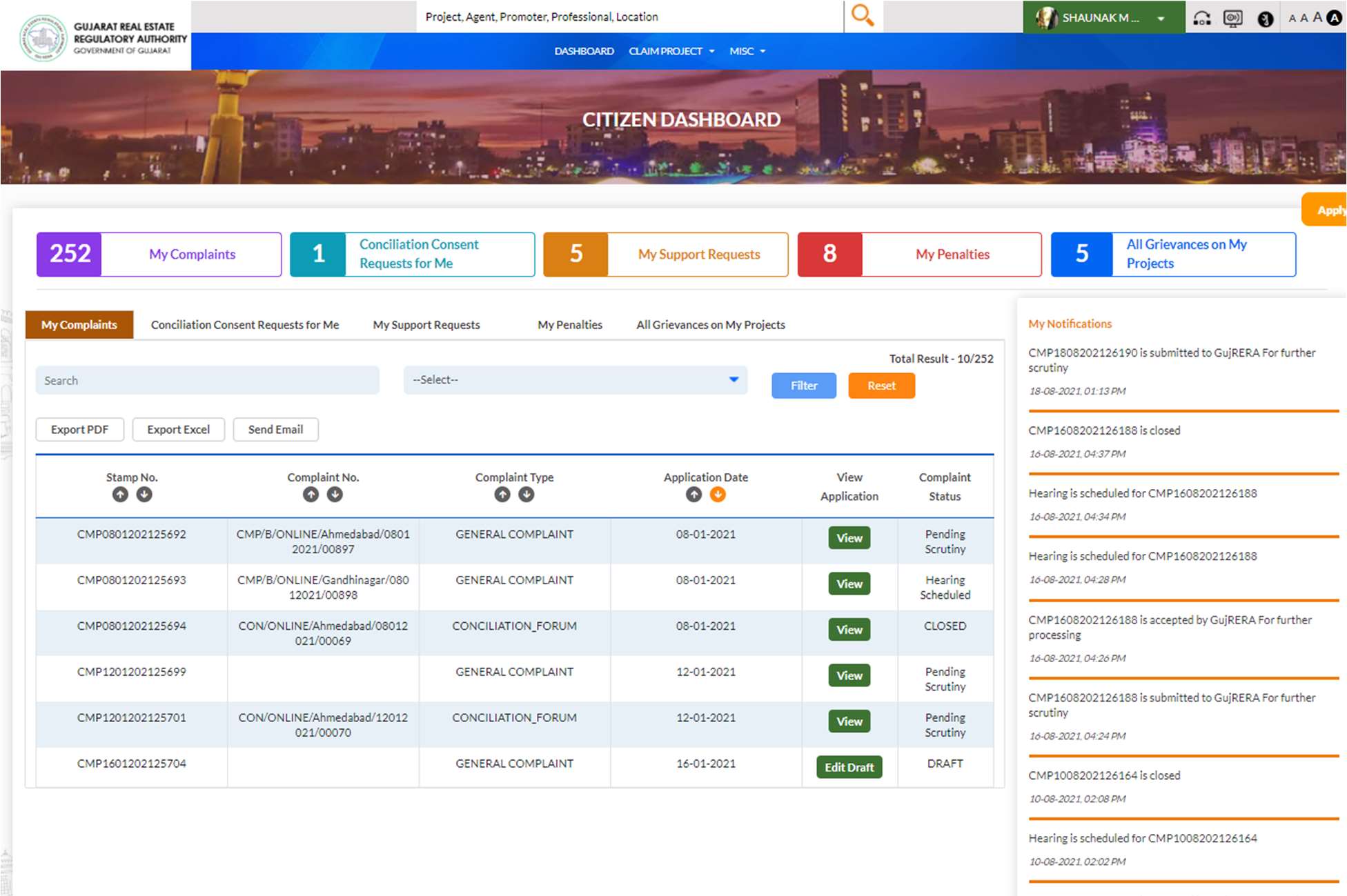
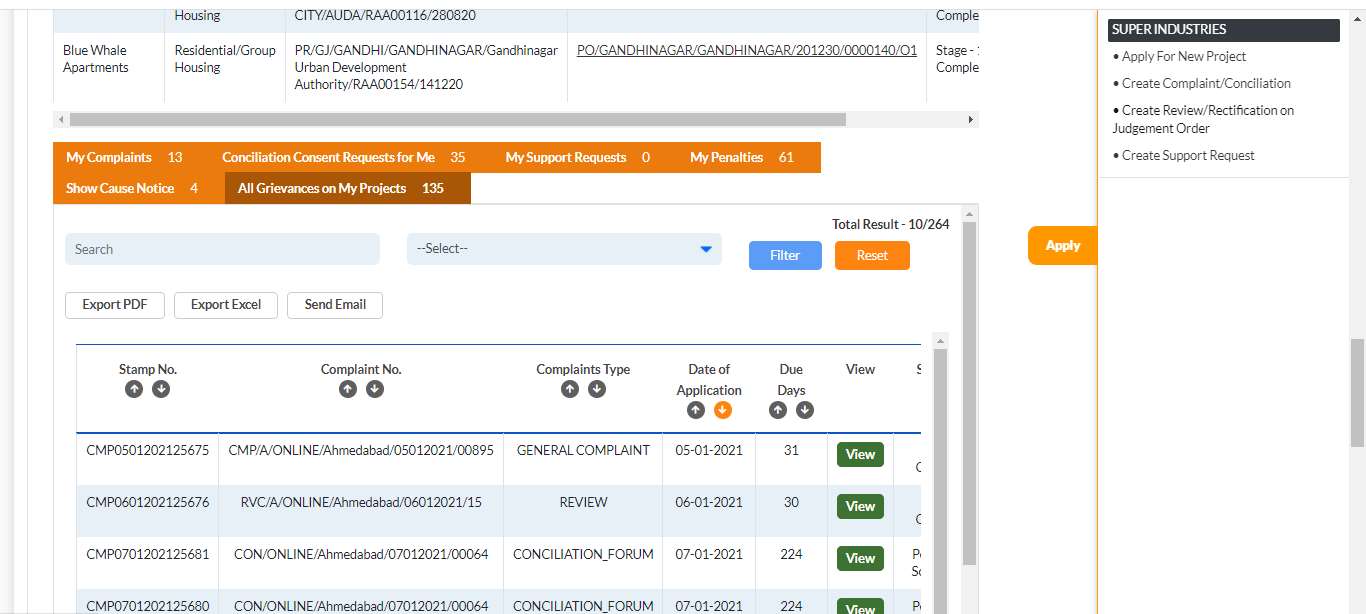
Go back to your Citizen Dashboard and click the My Complaints tab. Your newly filed complaint appears in the list.
Columns in the My Complaints table:
- Stamp No. — your CMP stamp number
- Complaint No. — formatted as
CMP/A/ONLINE/[City]/[DDMMYYYY]/[seq]orCMP/B/ONLINE/... - Complaint Type — GENERAL_COMPLAINT / CONCILIATION_FORUM / REVIEW / DEFECT
- Application Date
- View Application — View button to open the full ECOURT complaint
- Complaint Status — Pending Scrutiny / Hearing Scheduled / Case Closed / DRAFT
For promoters: The All Grievances on My Projects tab shows complaints filed against your projects. This tab includes a Due Days column showing the deadline for your response to the Authority.
Step 13: View the Filed Complaint (ECOURT Read-Only)
Click the View button next to any complaint in the My Complaints table. The FORM A COMPLAINT APPLICATION (or Form B) opens in read-only mode showing:
- Complaint Stamp No. and Complaint Type (General Online)
- PROJECT DETAILS — Registration No., Name, District, Taluka, Address, PIN
- FORM TYPE — Form A or Form B radio (read-only)
- DETAILS OF THE COMPLAINANT(S) — all complainant fields
- DETAILS OF THE RESPONDENT(S) — all respondent fields
- DETAILS OF THE COMPLAINT — Subject, Facts, Relief(s) Sought, Interim Order
- NATURE OF COMPLAINT — checkboxes; Green = selected by Complainant; Blue/Red = selected by Authority
- REGISTERED AD POST ACKNOWLEDGEMENT RECEIPTS — attached receipt viewable
- SUPPORTING DOCUMENTS — all uploaded documents with View File buttons
- PAYMENT — Payment Head, Token No., Online Transaction No., Amount A+B, Transaction Date, Status (SUCCESS), Payment Mode
- ACTIVITY LIST — chronological log of all actions on this complaint
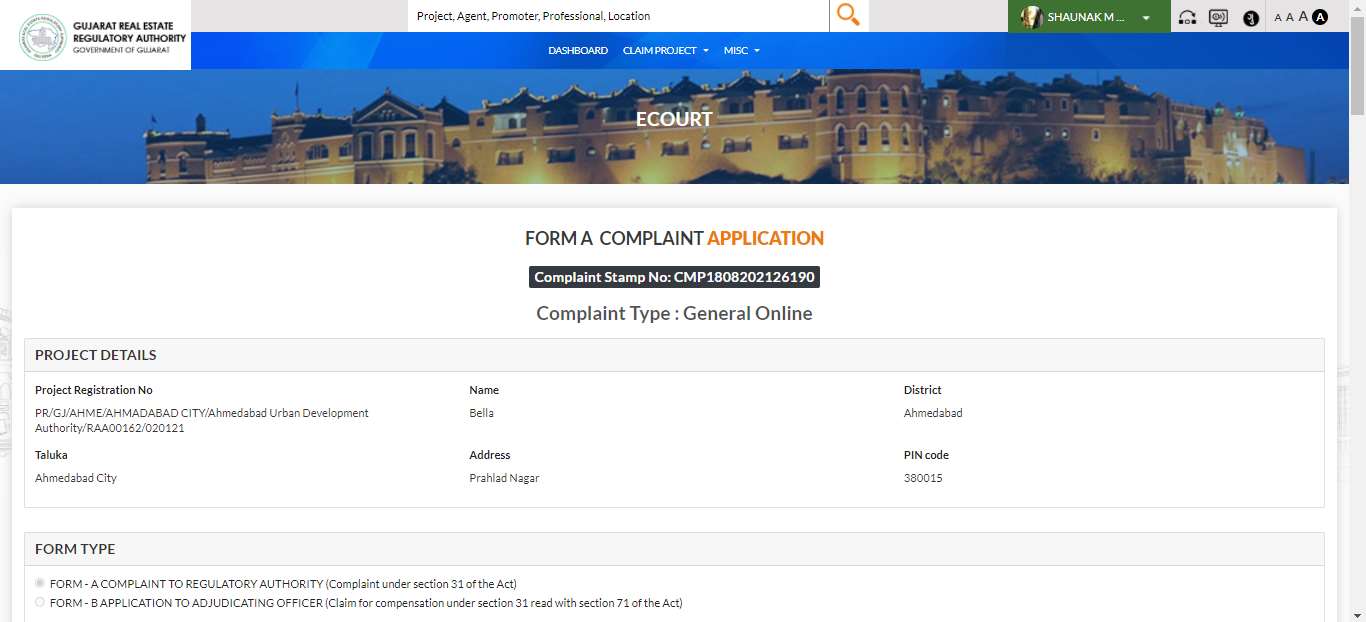
The NATURE OF COMPLAINT section uses colour coding to distinguish selections:
- Green — category selected by the Complainant
- Blue/Red — category additionally marked by the Authority during processing
The PAYMENT section at the bottom shows the full transaction record including the Online Transaction Number for bank reconciliation.
Complaint Number Format
| Field | Format | Example |
|---|---|---|
| Complaint Stamp No. | CMP[DDMMYYYY][6-digit-seq] |
CMP1808202126190 |
| Complaint No. (Form A) | CMP/A/ONLINE/[City]/[DDMMYYYY]/[seq] |
CMP/A/ONLINE/Ahmedabad/05012021/00895 |
| Complaint No. (Form B) | CMP/B/ONLINE/[City]/[DDMMYYYY]/[seq] |
CMP/B/ONLINE/Ahmedabad/08012021/00897 |
Common Issues
“Add More Respondent by Search” — email not found: The respondent’s email must be registered as a user on the GujRERA portal. If the promoter is not registered, fill the respondent’s details manually in the DETAILS OF THE RESPONDENT(S) block and click Add Into the List.
AD Post Receipt upload missing: The AD Post Acknowledgement Receipt is a mandatory field under GujRERA Rules 12C. The form will not proceed without it. Send the registered post to the respondent before filing and keep the receipt ready before starting the complaint form.
Payment deducted but confirmation not received: Note the GujRERA Unique Token Number from the Payment screen. Contact GujRERA via a Support Request under the Finance & Accounts department, or email epay-rera@gujarat.gov.in with the token number and SBI ePay transaction details within 7 days.
Complaint shows DRAFT status: A DRAFT status means payment was not completed or the form was saved without submission. Click Edit Draft next to the entry to resume and complete payment.
Cannot file Form B (Adjudicating Officer) — eligibility: Form B is for compensation claims under Section 71 of the RERA Act. If the Authority determines the complaint is not eligible for adjudication, it may redirect the case or require you to file Form A instead.
Official Reference
This guide is based on the official GujRERA User Manual – Grievance Redressal – External Users (V.0.1), Section 2 — Authority Complaint (Form A) & Adjudicating Complaint (Form B), pages 4–16. Prepared by PricewaterhouseCoopers for Gujarat Real Estate Regulatory Authority (GujRERA), Government of Gujarat.
For the official complaint portal, visit: https://gujrera.gujarat.gov.in/