
How to Apply for Profile Change With Fees (PCWF) on GujRERA Portal — TP, Legal and Both

GujRERA PCWF (Profile Change With Fees) allows a registered project promoter to make changes to a project's technical or legal details after registration. All changes are made through a formal online application on the GujRERA 2.0 portal, require a fee payment, and generate a unique Acknowledgement Number that can be tracked on your dashboard.
Three types of PCWF are available:
| Type | What Can Be Changed |
|---|---|
| TP (Technical) Profile Change | Project Name, Authorized Signatory, Form B |
| Legal Profile Change | Encumbrance Certificate, Sale Deed, Sale Agreement, Form B / B1 / B2, Allotment Letter |
| Both (TP + Legal) | All of the above in a single combined application |
Table of Contents
- Before You Begin
- Step 1: Open the Project and Click Apply → Profile Change Request
- Section 3.1 — TP Profile Change (Project Name and Authorized Signatory)
- Section 3.2 — Legal Profile Change
- Section 3.3 — Both (TP + Legal) Profile Change
- Step 4: Pay Profile Change Fees
- Step 5: Download Acknowledgement and Print Application
- Tracking Your PCWF Application
- Common Issues
Before You Begin
- You must be logged in as the Promoter whose project requires the change
- Gather all updated documents before starting — the form requires uploads at the time of submission
- Critical document upload rule: When updating one Legal document, you must still upload the existing (old) version of every other Legal document field. Do not leave other fields blank or upload an unrelated file — the portal will replace whatever you upload and it cannot be easily undone
Step 1: Open the Project and Click Apply → Profile Change Request
Log in and go to your Project Dashboard. Click the orange Apply button on the right side of the screen. A collapsible menu appears with the following options under PROFILE CHANGE REQUEST:
- TP — Technical profile change
- Legal — Legal documents change
- Both (TP and Legal) — Combined change
Select the type that matches what you need to update.
Section 3.1 — TP Profile Change (Project Name and Authorized Signatory)
Step 2A: Select What to Change
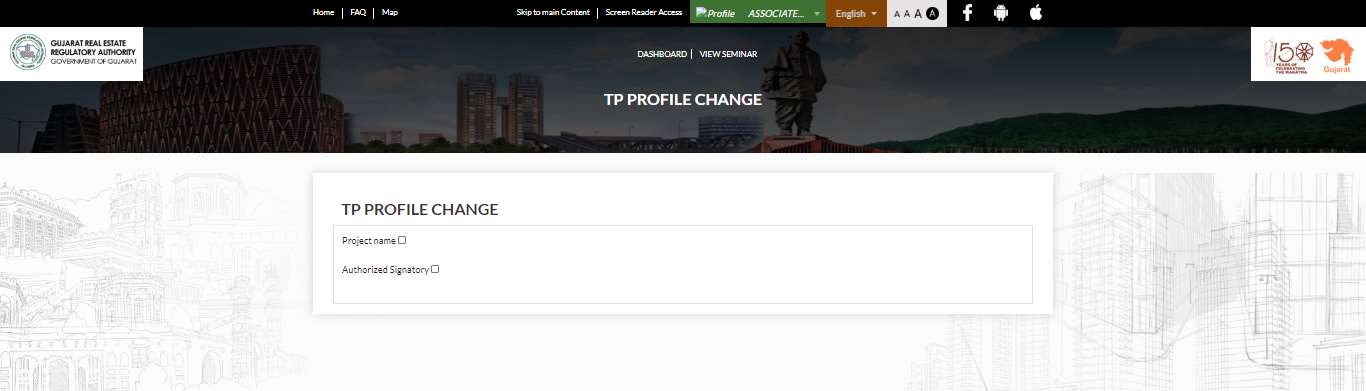
After clicking TP, the TP Profile Change selector opens with two checkboxes:
- Project name — tick if you need to change the project name
- Authorized Signatory — tick if you need to add, remove or update authorized signatories
Tick the applicable checkbox(es) and proceed.
Step 3A: Fill the TP Profile Change Form
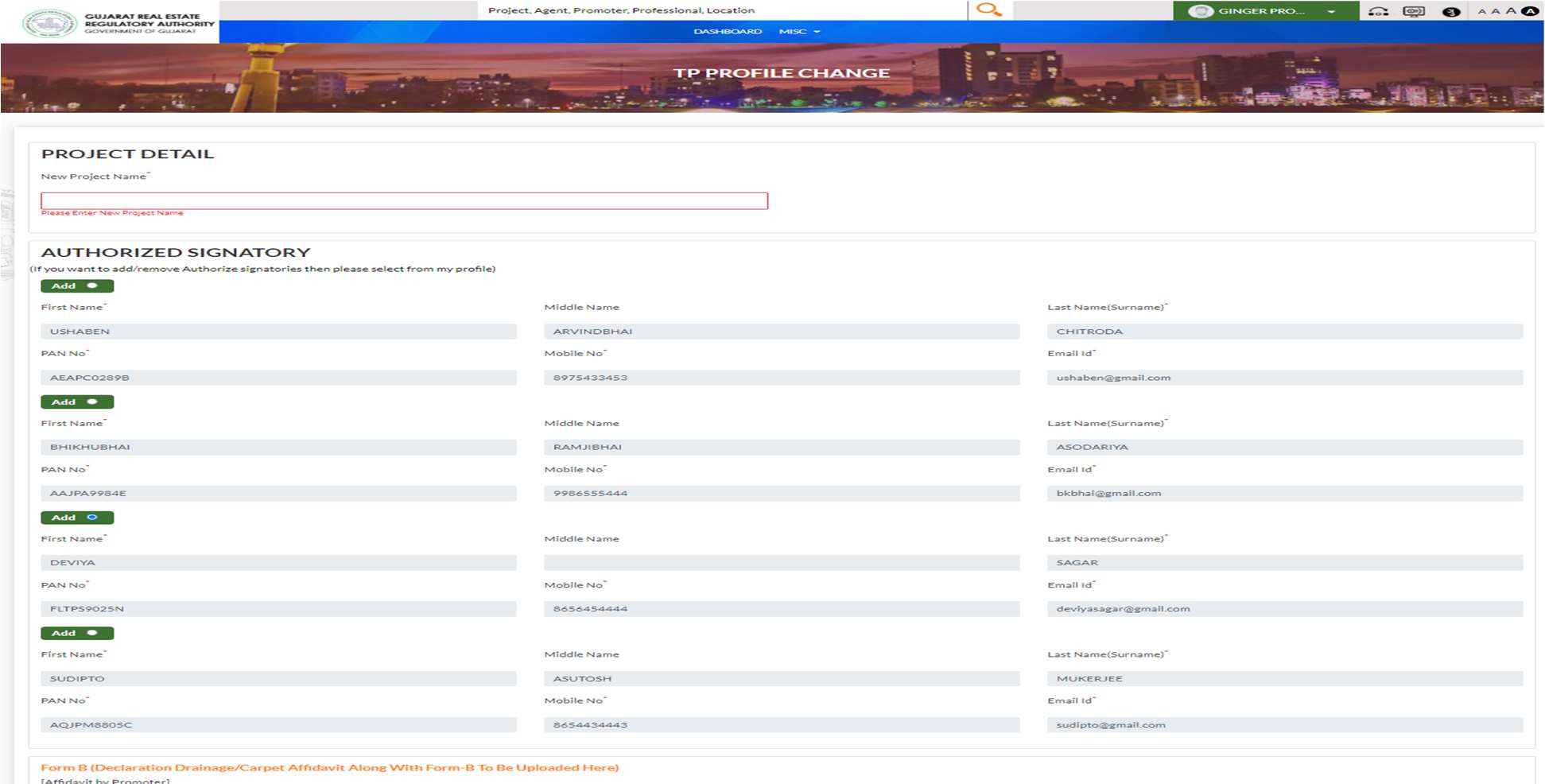
The TP Profile Change form opens with two sections:
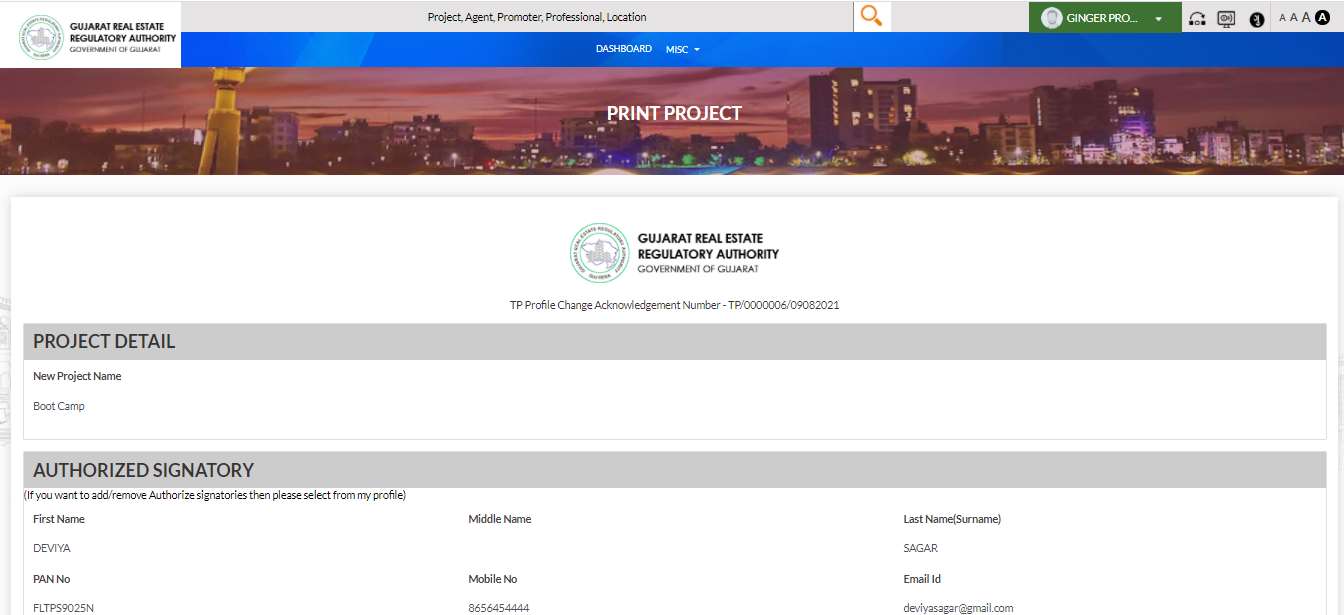
PROJECT DETAIL:
- New Project Name* — enter the corrected or updated project name
AUTHORIZED SIGNATORY:
The note at the top reads: "If you want to add/remove Authorize signatories then please select from my profile." All current signatories from your Promoter profile are listed. For each signatory:
- First Name*, Middle Name, Last Name (Surname)*
- PAN No*, Mobile No*, Email Id*
- Toggle the Add button (green = active / grey = inactive) to include or exclude a signatory
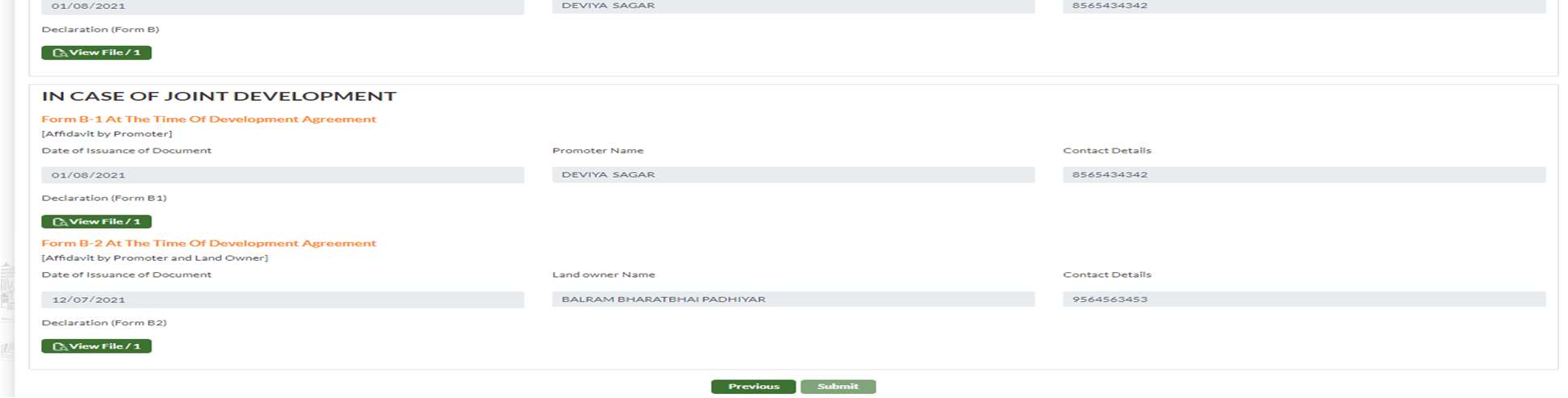
FORM B section (scroll down):
- Form B (Declaration Drainage/Carpet Affidavit) — upload the updated Form B signed by the Promoter
- IN CASE OF JOINT DEVELOPMENT:
- Form B-1 At The Time Of Development Agreement (Affidavit by Promoter) — Date of Issuance, Promoter Name, Contact Details, upload
- Form B-2 At The Time Of Development Agreement (Affidavit by Promoter and Land Owner) — Date of Issuance, Land Owner Name, Contact Details, upload
Click Submit when all fields are filled and documents uploaded.
Section 3.2 — Legal Profile Change
Step 2B: Open Legal Profile Change
Click Apply → Legal on the Project Dashboard. The Legal Profile Change form opens directly (no selector step).
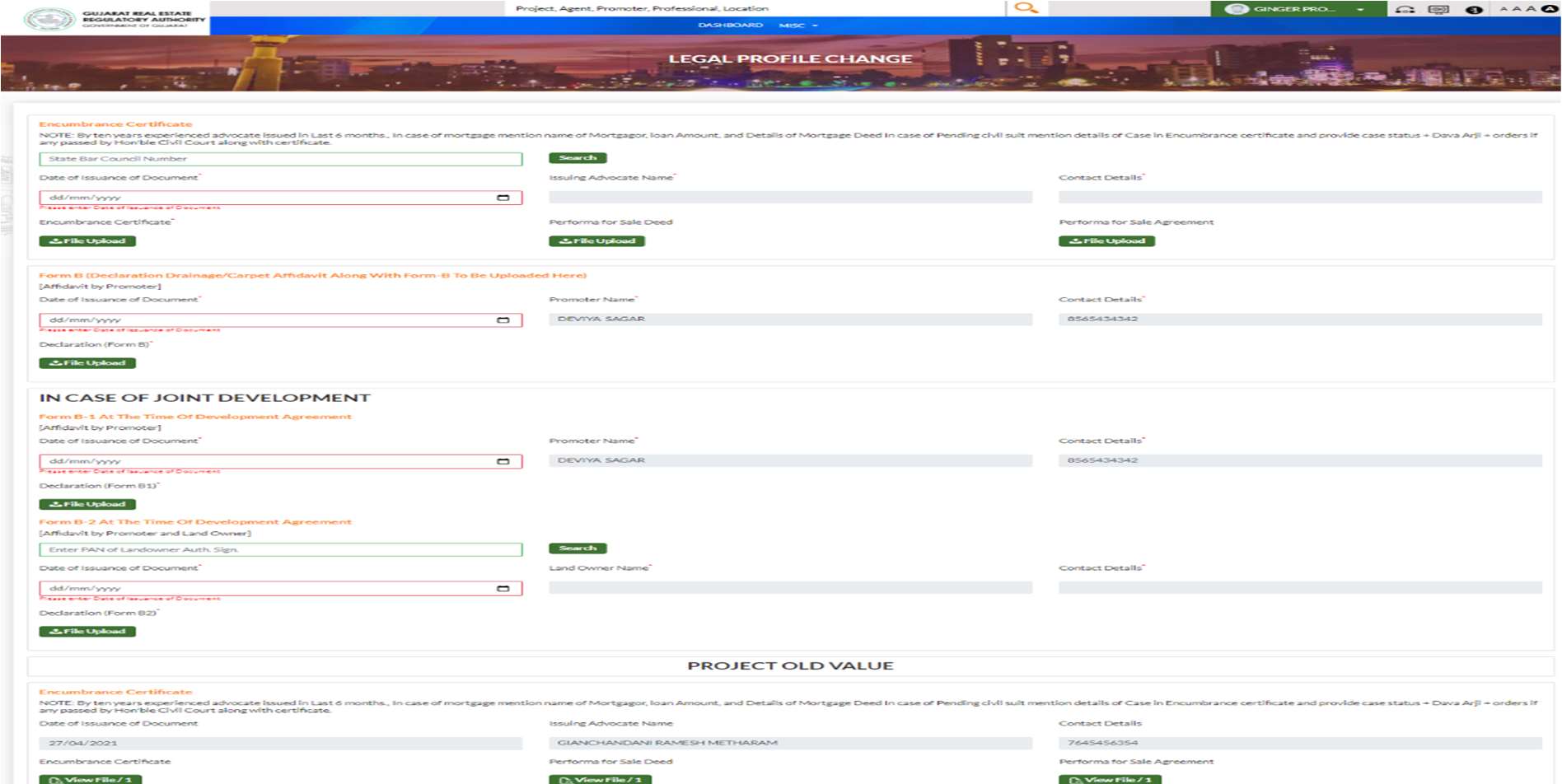
Step 3B: Fill the Legal Profile Change Form
The Legal Profile Change form contains all legal document fields. Update the document(s) you need to change and upload the existing documents in all other fields.
Encumbrance Certificate:
NOTE: By ten years experienced advocate issued in last 6 months. In case of mortgage mention name of Mortgagor, loan amount, and details of Mortgage Deed. In case of pending civil suit mention details of case in Encumbrance Certificate and provide case status + Dava Arji + orders if any passed by Hon'ble Civil Court along with certificate.
- State Bar Council Number + Search (to look up the issuing advocate)
- Date of Issuance of Document*
- Issuing Advocate Name*, Contact Details*
- Encumbrance Certificate* — File Upload
- Performa for Sale Deed — File Upload
- Performa for Sale Agreement — File Upload
Form B (Declaration Drainage/Carpet Affidavit Along With Form-B):
- Date of Issuance of Document*, Promoter Name*, Contact Details*
- Declaration (Form B)* — File Upload
IN CASE OF JOINT DEVELOPMENT:
- Form B-1 (Affidavit by Promoter) — Date of Issuance*, Promoter Name*, Contact Details*, Declaration (Form B1)*
- Form B-2 (Affidavit by Promoter and Land Owner) — Search by Land Owner PAN, Date of Issuance*, Land Owner Name*, Contact Details*, Declaration (Form B2)*
PROJECT OLD VALUE section (read-only): Shows all currently registered documents with View File buttons — use these to download the existing documents before uploading updated versions.
Click Submit (or Next if Sale Deed / Sale Agreement / Allotment Letter fields appear on a subsequent page) once all documents are uploaded.
Section 3.3 — Both (TP + Legal) Profile Change
Step 2C: Open Both Profile Change
Click Apply → Both (TP and Legal) on the Project Dashboard.
Step 3C: Fill the Combined Form
The Both Profile Change form combines all TP and Legal fields in a single application — fill in the same fields as described in 3.1 and 3.2 above:
- Project Name (if changing)
- Authorized Signatory (add/remove/update)
- Encumbrance Certificate + related legal documents
- Form B / B1 / B2 (as applicable)
- Sale Deed, Sale Agreement, Allotment Letter updates
Tip: Using "Both" in a single application means one payment and one Acknowledgement Number covers all changes, which is more efficient than filing TP and Legal separately when both are needed.
Click Submit when all sections are complete.
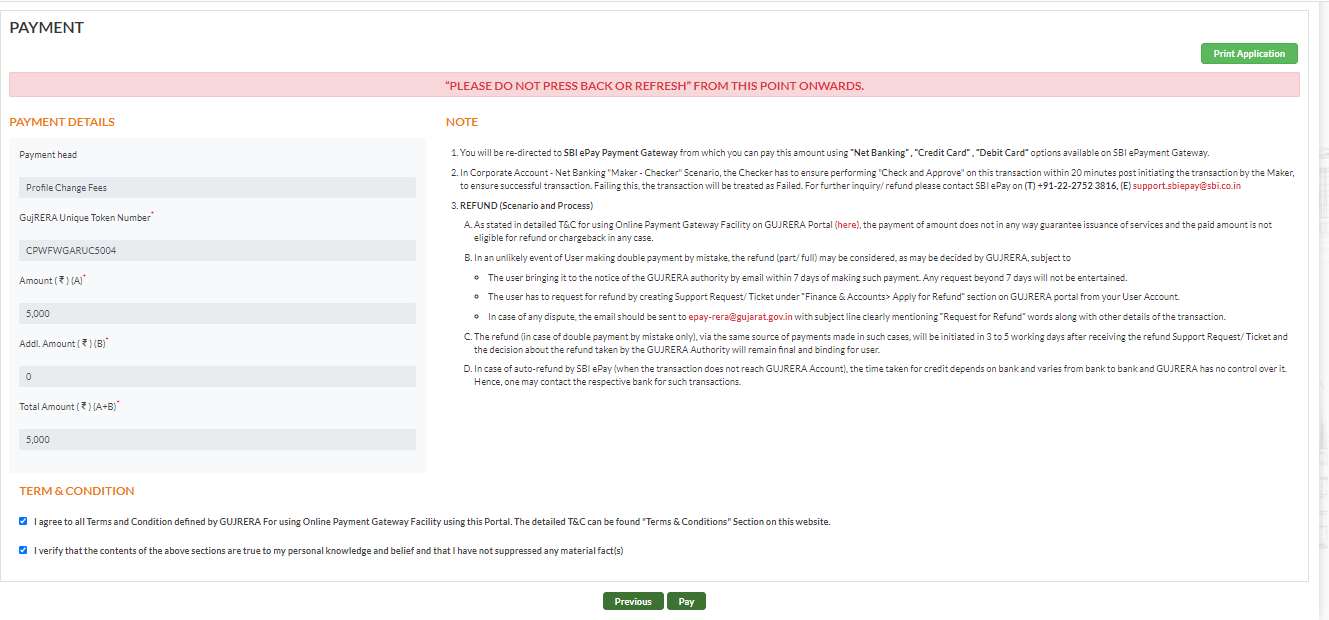
Step 4: Pay Profile Change Fees
After submitting the form, the Payment screen appears for all three PCWF types. The payment details show:
- Payment head: Profile Change Fees
- GujRERA Unique Token Number — note this for receipt tracking (e.g.
CPWFWGARUC5004) - Amount (₹) (A) — base profile change fee (e.g. ₹5,000)
- Addl. Amount (₹) (B) — late submission charges if applicable
- Total Amount (₹) (A+B)
Tick both Term & Condition checkboxes and click Pay.
Warning shown on screen: "PLEASE DO NOT PRESS BACK OR REFRESH FROM THIS POINT ONWARDS."
You are redirected to the SBI ePay gateway — complete payment via Debit/Credit Card, Internet Banking, BHIM UPI, or other available methods. For Corporate Net Banking, the Maker-Checker approval must be completed within 20 minutes.
Step 5: Download Acknowledgement and Print Application
After successful payment, a unique Acknowledgement Number is generated for your PCWF application. The format is:
- TP change:
TP/XXXXXXX/DDMMYYYY - Legal change:
Legal/XXXXXXX/DDMMYYYY - Both:
Both/XXXXXXX/DDMMYYYY
Click Print Application to download the complete PCWF application as a PDF — it includes the Acknowledgement Number, all updated fields, and the list of uploaded documents.
Click Print Receipt to download the payment receipt with the SBI ePay Transaction Number and Token Number.
Tracking Your PCWF Application
After submission, the PCWF application appears on your Project Dashboard in two sections:
- Pending on Promoter — actions required from your side (if GujRERA raises a query)
- Pending on Authority — application is under review by GujRERA
Columns: Application, Project Name, Type, Ack. No., Status, Action
Common Issues
Documents rejected / query raised by Authority: If GujRERA raises a query on the PCWF application, it appears in the "Pending on Promoter" section on your dashboard. Click Action to respond and re-upload the corrected documents.
Uploaded wrong document in an unchanged field: The portal replaces the registered document with whatever you upload. If an incorrect document was uploaded, you must file a new PCWF application and upload the correct document to replace it. Contact GujRERA support at inforera@gujarat.gov.in if the error causes a compliance issue.
Authorized Signatory not appearing in the TP form list: The signatory must be added to your Promoter Profile first. Go to your Promoter account profile, add the signatory details, then return to the PCWF TP form — they will appear in the list.
Payment deducted but Acknowledgement Number not generated: Note the Unique Token Number from the payment screen and raise a Support Ticket under Finance & Accounts → Apply for Refund, or email epay-rera@gujarat.gov.in with the token and transaction details.