
How to Apply for GujRERA Conciliation Forum — Step-by-Step Guide
The GujRERA Conciliation Forum is an alternative dispute resolution mechanism established under Section 32 of the RERA Act 2016. It provides allottees and promoters a structured, cost-effective mediation process without requiring court attendance or advocate fees. The forum is facilitated by nominees of the Buyer Association, Promoter Association, and a RERA-appointed conciliation consultant.
Critical requirement: Conciliation proceeds only if all respondents give their consent. If any respondent selects No, the case is closed and the applicant is advised to file a formal complaint instead (Form A or Form B).
Source: This guide is based on GujRERA User Manual – Grievance Redressal – External Users (V.0.1), Section 3 (pages 17–29), published by Gujarat Real Estate Regulatory Authority.
Table of Contents
- Before You Begin
- Step 1: Log In and Open the Create Complaint / Conciliation Option
- Step 2: Choose Conciliation — Select Yes
- Step 3: Search and Select the Project
- Step 4: Fill Applicant Details
- Step 5: Fill Respondent Details
- Step 6: Fill Details of the Dispute
- Step 7: Pay ₹1,000 Conciliation Fee
- Step 8: Collect Your Conciliation Stamp Number
- Step 9: Track Conciliation Status on Your Dashboard
- Step 10: Respondent (Promoter) Gives Consent
- Step 11: Promoter Reviews Application and Submits OTP
- Step 12: Track After Consent — MEETING IN PROGRESS
- Conciliation Number Format
- Common Issues
- Official Reference
Before You Begin
- You must have a registered account on https://gujrera.gujarat.gov.in/. New users must Sign Up first.
- Have the Project Registration Number of the disputed project ready.
- Prepare supporting documents — sale deed, booking form, payment receipts, correspondence with the promoter.
- Note: there is no AD Post requirement for conciliation (unlike Form A/B complaints).
Step 1: Log In and Open the Create Complaint / Conciliation Option
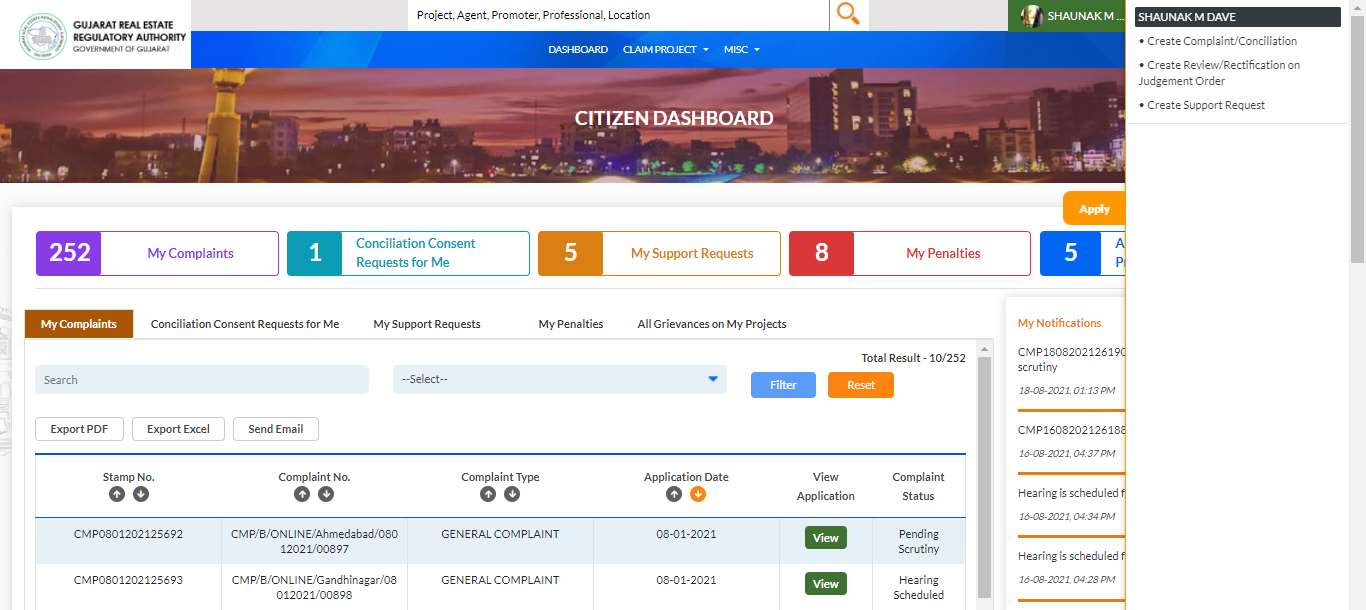
Log in to the GujRERA portal and go to your Citizen Dashboard. On the right-side panel, click Create Complaint/Conciliation.
Step 2: Choose Conciliation — Select Yes
A popup appears: "Do you want to opt for conciliation?"
Read the Objective and Advantages. Click Yes to proceed to the Conciliation Registration form.
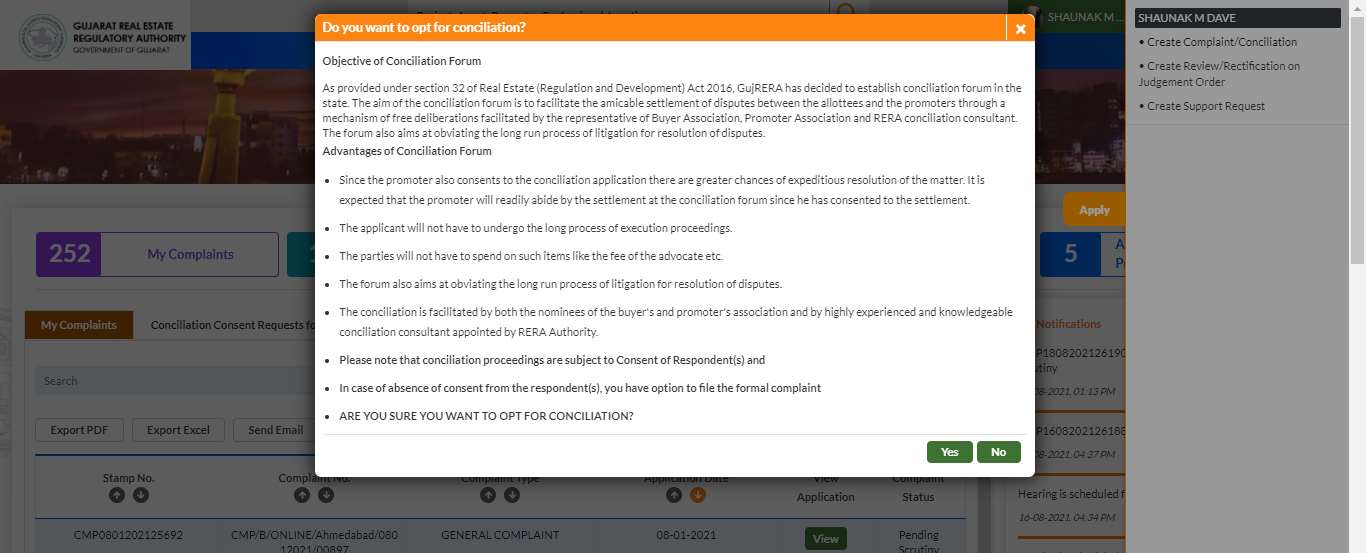
Tip: If you expect the promoter to refuse consent, file a formal Form A complaint directly (click No). Conciliation is best when both sides are open to mediation.
Step 3: Search and Select the Project
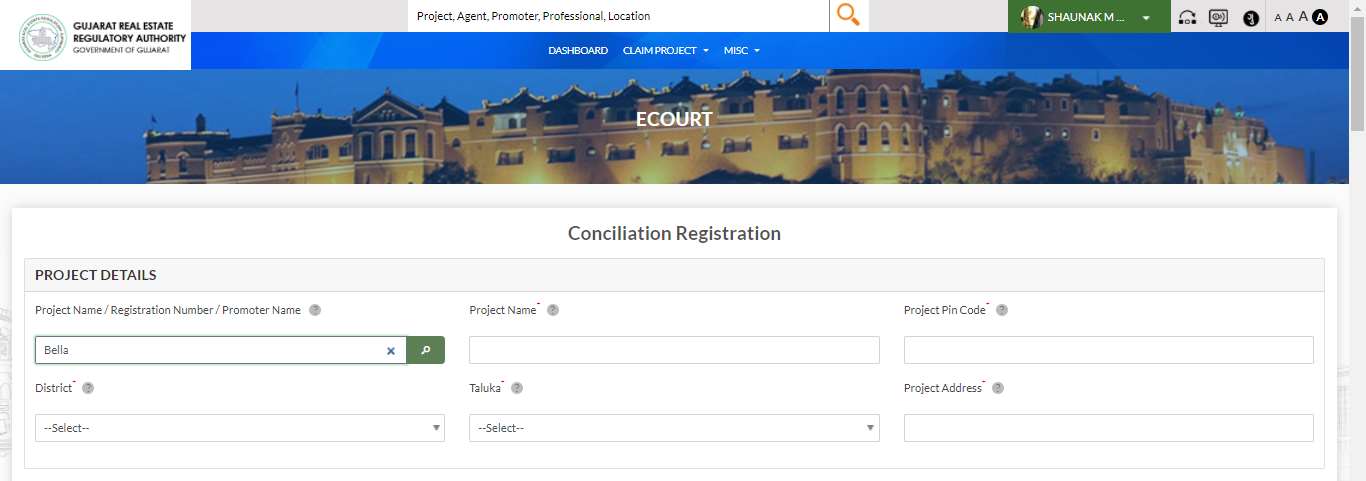
The ECOURT — Conciliation Registration form opens.
In the PROJECT DETAILS section, type the Project Name, Registration Number, or Promoter Name and click the search button.
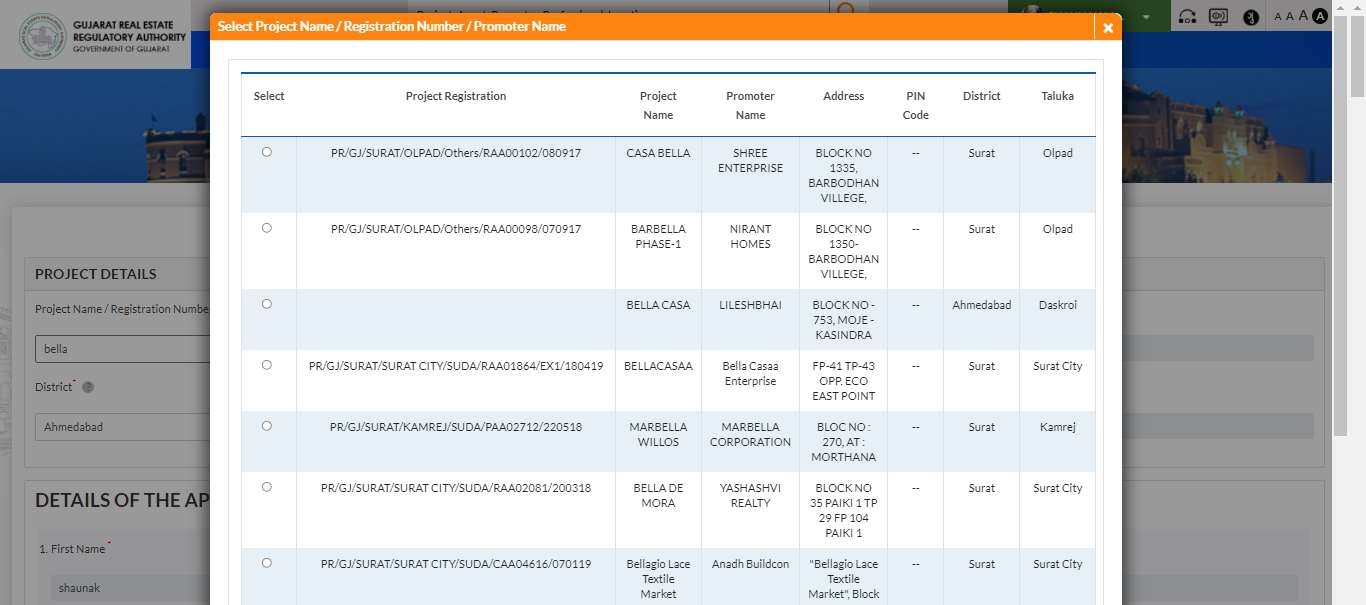
A modal popup shows all matching projects with Project Registration No., Name, Promoter Name, Address, PIN Code, District, and Taluka. Select the correct project by clicking the radio button.
Step 4: Fill Applicant Details
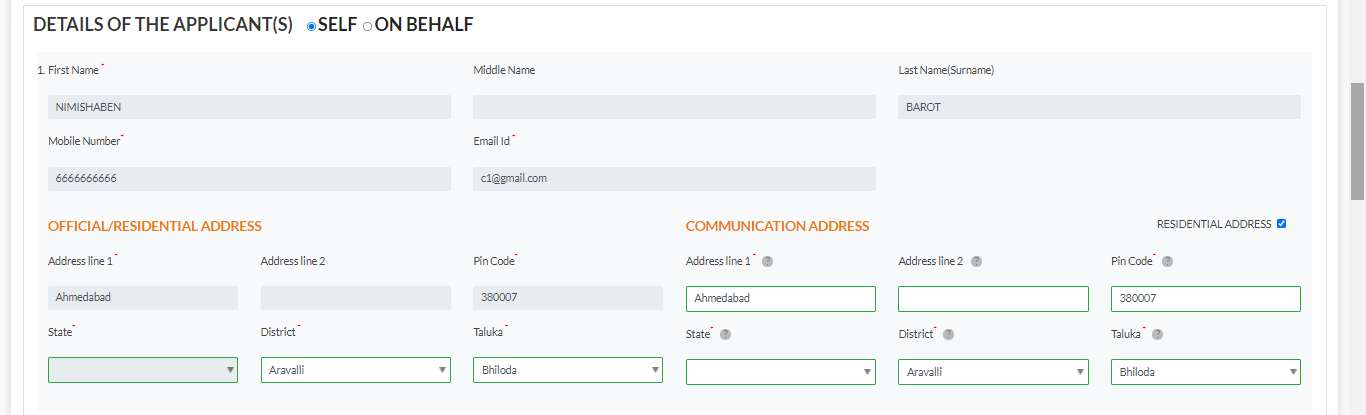
In DETAILS OF THE APPLICANT(S), select SELF (filing on your own behalf) or ON BEHALF.
Fill in:
- First Name*, Middle Name, Last Name (Surname)*
- Mobile Number*, Email Id*
- Official / Residential Address: Address line 1*, Pin Code*, State*, District*, Taluka*
- Communication Address: same fields (tick "Residential Address" checkbox to copy)
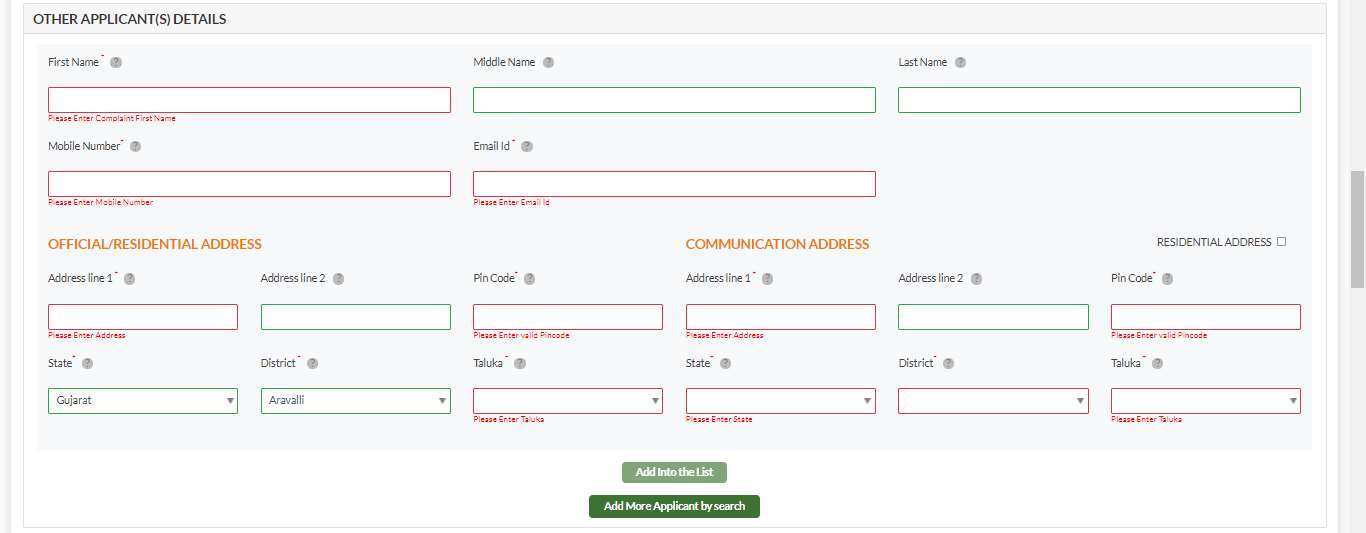
To add a co-applicant, fill the OTHER APPLICANT(S) DETAILS block. All fields marked in red below are mandatory — First Name, Mobile Number, Email, Address, Taluka must all be filled before clicking Add Into the List. To search by registered email, click Add More Applicant by search.
Step 5: Fill Respondent Details
In DETAILS OF THE RESPONDENT(S), fill each respondent's name, mobile, email, and address. Multiple respondents can be added.
Important: Every respondent listed here will receive a consent request. Each must individually log in and respond. If even one respondent selects No, the conciliation case is closed.
Step 6: Fill Details of the Dispute
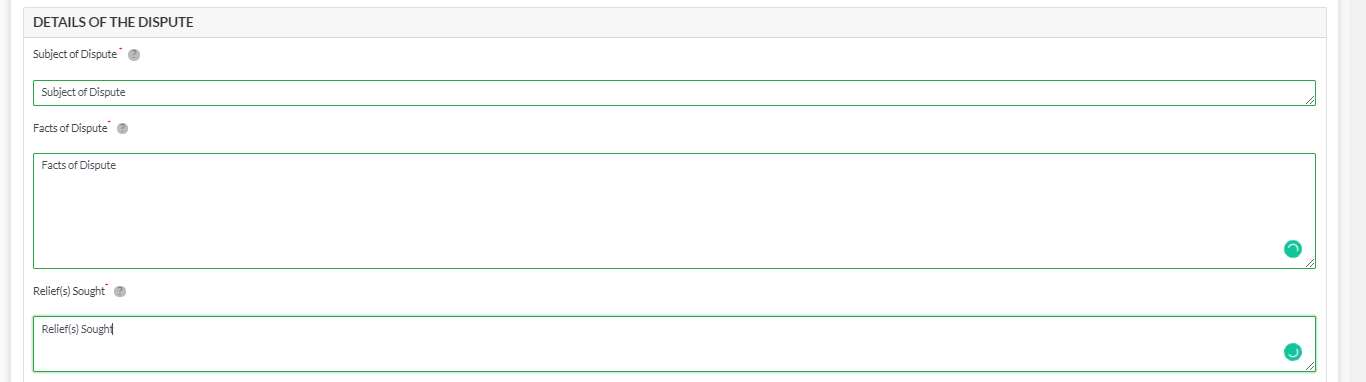
In DETAILS OF THE DISPUTE:
- Subject of Dispute* — one-line description
- Facts of Dispute* — full narrative
- Relief(s) Sought* — what settlement you are seeking
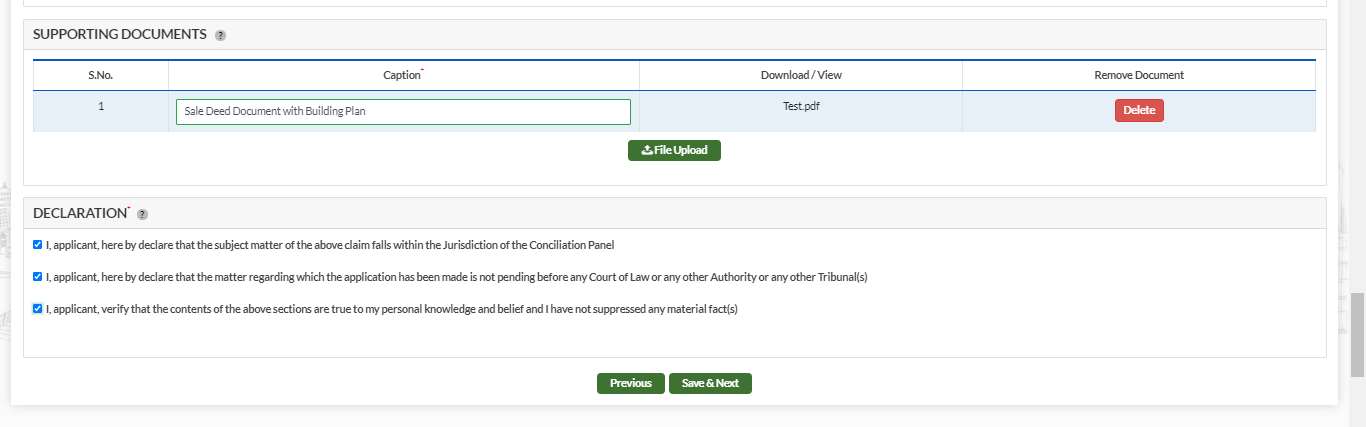
Upload supporting documents in the SUPPORTING DOCUMENTS section. Tick all three DECLARATION* checkboxes (note: jurisdiction is stated as "Conciliation Panel", not "Authority") and click Save & Next.
Step 7: Pay ₹1,000 Conciliation Fee
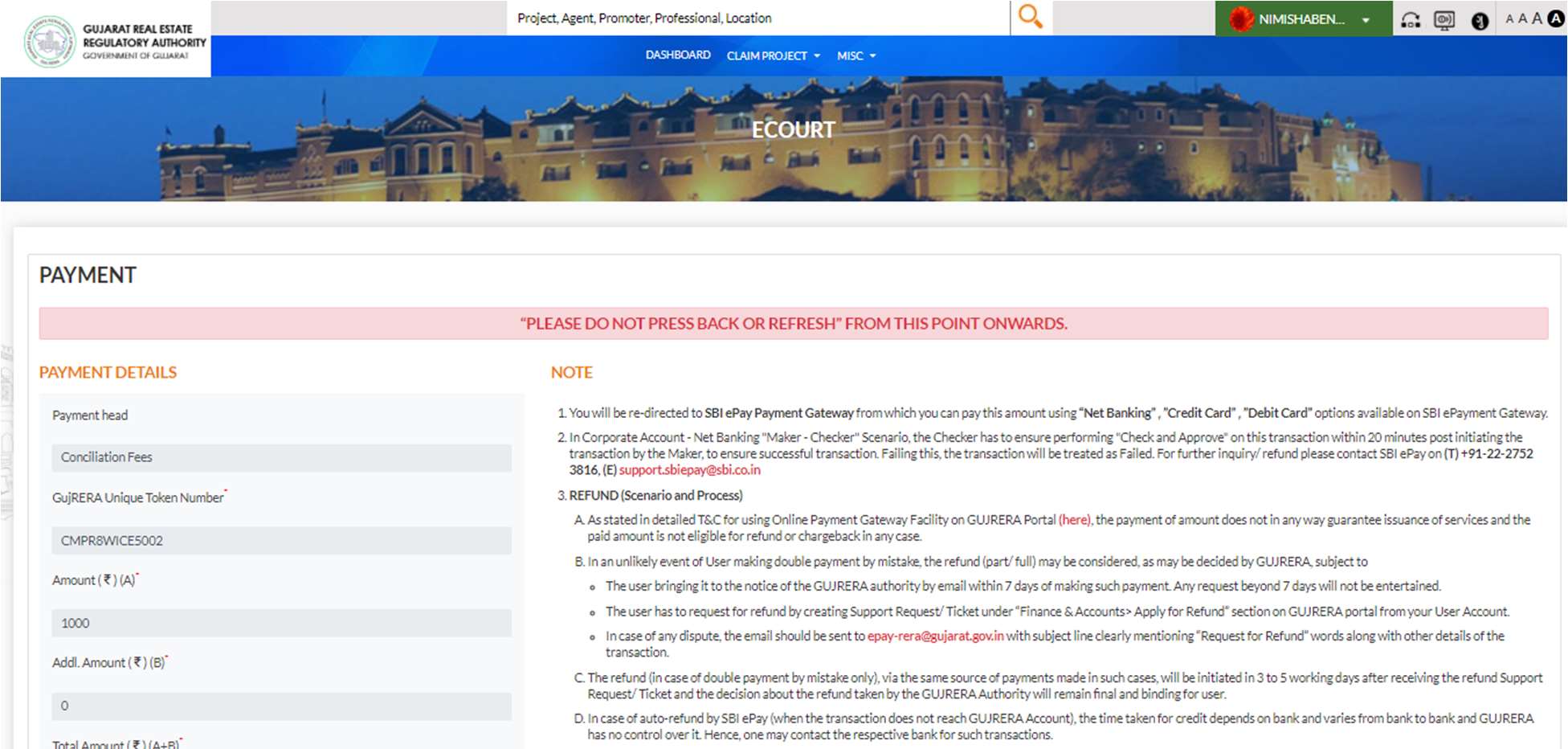
The PAYMENT screen appears.
"PLEASE DO NOT PRESS BACK OR REFRESH FROM THIS POINT ONWARDS."
| Field | Value |
|---|---|
| Payment head | Conciliation Fees |
| GujRERA Unique Token Number | Auto-generated (e.g., CMPR8WICE5002) — note this down |
| Amount (₹)(A) | ₹1,000 |
| Additional Amount (₹)(B) | ₹0 |
| Total | ₹1,000 |
Tick the Terms & Conditions checkboxes and click Submit.
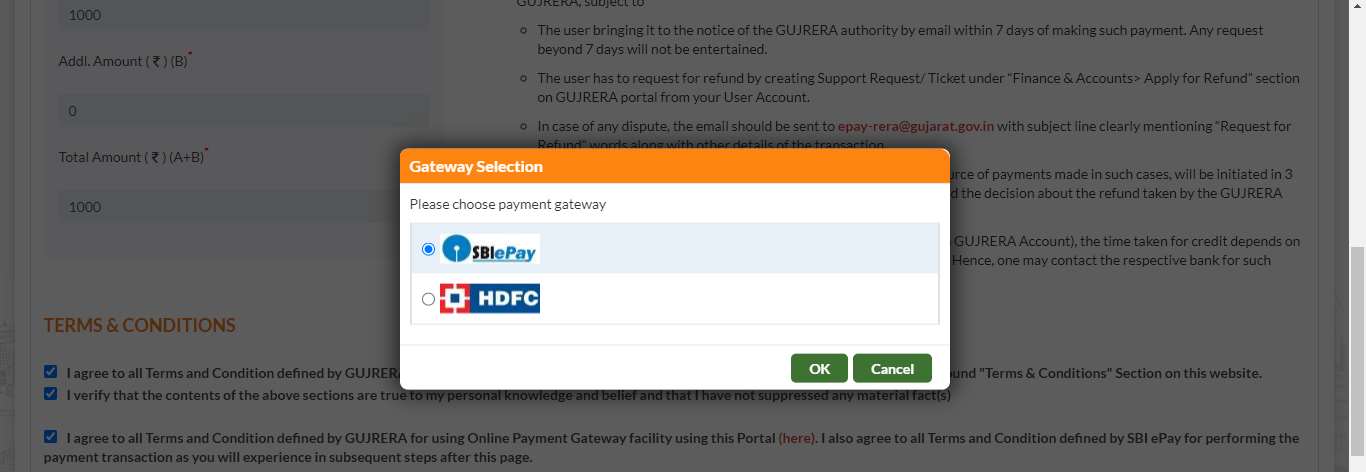
A Gateway Selection popup appears. Select SBI ePay or HDFC and click OK.
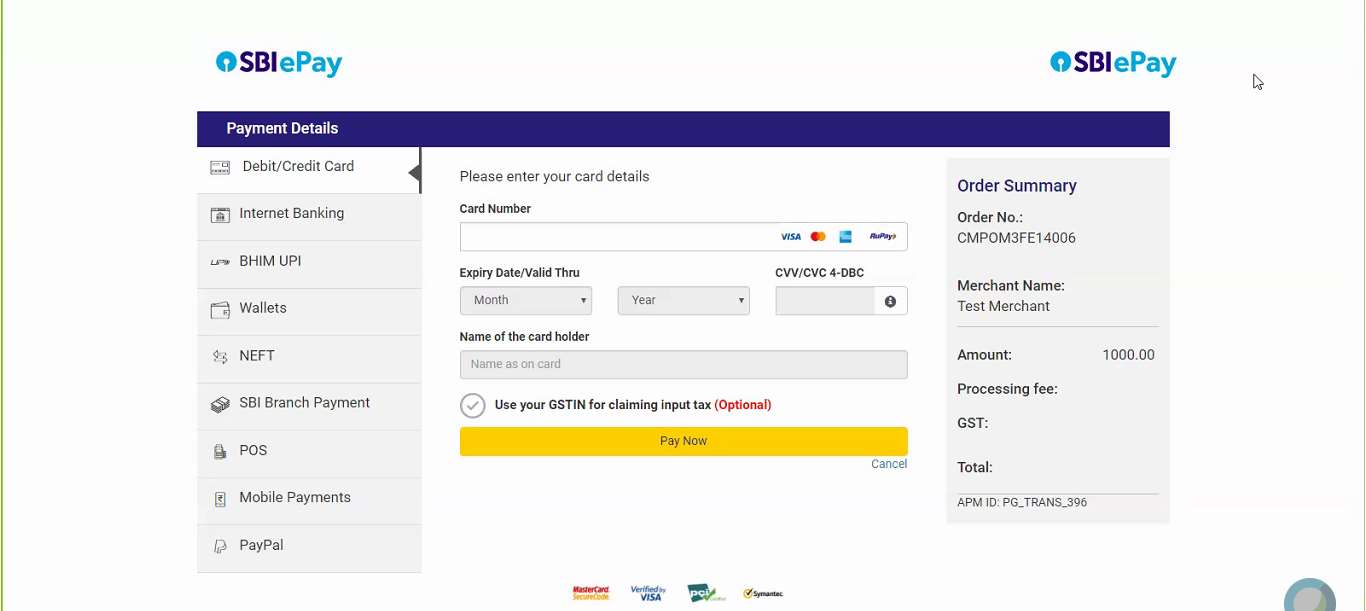
Complete payment on the SBI ePay gateway using Debit/Credit Card, Internet Banking, BHIM UPI, or any other available mode.
Step 8: Collect Your Conciliation Stamp Number
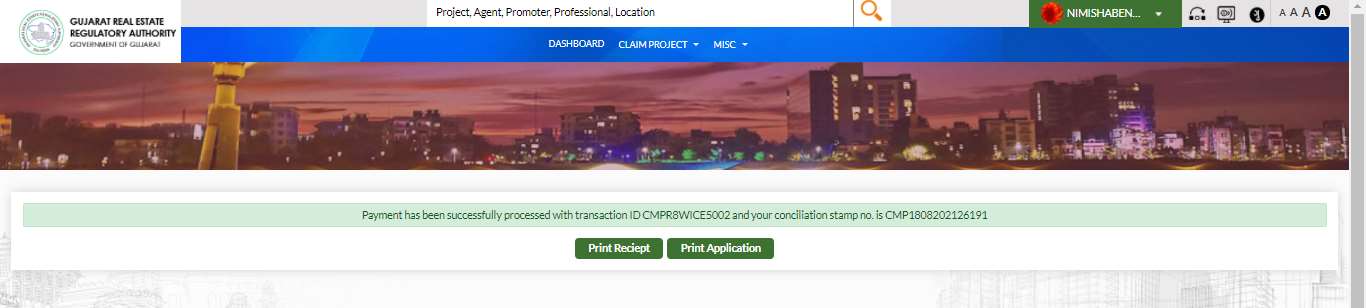
After successful payment:
"Payment has been successfully processed with transaction ID [Token No.] and your conciliation stamp no. is [Stamp No.]"
Click Print Receipt and Print Application to download records.
An Email and SMS confirmation is sent to your registered contact details.
Step 9: Track Conciliation Status on Your Dashboard
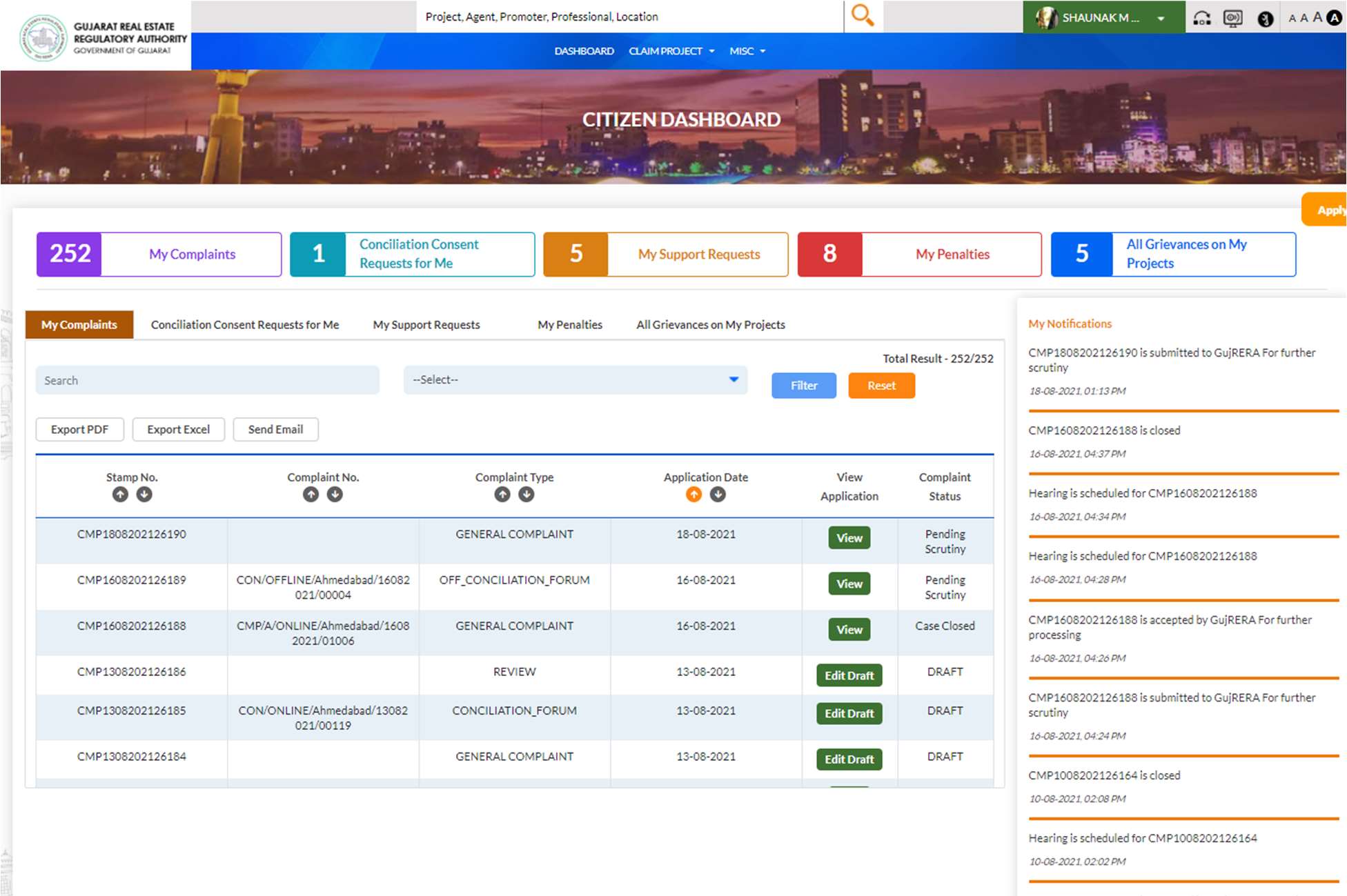
Go to your Citizen Dashboard → My Complaints tab. Your conciliation application appears with Complaint Type: CONCILIATION_FORUM.
The status remains "consent is awaited" until all respondents respond. Once all consent, the case progresses to Pending Scrutiny and then to hearing.
Step 10: Respondent (Promoter) Gives Consent
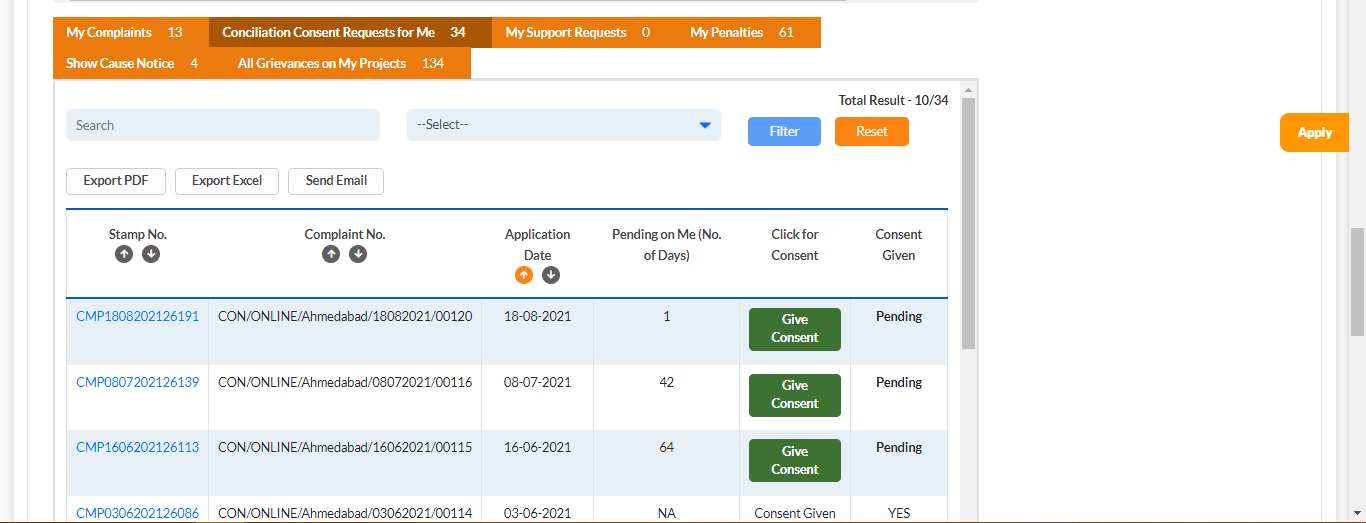
The respondent must log in to their Promoter Dashboard and click the Conciliation Consent Requests for Me tab. This tab shows all pending consent requests addressed to them.
| Column | Description |
|---|---|
| Stamp No. | Conciliation stamp number |
| Complaint No. | CON/ONLINE/[City]/[DDMMYYYY]/[seq] |
| Application Date | Date applicant filed |
| Pending on Me (No. of Days) | Days elapsed since request |
| Click for Consent | Give Consent button |
| Consent Given | YES / Pending |
Click Give Consent against the pending request.
Step 11: Promoter Reviews Application and Submits OTP
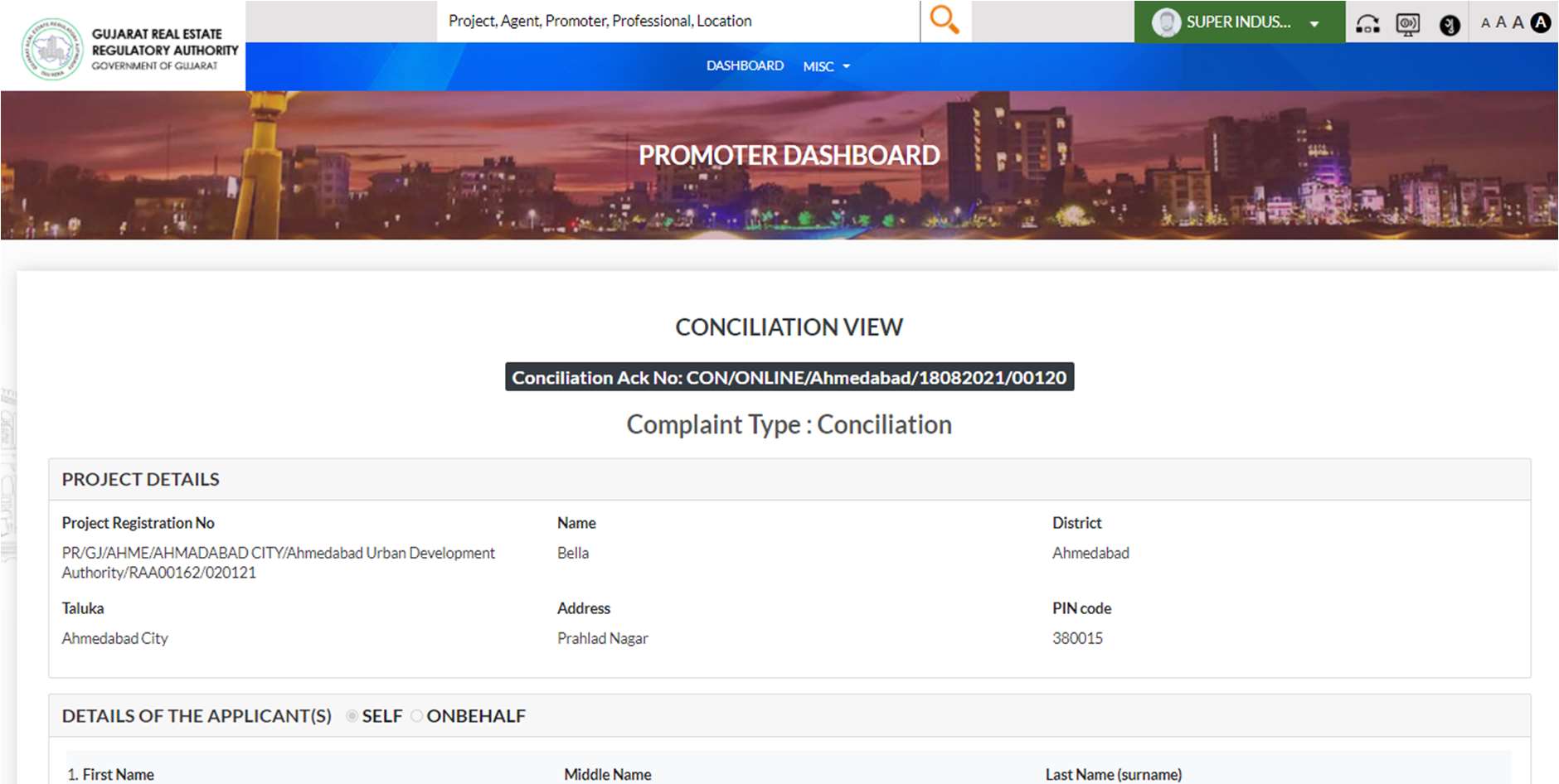
Clicking Give Consent opens the CONCILIATION VIEW — a full read-only view of the applicant's submission showing:
- Conciliation Ack No (e.g., CON/ONLINE/Ahmedabad/18082021/00120)
- Complaint Type: Conciliation
- PROJECT DETAILS, DETAILS OF THE APPLICANT(S), DETAILS OF THE RESPONDENT(S)
- DETAILS OF THE CASE (Subject, Facts, Compensation Sought)
- RESPONDENT CONSENT(S) table
- PAYMENT section + ACTIVITY LIST
After reviewing, the promoter scrolls to "WOULD YOU LIKE TO GIVE CONSENT?" (or "ARE YOU AGREE WITH THIS CONSENT?"), selects Yes or No, and clicks Submit. A Validate OTP popup appears requiring the Mobile OTP sent to the promoter's registered mobile number.
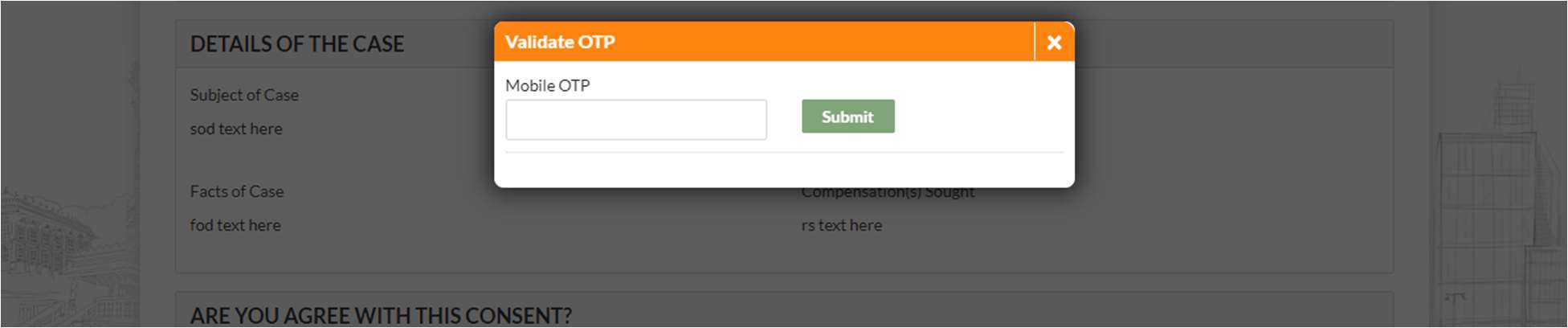
- Yes → OTP → Submit — conciliation proceeds; GujRERA schedules the meeting
- No → OTP → Submit — case closed; applicant notified to file a formal complaint
Step 12: Track After Consent — MEETING IN PROGRESS
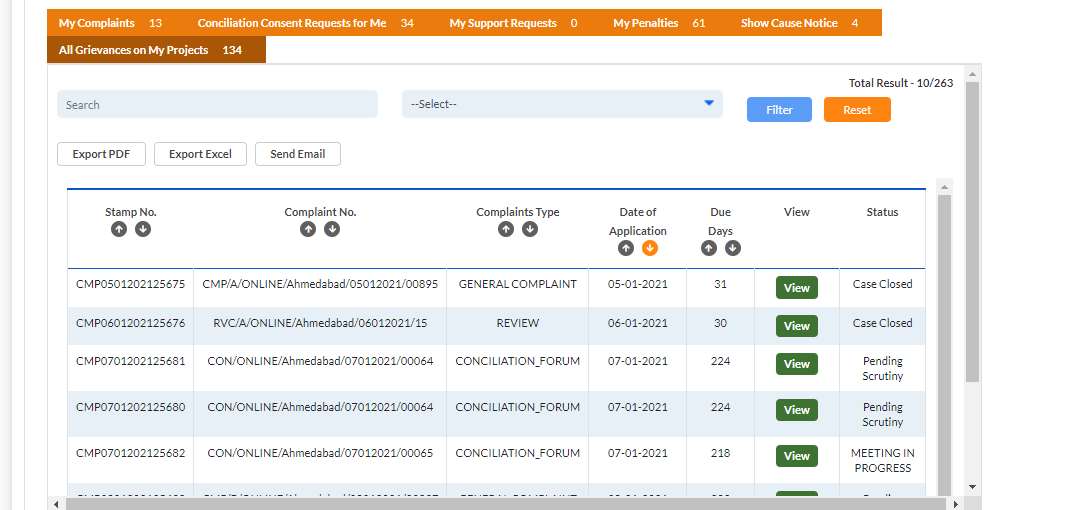
Once all respondents consent, the case status updates. The promoter's All Grievances on My Projects tab shows:
- Pending Scrutiny — consent received, case under GujRERA review
- MEETING IN PROGRESS — conciliation meeting has been scheduled and is underway
Conciliation Number Format
| Field | Format | Example |
|---|---|---|
| Conciliation Stamp No. | CMP[DDMMYYYY][seq] |
CMP1808202126191 |
| Conciliation Ack No. | CON/ONLINE/[City]/[DDMMYYYY]/[5-digit] |
CON/ONLINE/Ahmedabad/18082021/00120 |
Common Issues
Respondent not receiving consent request: The respondent must be registered on the GujRERA portal as a user. If the promoter's email in the respondent section is not registered, they cannot log in to give consent. Ensure you enter the promoter's registered GujRERA email when filling respondent details.
Respondent says No — case closed: If any respondent denies consent, the conciliation case is closed. The portal will display this status. You must then file a Form A or Form B formal complaint through the same "Create Complaint/Conciliation" option (click No on the conciliation popup this time).
Payment deducted but stamp number not received: Note the GujRERA Unique Token Number from the payment screen. Contact GujRERA via Support Request under Finance & Accounts, or email epay-rera@gujarat.gov.in with the token number within 7 days.
Conciliation status stuck at "consent is awaited": Check the Complaint No. in your My Complaints tab. The conciliation cannot proceed until all listed respondents respond. You can contact the respondent directly and ask them to log in to their Promoter Dashboard → Conciliation Consent Requests for Me tab.
Official Reference
This guide is based on the official GujRERA User Manual – Grievance Redressal – External Users (V.0.1), Section 3 — Dispute Review (Conciliation Forum), pages 17–29. Prepared by PricewaterhouseCoopers for Gujarat Real Estate Regulatory Authority (GujRERA), Government of Gujarat.
For the official grievance portal, visit: https://gujrera.gujarat.gov.in/#/website-guide/grievance-redressal